
Enterprise Guide to USB Security: Mandatory Encryption, Auditing, and Policy Enforcement
You can stop data leaks from lost USB drives and block physical-media malware infections by shifting from trusting employee compliance to controlling access and requiring mandatory, verified AES-256 encryption.
USB devices present a complex and persistent threat to corporate networks. The vast majority of data breaches related to physical media stem from two fundamental failures: unencrypted data storage and unauthorized device execution. Security posture must evolve beyond relying on employee compliance alone and move toward enforced access control and verified encryption. This guide provides the complete blueprint for enforcing a default-deny policy across all Windows environments, detailing the GPO paths, registry workarounds, and the critical encryption fallback necessary to achieve a secure perimeter.
I. Core Strategy: Immediate Security Posture
For organizations to achieve a secure posture against USB threats, three immediate actions must be taken to control both the confidentiality of data leaving the perimeter and the integrity of systems operating within it.
Three Core Immediate Actions
- Enforce Policy First: Immediately disable unauthorized removable media access organization-wide using Group Policy Objects (GPO) within a Windows domain environment or Intune for cloud-managed endpoints. This establishes a default-deny stance, ensuring no unknown hardware can introduce risk.
- Encrypt Everything: Mandate full-volume encryption using industry-standard tools like BitLocker To Go or VeraCrypt for any permitted device. AES-256 encryption provides an ironclad defense against data loss, making stolen media useless to unauthorized parties.
- Enable Auditing: Turn on the necessary non-default Windows Event Viewer logs (specifically those under DriverFrameworks-UserMode) to track all device connection, disconnection, and file operation history, ensuring forensic accountability and an unbroken audit trail.
Prerequisites and Safety Checklist
Implementing comprehensive security requires specific system support and safety measures. GPO enforcement and the robust key management features of BitLocker To Go require Windows Pro, Enterprise, or Education editions. Standard Windows Home editions lack the necessary administrative capabilities to encrypt or manage keys centrally.
Furthermore, before deploying any full-volume encryption, particularly with advanced solutions like VeraCrypt, a verified backup of the existing data is mandatory. Encryption protects data confidentiality, but if the volume header is corrupted or the encryption key is lost, the data is completely irretrievable. Loss of key escrow capability represents a significant risk to business continuity.
II. The Enterprise Threat Landscape and Regulatory Risk
USB drives are not obsolete hardware; they remain a primary, dangerous vector for sophisticated cyberattacks and a significant source of measurable financial loss and regulatory fines.
The Dual Nature of USB Threats
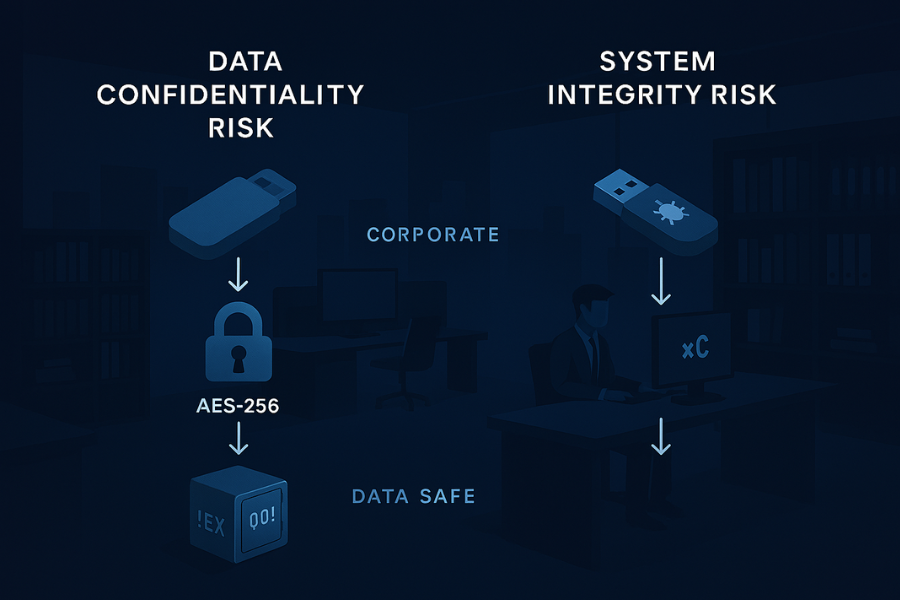
A robust USB security policy must address two distinct dangers simultaneously:
- Data Confidentiality (Exfiltration): Protected by encryption if a physical drive is lost or stolen. The drive’s content is rendered inert without the key.
- System Integrity (Malware Injection): Threatened by unauthorized execution. If a user inserts an infected drive and unlocks it on a corporate machine, the data’s confidentiality is safe, but the endpoint’s integrity is severely compromised.
Strict execution prevention and file access controls are the only viable defense against infection when the drive is actively used on a corporate endpoint.
The Malware Vector: Beyond Simple Viruses
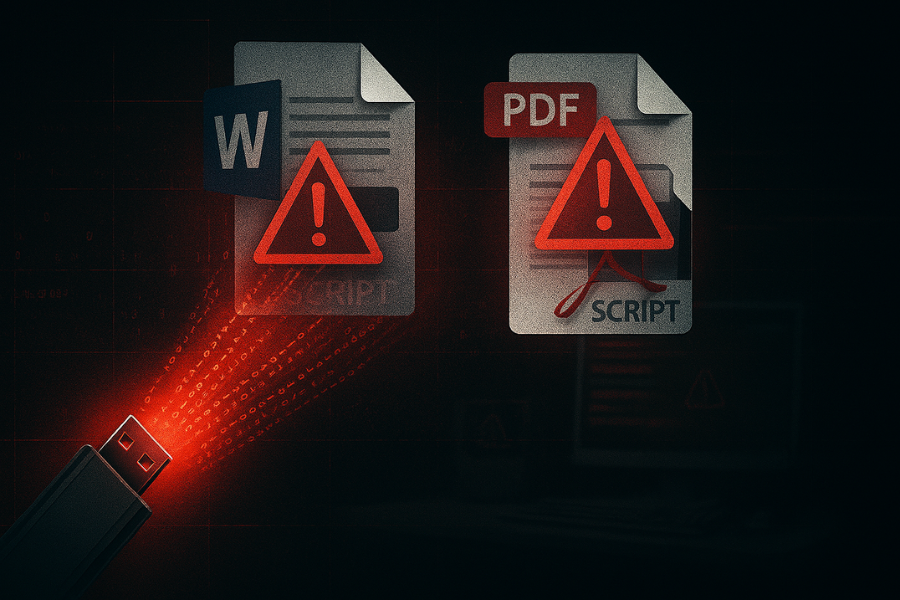
Modern threats spread via USB are highly targeted and sophisticated. Attackers use physical media to deploy advanced malware families designed to steal credentials or establish persistent backdoors. The infection relies on deceiving the user into enabling execution:
- Malicious Macros: Attackers embed executable scripts (macros) within common business files (Word, Excel). When an unsuspecting user opens the file and enables the macros, the malicious payload executes, compromising the host system.
- Polyglot Files: A file is crafted with two different formats (e.g., appearing to be a PDF but internally containing a VBScript payload). This structure is designed to evade basic operating system detection and execute malware when opened by the host application.
This evolution confirms that standard data-at-rest encryption (AES-256) is only half the solution. Execution prevention policies are mandatory to prevent infection.
The Inescapable Cost of Lost Data
The financial consequences of losing unencrypted sensitive data are substantial and rising. The average global cost of a data breach has reached multi million figures, escalating significantly in regulated sectors like finance and healthcare.
Regulatory bodies actively enforce penalties against negligence. Compliance officers must justify the investment in security controls by demonstrating that documented penaltieswhich can be six or seven figures for unencrypted data losscan be avoided through an enforced, auditable encryption policy. Losing an unencrypted drive is often treated as proof of negligence by regulators.
III. Policy Blueprint: Centralized Control Through GPO Enforcement
Centralized control requires policy mechanisms that make the use of unauthorized media physically impossible, or, at minimum, fully auditable. The best practice is to deploy a default-deny stance using GPO.
Two Essential GPO Categories
Administrators must utilize two separate GPO nodes to achieve comprehensive USB control:
| GPO Node | Location | Purpose | Threat Mitigation |
| Device Installation Restrictions | Computer Configuration / System / Device Installation / … | Blocks the installation of new or unknown hardware drivers. | Prevents malware introduction and hardware-based attacks (BadUSB). This is the default-deny switch. |
| Removable Storage Access | Computer Configuration / Administrative Templates / System / Removable Storage Access | Controls Read/Write access to installed devices. | Prevents data exfiltration (blocking writes) and script execution (blocking execution). |
How To: Enforcing Default Deny and Allowing Only Approved Models
This process restricts all USB storage devices (class-level block) and then carves out exceptions for whitelisted models based on their unique Hardware IDs.
Step 1: Open GPMC and Target the Computer OU
- Open the Group Policy Management Console (gpmc.msc) on a domain controller.
- Create a new GPO named “USB Storage Default Deny” and link it to the Organizational Unit (OU) that contains your user workstations. Policies must be linked to the computer object for device restrictions to be applied reliably.
Step 2: Enable Default Deny for Installation (The Lock)
- Edit the GPO and navigate to: Computer Configuration > Policies > Administrative Templates > System > Device Installation > Device Installation Restrictions.
- Enable “Prevent installation of removable devices”.
- Enable “Prevent installation of devices not described by other policy settings”.
- Effect: This forces all new and unknown hardware to be blocked immediately, establishing the default-deny posture.
Step 3: Creating the Whitelist (The Key)
- Before proceeding, you must gather the exact Hardware ID of your approved drive model:
- Plug the approved drive into a test machine. Open Device Manager, right click the drive, select Properties, then the Details tab, and choose Hardware Ids from the Property dropdown. Copy the longest, most specific ID (e.g.,
USBSTOR\DiskVendor_Model_1.00).
- Plug the approved drive into a test machine. Open Device Manager, right click the drive, select Properties, then the Details tab, and choose Hardware Ids from the Property dropdown. Copy the longest, most specific ID (e.g.,
- In the GPO editor, enable “Allow installation of devices that match any of these device IDs”.
- Paste your collected Hardware IDs into the list. This creates the narrow exception to the default-deny rule.
- Administrative Note: This setting requires precise matching. Avoid broad vendor-only IDs; use the full, most specific ID string.
Step 4: Controlling Execution and Write Access
- Navigate to: Computer Configuration > Administrative Templates > System > Removable Storage Access.
- For maximum security, enable “Removable Disks: Deny execute access” globally to prevent malware payloads from running.
- For general users, enable “Removable Disks: Deny write access” to prevent casual data exfiltration to allowed but unencrypted media.
Step 5: Verification and Enforcement
- On a test machine, run gpupdate /force in an elevated Command Prompt.
- Test with a new, unauthorized USB drive. It should be blocked with an installation error.
- Test with an authorized, whitelisted drive. It should mount, but attempting to copy a file to it should fail due to the “Deny write access” policy.
IV. Cross-Platform and Home Edition Workarounds
For environments not standardized on Active Directory, alternative methods are required to maintain the default-deny posture.
Windows Home Method (Registry Keys)
Windows Home editions lack GPMC, but the policy can be applied directly via the registry. This requires creating and deploying a .reg script.
Steps
- Create a
.regfile (e.g.,USB_Block.reg) with the following structure to enforce the “Deny Installation” policy:
Windows Registry Editor Version 5.00

[HKEY_LOCAL_MACHINE\SOFTWARE\Policies\Microsoft\Windows\DeviceInstall\Restrictions]
"DenyRemovableDevices"=dword:00000001
"DenyUnspecified"=dword:00000001
- To create the Allow List exception, you must manually add the approved hardware IDs under the
AllowDeviceIDskey. - Deploy the
.regfile via a deployment tool or manual execution. Requires a reboot to take effect.- Gotcha: This method is difficult to centrally manage and should be replaced by Intune or GPO if the machine is later joined to a domain.
Intune Quick Path for Cloud Managed Devices
For modern, cloud-managed endpoints, Microsoft Intune (Endpoint Manager) is the superior platform for enforcing these policies.
Steps
- In Endpoint Manager, go to Devices > Configuration profiles > Create profile.
- Set Platform to Windows 10 and later and Profile type to Settings catalog.
- Use the Settings picker to search for and configure:
- Device Installation: Set “Prevent installation of removable devices” to Enabled.
- Device Installation: Configure the Allow installation of devices that match any of these device IDs setting with your approved Hardware IDs.
- Removable Storage Access: Configure “Removable Disks: Deny write access” as needed.
- Assign the policy to a device group and monitor the report for compliance.
V. Encryption Mandate and Key Escrow

The GPO locks the environment down, but the encryption mandate protects the data that is legitimately allowed to leave. Every approved USB drive must be encrypted.
BitLocker To Go and Active Directory Integration
BitLocker To Go is the preferred solution for Windows-only environments due to its seamless integration with AD and Azure AD.
Setup Steps for Key Escrow
- Ensure the GPO “Choose how BitLocker-protected removable drives can be recovered” is configured to “Save BitLocker recovery information to Active Directory Domain Services” (or Azure AD).
- When an employee encrypts an approved USB drive (Start Menu > BitLocker Drive Encryption > Turn on BitLocker), the recovery key (the 48-digit string) is automatically stored in the computer object’s properties in AD.
- Business Continuity: This is critical. If an employee loses their password, the IT Help Desk can instantly retrieve the recovery key from the AD/Azure AD portal, ensuring business continuity and preventing permanent data loss.
Cross-Platform and Zero-Knowledge Encryption Fallback
When BitLocker is unsuitable (e.g., Mac/Linux users, or the need for zero-knowledge security), an open-source portable vault is required.
- VeraCrypt: The enterprise standard for cross-platform, high-assurance encryption. It supports AES-256 and creates portable container files (
.vc) that can be accessed on Windows, Mac, and Linux, provided the local application is installed. It is mandatory for environments with mixed OS endpoints. - Safety Setting: The user must be trained to use the Keyfile option in VeraCrypt alongside a strong password. This enforces a multi-factor authentication mechanism for the drive.
VI. Administrative Workflows and User Training
The most robust security policy fails if the user experience is unusable. Workflows must be designed to accommodate legitimate business needs safely.
The USB Exception Request Protocol
A formal, time-bound protocol is necessary to manage the tension between security and usability.
- Request: User submits a ticket requesting USB access, citing the business purpose (e.g., “Vendor handoff, Project Alpha”).
- Authorization: Management authorizes the access, specifying the required duration (e.g., 48 hours).
- Whitelisting: The administrator adds the user’s computer or the specific drive’s Hardware ID to a temporary Security Group linked to a less restrictive GPO.
- Enforcement: The GPO for that group must mandate encryption on the newly allowed drive. The IT team assists the user in setting up BitLocker or VeraCrypt and ensures the recovery key is stored in escrow.
- Revocation: After the authorized time expires, the computer object is removed from the temporary group, and the default-deny policy is restored.
User Training: The Safe Sharing Protocol
Users must understand the safe sharing protocol for external partners:
- Encrypt Locally: Files must be placed into a BitLocker or VeraCrypt volume.
- Key Separation: The password must be exchanged via a secure, out-of-band channel (Signal, phone call). The encrypted file must never be transferred with the password in the same email or chat thread.
- Data Destruction: Upon project completion, the user must securely delete all copies of the exported data and rotate the volume’s key/password.
VII. Troubleshooting and Resolution Scripts
When a user encounters a block, rapid and accurate troubleshooting is necessary.
Root Causes (Ranked by Frequency)
- GPO/Policy Conflict: The most frequent cause is a local drive being silently blocked by the central domain policy (Device Installation Restrictions).
- Human Error: Incorrect password entry, failure to select the required keyfile, or keyboard configuration issues (e.g., CAPS lock).
- Pre-Installed Device Conflict: The USB drive was connected and its driver was installed before the new GPO was applied, bypassing the installation restriction.
Resolution Script: Device Installation Block
| Symptom (Error Message)</strong> | Cause | Non-Destructive Test | IT Resolution Script |
| “This device is blocked by group policy.” | Default Deny (Device Installation Restrictions) applied. | Run gpresult /r in admin Command Prompt to confirm the policy is enforced. | If approved, capture the Hardware ID, add it to the GPO allow list, and run gpupdate /force on the client. |
| Approved model fails to install | Hardware ID mismatch or the GPO list is corrupted. | Check Device Manager, verify the Hardware ID copied matches the GPO entry exactly. | Use the most specific, longest Hardware ID string available. |
| Device still works after block is applied | The driver was installed before the policy was active. | Check Device Manager for a working driver for the unauthorized device. | Enable “Also apply to matching devices already installed” in the GPO, or manually uninstall the driver and run gpupdate /force. |
Resolution Script: Encryption Failure
| Symptom (Error Message) | Cause | Non-Destructive Test | IT Resolution Script |
| “Access is denied.” (When copying to an unlocked drive) | Removable Storage Access policy denies write permission. | Check Removable Storage Access GPO. | If approved for write access, move the user’s computer object to an OU with a non-configured write policy. |
| “Incorrect volume password or keyfile.” | Typographical error or CAPS lock. | Attempt to unlock on a second, known-good machine. | If BitLocker, retrieve the 48-digit recovery key from Active Directory or Azure AD and provide it to the user. |
| Volume fails to mount (VeraCrypt) | Volume Header Corruption due to improper dismount. | Attempt Tools -> Restore Volume Header in VeraCrypt. | Use the pre-saved header backup file to restore cryptographic metadata. |
VIII. The Audit Imperative: Tracking Data Movement
Encryption protects data at rest, but auditing ensures accountability and provides the forensic record necessary to minimize liability in the event of a breach or internal policy violation.
How To: Enabling USB Auditing in Windows Event Viewer
The detailed logging necessary for enterprise accountability is disabled by default and must be explicitly enabled.
Step 1: Open Event Viewer
- Open the Start menu, type Event Viewer, and press Enter.
Step 2: Navigate to the Operational Log
- Drill down through the menu structure: Application and Services Logs > Microsoft > Windows > DriverFrameworks-UserMode.
Step 3: Enable Logging
- Right-click on the “Operational” log and select Properties.
- Check the box labeled “Enable Logging.”
- Configure the log size (e.g., 20 MB) and select the option to “Archive the log when full” to ensure continuous, non-overwritten record retention.
Scaling Auditing for the Enterprise
Manually inspecting logs on thousands of endpoints is administratively impossible. This policy step necessitates the integration of Security Information and Event Management (SIEM) systems or Endpoint Security Management (ESM) platforms.
These systems must automatically pull, analyze, and forward these critical USB activity logs (Device arrival ID 2100, removal ID 2102) centrally. This irrefutable chain of evidence is essential for demonstrating due diligence to regulators and significantly mitigating financial penalties in the event of a breach.
IX. Conclusion and Final Verdict
The persistent threat posed by USB media requires a multi-layered defense that moves beyond simple trust. Mandatory AES-256 encryption is the Confidentiality solution, providing an ironclad defense against data theft from lost drives. However, this is insufficient.
To protect System Integrity against malware, organizations must enforce strict GPO policies that deny unauthorized read and execute access, relying on a default-deny stance with whitelisted exceptions. Finally, the Audit Imperative provides the necessary accountability and due diligence required by regulators. Only through this combination of encryption, enforcement, and auditing can the enterprise truly mitigate the acute risk presented by physical media.
Frequently Asked Questions (FAQs)
Does BitLocker encrypt external drives on Windows Home Edition?
No. BitLocker To Go requires Windows Pro, Enterprise, or Education editions to initiate the encryption and manage recovery keys. Windows Home users must rely on third-party, portable vault applications like VeraCrypt.
Can malware still infect a system if the USB drive is encrypted?
Yes. Encryption provides confidentiality protection only if the drive is lost or stolen. Once the drive is unlocked and mounted, the system can execute any file on it. To prevent malware, you must enforce a Deny Execute GPO policy.
Why use VeraCrypt instead of the built-in Windows encryption tools?
VeraCrypt is essential for superior cross-platform compatibility, supporting Windows, Mac, and Linux endpoints. Its open-source nature and robust cryptographic options are critical for high-assurance environments not strictly standardized on Windows.
How do I confirm my employee didn’t copy sensitive data onto a USB?
This requires an active, enforced audit policy. You must enable USB device auditing via the Windows Event Viewer Operational Log and correlate device connection events with file operation logs to establish a forensic audit trail.
If I lose an encrypted USB drive, what is the legal liability?
If the encryption used (e.g., AES-256) meets or exceeds the regulatory standard for the protected data, the organization’s legal liability and associated regulatory fines are typically minimized, as the data is considered protected and unusable by unauthorized parties.