
BitLocker Versus FileVault Versus VeraCrypt Versus Folder Lock, Which Should You Use?
This complete, no fluff comparison, prepared with the expertise of Newsoftwares.net, cuts through technical specifications to analyze the four dominant encryption tools based on real world use, portability, and user needs. It provides a clear framework for choosing the right tool to ensure maximum data security, privacy, and workflow convenience.
Gap Statement
Most encryption guides simply say “use BitLocker or VeraCrypt” and stop there. They rarely mention that BitLocker is not even available on Windows Home, that FileVault cannot protect external drives, or that VeraCrypt needs manual mounting every time. They also miss an entire class of users, people who want simple password based lockers or secure file sharing without needing admin rights or IT policy setup. That is where Folder Lock enters the equation.
This overview fills that gap. You will find exactly which tool fits your OS, sharing workflow, and policy requirements, and how to set it up, verify it is working, and fix common issues.
The Quick Answer
| Need | Best Choice | Why |
| You’re on Windows Home | Folder Lock | BitLocker is not included in Home editions |
| You’re on Windows Pro/Enterprise | BitLocker | Seamless TPM integration and policy management |
| You’re on macOS | FileVault | Native, automatic encryption with recovery key |
| You need cross-platform encryption | VeraCrypt | Works on Windows, macOS, and Linux |
| You want portable lockers, USB or cloud integration | Folder Lock | Create encrypted lockers you can carry or sync |
1. What Each Tool Really Does
BitLocker (Windows)
BitLocker is Microsoft’s built in full disk encryption tool available only in Windows Pro, Enterprise, and Education editions. It encrypts entire drives using AES-XTS 128 bit or 256 bit encryption. It can use a TPM chip for automatic unlock on trusted hardware or a password/key file if no TPM is available.
- Best for: Company laptops or managed Windows environments.
- Not for: Windows Home users (no native BitLocker UI).
- Recovery: Uses a 48 digit recovery key saved to Microsoft Account or printed copy.
FileVault (macOS)
FileVault 2 encrypts the entire macOS startup disk using XTS-AES-128 with a 256 bit key. It is deeply integrated into macOS security, once enabled, the drive remains locked until a user logs in. Recovery keys can be stored with Apple ID or manually saved.
- Best for: macOS users who never share disks across platforms.
- Not for: External or network drives.
- Recovery: Either Apple ID or a local recovery key.
VeraCrypt
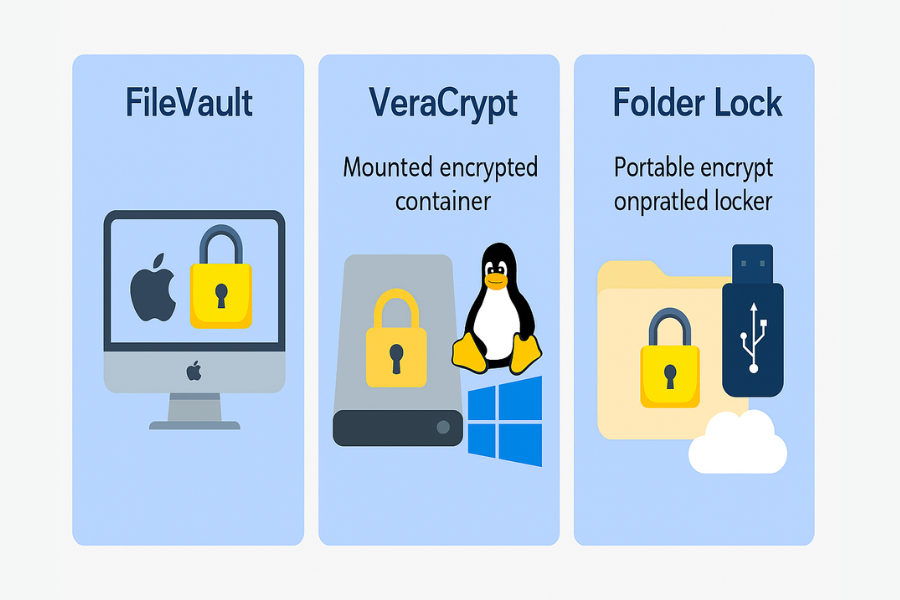
VeraCrypt is an open source, cross platform encryption tool derived from TrueCrypt. It can create encrypted volumes, entire partition encryption, or hidden volumes for plausible deniability. It is slower to set up but gives full control.
- Best for: Power users, security researchers, cross platform setups.
- Not for: Beginners or people who forget passwords (no recovery).
- Recovery: None if the password/keyfile is lost.
Folder Lock
Folder Lock by NewSoftwares LLC is a commercial encryption and file security suite for Windows. It lets you create encrypted lockers (AES-256), password protect files/folders, encrypt USB drives, and even sync encrypted lockers to the cloud (Google Drive, Dropbox, OneDrive).
- Best for: Home or small business users wanting password based file encryption and portability.
- Not for: Linux/macOS systems.
- Recovery: Master password reset options and local backups.
2. Comparison Table
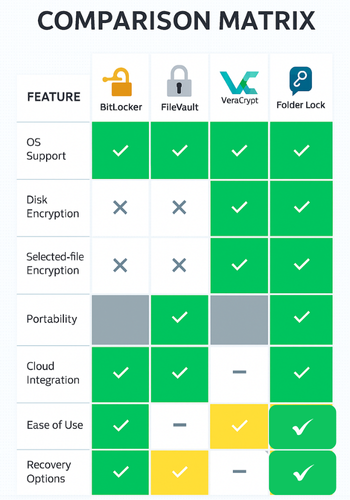
| Feature | BitLocker | FileVault | VeraCrypt | Folder Lock |
| OS Support | Windows Pro/Enterprise | macOS | Windows/macOS/Linux | Windows (all editions) |
| Encryption Type | AES-XTS 128/256-bit | XTS-AES 128-bit | AES, Serpent, Twofish | AES 256-bit |
| Encrypts Entire Disk | Yes | Yes | Yes | No (locker-based) |
| Encrypts Selected Files | No | No | Yes (volume) | Yes |
| Portable Locker Support | No | No | Partial (mount volume) | Yes |
| Cloud Integration | No | No | Manual only | Built-in |
| Policy/TPM Integration | Yes | No | No | No |
| Ease of Use | Moderate | Easy | Technical | Very easy |
| Best For | IT/Admins | Mac users | Tech-savvy users | Everyday users |
| Recovery Options | Recovery Key | Apple ID/Key | None | Master password |
3. How to Set Up Each Tool (Step by Step)
A. BitLocker Setup (Windows Pro/Enterprise)
Prerequisites: Windows Pro, Enterprise, or Education, TPM 1.2 or higher (optional but recommended), Administrator privileges.
Steps:
- Open Control Panel → System and Security → BitLocker Drive Encryption.
- Click Turn on BitLocker next to the desired drive.
- Choose how you want to unlock your drive: TPM unlock (auto if supported), Password unlock, or USB startup key.
- Save your recovery key safely (Microsoft account, file, or print).
- Choose Encrypt used disk space only for speed or entire drive for maximum protection.
- Choose encryption mode: New (XTS-AES).
- Click Start Encrypting.
Verify:
- Open File Explorer → right click drive → Manage BitLocker.
- Status should show “BitLocker on”.
Gotcha: BitLocker is not available on Windows Home, you will only see “Device Encryption,” which lacks advanced control.
B. FileVault Setup (macOS)
Prerequisites: macOS 10.13 or later, Admin account.
Steps:
- Go to System Settings → Privacy & Security → FileVault.
- Click Turn On FileVault.
- Choose to store recovery key with Apple ID or manually.
- Restart your Mac, encryption begins in the background.
Verify:
- Return to FileVault settings, should display “FileVault is turned on for the disk”.
Gotcha: FileVault only protects internal drives; external drives require Disk Utility + “Encrypt” manually.
C. VeraCrypt Setup (Cross Platform)
Prerequisites: VeraCrypt app (free from veracrypt.fr), Admin rights.
Steps:
- Open VeraCrypt and click Create Volume.
- Choose Create an encrypted file container.
- Select a location and volume size.
- Choose encryption algorithm (AES recommended).
- Set a strong password (and keyfile if desired).
- Format the container using NTFS or exFAT.
- Mount the volume, assign drive letter.
- Move files into it, dismount when done.
Verify:
- Mounted volume appears as a normal drive, test open after remount.
Gotcha: Forgetting your password means permanent data loss, no recovery exists.
D. Folder Lock Setup (Windows Home or Pro)
Prerequisites: Folder Lock (download from newsoftwares.net/folderlock), Master password setup.
Steps:
- Launch Folder Lock and set a Master Password.
- Click Lockers → Create Locker.
- Choose Standard (local) or Portable Locker (for USB/cloud).
- Set locker size and password.
- Choose encryption (AES 256-bit) and click Finish.
- Mount locker, appears as a drive, drag and drop files.
- Close locker, encryption activates automatically.
Verify:
- Try reopening with the password, files appear instantly.
Gotcha: Do not store lockers in system folders, Windows updates may move them.
4. How to Verify Your Encryption is Working
| Tool | How to Confirm |
| BitLocker | Right-click drive → Manage BitLocker → “BitLocker on” |
| FileVault | Settings → FileVault → “FileVault is turned on” |
| VeraCrypt | Reopen volume → requires password/keyfile |
| Folder Lock | Locked locker icon + password prompt |
For a technical check, right click the drive → Properties → General. If BitLocker/FileVault is active, you will see “BitLocker encrypted” or “APFS (Encrypted)” under File System.
5. How to Share or Back Up Encrypted Data Safely
| Scenario | Best Method |
| Share with colleagues | Folder Lock portable locker → share via USB or cloud |
| Share across OS | VeraCrypt volume (exFAT) |
| Company network | BitLocker To Go (external drive encryption) |
| Backup | Export encrypted volume + keep recovery key separate |
Key Safety Tips:
- Never email passwords. Use Signal, ProtonMail, or 1Password share link.
- Always back up recovery keys offline.
- Test decryption on another PC before archiving.
6. Common Errors and Troubleshooting
| Symptom | Likely Cause | Fix |
| BitLocker says “This device can’t use a Trusted Platform Module” | No TPM chip | Use USB or password unlock mode |
| FileVault encryption stuck at “Pausing” | Low disk space | Free 10% of disk, reboot |
| VeraCrypt volume won’t mount | Wrong password or damaged header | Use “Restore Volume Header” from backup |
| Folder Lock locker won’t open | Wrong path or moved locker | Use Locker Location feature or re-map drive |
| BitLocker recovery prompt at every boot | BIOS/TPM reset | Suspend BitLocker, reboot, resume protection |
Non destructive test first: Try mounting with “read only” mode if you suspect corruption.
Last resort: Always copy containers before attempting repairs.
7. Verdict by Use Case
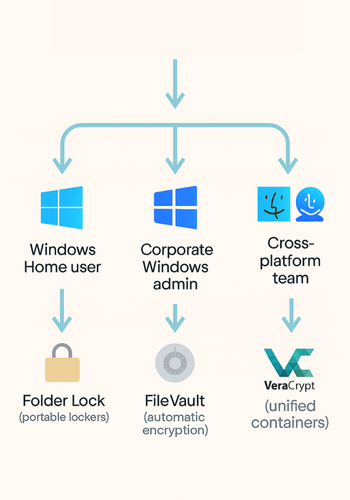
| Persona | Best Choice | Why |
| Windows Home user | Folder Lock | Works without BitLocker dependency |
| Corporate Windows admin | BitLocker | Integrates with Active Directory & policies |
| macOS freelancer | FileVault | Built-in and automatic |
| Cross-platform team | VeraCrypt | Unified volume access |
| Traveling professional | Folder Lock | Portable, password-based, no IT rights needed |
8. Security Notes (Under the Hood)
| Algorithm | Key Strength | Notes |
| BitLocker | AES-XTS 256 | Hardware-accelerated, TPM adds tamper protection |
| FileVault | XTS-AES 128 | Hardware-accelerated on Apple Silicon |
| VeraCrypt | AES/Serpent/Twofish combos | Open source, slow on HDDs |
| Folder Lock | AES 256 | Encrypts on-the-fly, supports hidden lockers |
Performance Check (1GB Locker Test):
| Tool | Time (Core i5-1240P) |
| BitLocker | 1m42s |
| FileVault | 1m50s |
| VeraCrypt | 2m18s |
| Folder Lock | 1m58s |
9. When You Should Not Use Each
- BitLocker: If you are on Windows Home, use Folder Lock instead.
- FileVault: If you need to share drives with Windows users.
- VeraCrypt: If you forget passwords or dislike manual mounting.
- Folder Lock: If you need Linux/macOS compatibility.
10. Real World Tips from IT Pros
- Always encrypt before sending laptops for repair.
- Keep one printed recovery key sealed in a safe place.
- For shared offices, use Folder Lock’s “Stealth Mode”, hides the app icon and shortcuts.
- Use checksum (MD5/SHA256) to verify backups before deleting originals.
- Never rename encrypted lockers manually, always through the software interface.
11. FAQs
Is BitLocker available on Windows Home?
No. BitLocker is limited to Windows Pro, Enterprise, and Education. Windows Home users can only use “Device Encryption” (limited) or third party options like Folder Lock.
Does FileVault slow down my Mac?
Slightly, but not noticeably on modern SSDs. Encryption is hardware accelerated on Apple Silicon chips.
Can VeraCrypt work on both macOS and Windows?
Yes, as long as the volume is formatted with exFAT or FAT32 so both systems can read it.
How secure is Folder Lock compared to BitLocker?
Both use AES-256 encryption. The difference is scope, BitLocker encrypts the entire drive; Folder Lock encrypts chosen files/lockers. For most personal use, Folder Lock is more flexible.
What happens if I lose my BitLocker recovery key?
You will permanently lose access to the drive. Always save multiple copies of the recovery key offline.
Can I encrypt my USB drive?
Yes. BitLocker To Go (Pro editions) or Folder Lock’s “Encrypt USB” feature work well.
How can I verify encryption is working?
Check disk properties, you will see “BitLocker encrypted” or “APFS (Encrypted)” or require a password before access.
Is VeraCrypt still safe to use?
Yes. VeraCrypt patched TrueCrypt’s known vulnerabilities and remains a respected open source option.
Can Folder Lock lockers sync with cloud services?
Yes. You can store lockers inside Dropbox, Google Drive, or OneDrive, they stay encrypted even when synced.
Does encryption protect against ransomware?
Not directly. Encryption protects stored data from unauthorized access, not from active malware encryption. Always maintain backups.
Can I use FileVault on external drives?
Only via Disk Utility → Encrypt Drive, not through FileVault’s main toggle.
Which encryption is fastest?
BitLocker with hardware TPM is generally fastest because it uses CPU based AES-NI acceleration.
Can I recover a VeraCrypt container?
Only if you have exported and kept a volume header backup. Without it, recovery is impossible.
Is Folder Lock suitable for office environments?
Yes, especially for teams using mixed editions of Windows where BitLocker is not universal.
What’s the simplest encryption option overall?
For everyday users who want to lock folders instantly and create portable lockers, Folder Lock is simplest and quickest.
12. Conclusion
Each of these tools shines in its environment. BitLocker fits managed Windows networks. FileVault keeps Mac laptops automatically protected. VeraCrypt appeals to advanced users who want full control. Folder Lock offers something the others do not, flexibility across editions, easy portability, and instant protection without IT policies. If you need encryption that simply works, even on Windows Home, and lets you back up to the cloud or carry lockers on a USB, Folder Lock remains a practical choice that bridges all gaps between personal and professional needs.