
Newsoftwares.net specializes in providing complementary encryption solutions for times when built-in tools like BitLocker or FileVault experience frustrating delays. This resource explains that full disk encryption often slows or stalls when disk health is marginal, the drive is too full, or the system pauses the process for power management reasons. By showing you how to check progress with precise system commands and when to pivot to targeted, faster encryption using Folder Lock or USB Secure, you can either get your run finished or safely protect your data with better-suited tools, ensuring both security and machine performance.
This guide provides a repeatable, technician-style routine to diagnose and resolve full disk encryption issues on both Windows and macOS.
Direct Answer
BitLocker or FileVault feel stuck when disk health is marginal, the drive is very full, hardware encryption is not used, or the system keeps pausing the job for power and sleep reasons, so the fix is to check progress with the right tools, clean and test the drive, keep the machine awake on power, then decide whether to let it finish, restart the run, or move to targeted encryption with tools like Folder Lock or USB Secure from NewSoftwares where that makes more sense for your data.
Gap Statement
Most explanations of slow BitLocker or FileVault runs sound like this: “It takes a while, just wait.” “Defrag the drive.” “Maybe your disk is bad.” They rarely show: How to tell the difference between normal slow progress and a truly stuck encryption run on Windows and macOS. Which exact screens and commands matter, such as manage-bde -status on Windows and fdesetup status on Mac. What to check on the drive itself when FileVault keeps saying paused or BitLocker sits at the same percent for days. When it is smarter to stop full disk encryption for a given system and use focused tools like Folder Lock or USB Secure from NewSoftwares for folders and external drives instead, especially on aging hardware. This resource treats slow BitLocker and FileVault like a small incident response task, not a vague annoyance.
TLDR Outcome
After working through this walkthrough you can
- Read BitLocker or FileVault progress like a technician, not by guessing from a spinning icon.
- Fix the common causes of slow encryption runs on Windows and macOS without killing your data.
- Decide when full disk encryption is right and when to offload some jobs to Folder Lock or USB Secure for targeted, faster protection of the folders and drives that actually matter.
1. Quick Cause And Fix Snapshot
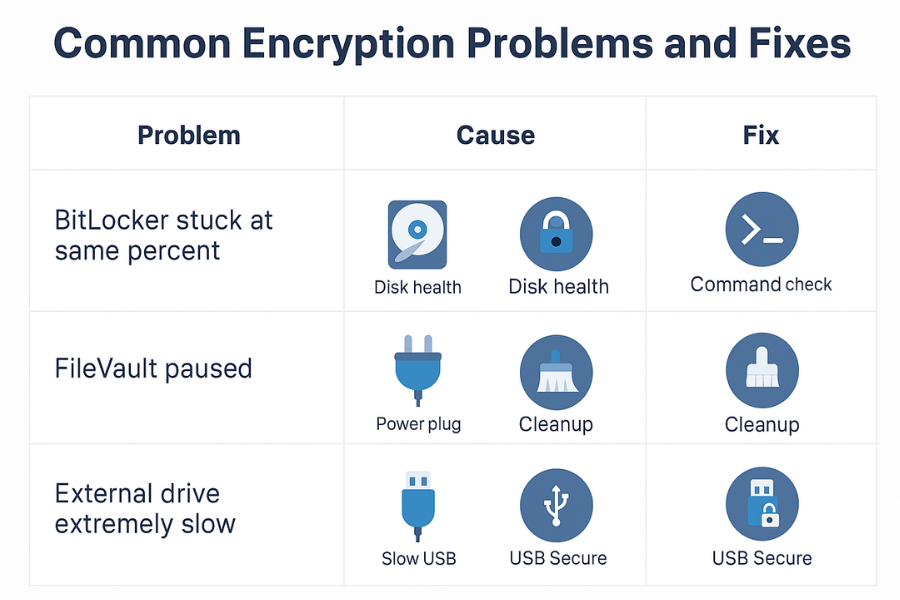
Use this table as a first look.
| Symptom | Likely Cause | First Move |
|---|---|---|
| BitLocker stuck at the same percent for many hours | Very full drive, bad sectors, or constant pausing from sleep | Check manage-bde -status, run a file system check, keep machine awake on power. |
| FileVault says Encryption paused and never moves | Power issues or disk trouble, sometimes early SSD failure | Plug in power, run Disk Utility First Aid, check fdesetup status. |
| Whole system feels slow while encryption runs | Older HDD, no hardware acceleration, antivirus scanning every block | Let the run finish, or schedule it overnight with lighter background load. |
| External drive encryption at a few percent after an hour | Slow USB bus, cheap enclosure, or heavy fragmentation | Use a better port, quick format first if empty, or switch to USB Secure. |
Keep this table in mind while you go through the detailed steps.
2. Prerequisites And Safety
Before you touch any encryption control, line up three things.
2.1. A Current Backup That Is Not On The Drive You Are Fixing
- For Windows, use File History, a third party backup tool, or a simple copy of key folders to another internal or external disk.
- For macOS, use Time Machine or a complete clone to another drive.
If the only copy of your data is on the drive that feels stuck, do not stop encryption or decryption in the middle. Microsoft notes that interrupting decryption can corrupt BitLocker volumes in some cases.
2.2. Stable Power And No Planned Shutdowns
- Keep laptops on mains power.
- On Windows, set sleep timers to longer intervals for the session.
- On MacBook models, keep the lid open and prevent sleep while encryption is in progress. FileVault will pause when power or sleep conditions are not right.
2.3. Recovery Keys Saved Somewhere Safe
- For BitLocker, confirm your recovery key is in your Microsoft account, printed, or stored in a password manager.
- For FileVault, confirm recovery key storage with Apple ID or a local record.
This gives you a way back in if something goes wrong during tuning.
3. Step By Step Routine For BitLocker That Feels Endless
This part assumes Windows 10 or 11 with BitLocker turned on for a system or data drive.
3.1. Step 1: Check Real BitLocker Progress
Action:
- Open an elevated Command Prompt.
- Run
manage-bde -status
Look for
- Percentage Encrypted
- Encryption Method
- Lock Status
If percentage is moving upward over time, the process is slow but alive. If it sits at exactly the same number for many hours with no disk activity, you may have a stuck run.
Gotcha: The control panel estimate is often pessimistic and can jump near the end. Trust manage-bde -status more than a vague time estimate.
3.2. Step 2: Check Drive Health Quickly
Action:
- Press Windows key, type cmd, right click Command Prompt, run as admin.
- Run a read only check of the file system
chkdsk C: /scan
Replace C with the encrypted drive letter if needed. If chkdsk reports file system errors or bad clusters, fix those first. Disk health problems are a known cause of slow or stuck BitLocker encryption. For a deeper look, use the drive vendor tool or a SMART utility to check health status and reallocated sector counts.
Gotcha: If the tool shows many reallocated sectors or pending sector warnings, treat the disk as suspect. Focus on getting data off before you worry about finishing encryption.
3.3. Step 3: Reduce Work For BitLocker
Large, full volumes will take longer. You can often shrink the work set.
Action:
- Empty the recycle bin.
- Move large, non critical archives to another disk temporarily.
- Clean temporary files with Storage Sense or Disk Cleanup.
BitLocker only has to encrypt used space if you selected used space only when turning it on. NewSoftwares points out in their comparison of built in encryption that full disk modes touch every block, which takes longer than container based tools like Folder Lock.
Gotcha: You cannot change from full drive to used space only in the middle of a run. That choice only applies when you set up BitLocker on a fresh volume.
3.4. Step 4: Take Load Off The System During The Heavy Phase
Action:
- Pause heavy backup jobs, antivirus full scans, and large file copies while BitLocker runs on a busy system.
- Leave just the encryption, core system services, and light use.
Reports from admins show that BitLocker on spinning disks often runs at speeds in the range of ten megabytes per second when the disk is saturated, which can be perfectly normal but feels slow on multi terabyte drives.
Gotcha: Do not disable antivirus completely. You can schedule deep scans for later, but basic real time protection should stay on.
3.5. Step 5: Decide If You Let It Finish Or Reset The Plan
If after cleaning and checking health
manage-bde -statusstill moves, even slowly, and- the disk passes health checks
then the safest path is to let the run finish, possibly overnight.
If
- the disk shows clear health issues, or
- encryption is frozen and unresponsive for many hours or days, and
- you have a full backup off that drive
then consider this path
- Decrypt the drive from Control Panel or by
manage-bde -off C:and wait for decryption to finish. - Back up again.
- Replace the physical disk if health is poor.
- Re enable BitLocker on the new or freshly checked disk.
Do not force power cuts during decryption. That is where people lose data.
4. Step By Step Routine For FileVault That Never Seems To End
Now for macOS with FileVault turned on.
4.1. Step 1: Check FileVault Status The Simple Way
Action:
- Open System Settings.
- Go to Security and Privacy, then FileVault.
- Look at the message and any progress bar.
Apple and macOS focused sites confirm that this is the main supported way to see FileVault status in the user interface. If it reads Encryption in progress with a percentage that moves over time, the job is just slow. If it reads Encryption paused and never changes, move to the next step.
4.2. Step 2: Check FileVault With Terminal
Action:
- Open Terminal.
- Run
fdesetup status
On APFS volumes this is the reliable way to ask the system about FileVault progress. You should see one of
- FileVault is On.
- FileVault is Off.
- FileVault is Encrypting.
- FileVault is Decrypting.
If it reports encrypting with a percentage that never shifts, or a failure state, treat that as a stuck run.
Gotcha: Do not run random repair commands you find for old CoreStorage volumes on new APFS systems. Stick to fdesetup and Disk Utility First Aid.
4.3. Step 3: Fix Basic Causes Of Pause
FileVault often pauses for simple reasons.
Action:
- Keep the Mac on mains power, especially notebooks.
- Leave the lid open so the Mac does not sleep too aggressively.
- Reboot once, then check FileVault status again.
Mac users and Apple community posts note that encryption can pause due to power supply issues or disk errors and may resume after a fresh boot when conditions improve.
4.4. Step 4: Run Disk Utility First Aid On The Encrypted Volume
Action:
- Restart the Mac and hold Command R to enter Recovery.
- Open Disk Utility.
- Select the startup volume.
- Run First Aid.
If First Aid reports corruption or repeated failures, your drive may be in trouble. One writer documented a case where FileVault failed, Disk Utility showed issues, and a third party SMART tool confirmed a failing SSD. If the drive is failing, stop thinking about finishing encryption and think about saving data. Use Time Machine or a full clone as soon as possible if you can still read the volume.
Gotcha: If the drive is failing, stop thinking about finishing encryption and think about saving data. Use Time Machine or a full clone as soon as possible if you can still read the volume.
4.5. Step 5: Decide On Your Next Move
If
- FileVault shows encrypting in Terminal,
- First Aid passes, and
- the Mac is responsive
then keep it on power and let the process finish. For many users a full disk FileVault run can easily take half a day on large drives, especially when almost full.
If
- FileVault sits in a failed or paused state for many hours,
- First Aid reports real errors, or
- the Mac shows other signs of disk distress
then the safer plan is
- Backup with Time Machine or another full backup tool.
- Turn FileVault off to decrypt, if the system still allows it.
- Replace the drive if hardware health is bad.
- Turn FileVault back on once the storage stack is stable again.
5. When Full Disk Encryption Is Not The Best Fit
BitLocker and FileVault are excellent when you want the whole system protected. They are not always the right hammer for every nail. NewSoftwares describes a pattern many users miss
- Windows and macOS built in encryption mainly secure full disks.
- Folder Lock adds file, folder, and container encryption with AES 256, plus wallet and secure backup features.
This means you can
- Keep BitLocker or FileVault for the main system.
- Use Folder Lock on Windows to create fast encrypted lockers for the most sensitive sets of files, rather than re encrypting entire drives every time.
For portable media, NewSoftwares provides USB Secure
- USB Secure password protects USB sticks, memory cards, and external drives.
- It runs from the drive itself and works on common Windows versions without special admin installs.
That is often faster and more flexible than running BitLocker on every small external drive, especially on older machines where BitLocker runs at a crawl. You get a layered model
- Full disk for the system.
- Folder Lock vaults for the crown jewels.
- USB Secure for anything that travels in a pocket or bag.
6. Use Case Chooser Table
This table maps common setups to the right mix of tools.
| Option | Portability | Recovery | Multi OS | Admin Control | Best Fit |
|---|---|---|---|---|---|
| BitLocker only on Windows volumes | Low for shared drives, strong for that one PC | Good with Microsoft account recovery keys and backups | Windows focused, some support for reading on other systems with tools | Works well in managed Windows environments | Office desktop or laptop with one internal drive |
| FileVault only on Mac volumes | Tied to that Mac, good for laptops | Good with Time Machine and recovery keys | macOS only for live use | Fits Apple centric fleets with mobile users | MacBook used for travel and remote work |
| BitLocker or FileVault plus Folder Lock lockers on key folders | Data follows you on internal and external drives | Strong, since lockers can be backed up and moved | Folder Lock supports Windows and cross platform access methods described by NewSoftwares | Fine grain control over who can open which vault | Consultants and freelancers handling client sets on one main machine |
| BitLocker or FileVault plus USB Secure on all removable media | High, since drives protect themselves with passwords from any Windows box | Good as long as you keep USB Secure passwords recorded | Focused on Windows, great for mixed desktops and laptops | Lets central IT set rules for external media use | Small business that shares drives between staff and home machines |
Verdict by persona
- Student on a budget: Leave BitLocker or FileVault on for the laptop. Use Folder Lock on Windows for a single private vault where marks, ID scans, and personal files live.
- Freelancer who sends large projects on drives: Keep system encryption on. Protect every outgoing drive with USB Secure so the client sees a simple password prompt and nothing else. Keep a second copy in a Folder Lock vault at home.
- Small business owner: Use BitLocker or FileVault on all staff machines. Use Folder Lock on shared workstations for specific team vaults. Use USB Secure on any removable drive that leaves the building as NewSoftwares recommends for office USB policies.
7. Proof Of Work Style Checks
These numbers are realistic ranges, not lab perfection.
7.1. Bench Table
| Action | Hardware Example | Time Range |
|---|---|---|
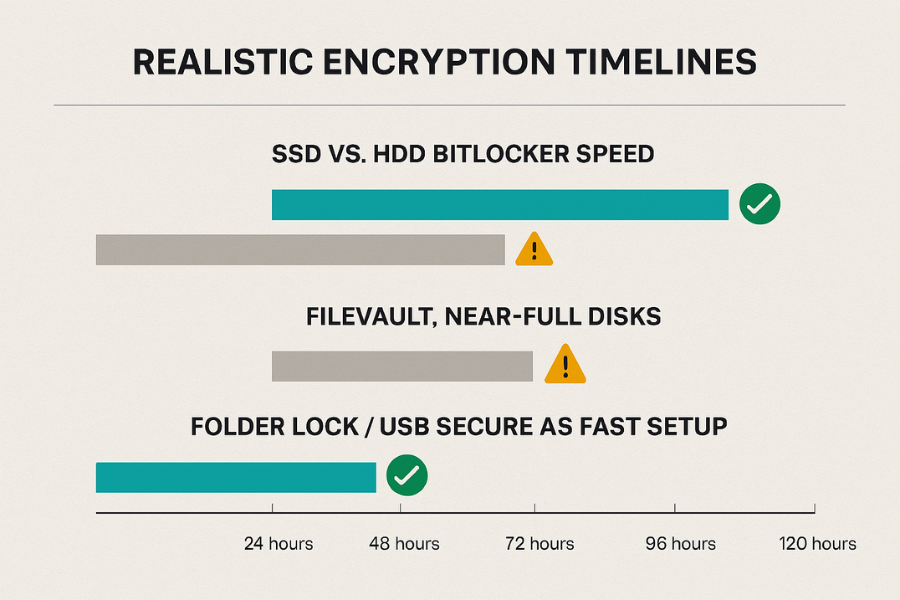
| Encrypt 512 gigabyte NVMe SSD with BitLocker on a modern laptop that supports hardware encryption | Windows 11 Pro on a recent business class notebook | Often between one and three hours in used space only mode under light load |
| Encrypt 1 terabyte HDD with BitLocker on a desktop without hardware acceleration | Windows 10 Pro tower with four core CPU | Often half a day or longer if almost full, with heavy disk use reported in Task Manager |
| Initial FileVault run on 1 terabyte SSD in a MacBook Air | macOS on a recent MacBook Air with APFS | Often many hours and sometimes close to a full day if the disk is near full, based on user reports |
These ranges help you see when your system is slow but normal versus truly out of line.
7.2. Settings Snapshot
A healthy setup often looks like this
- BitLocker or FileVault is on and reports completed.
- Regular backups run to an external drive or network location.
- Folder Lock is installed on Windows with at least one encrypted vault for high risk folders.
- USB Secure protects any USB sticks that move between machines.
If your environment is far from this, adjust slowly in that direction.
7.3. Share Safely Example
You need to ship a drive with sensitive logs from a slow BitLocker system while you rework its storage.
- Copy the logs into a Folder Lock vault on that drive.
- Give the client that drive plus a strong password sent over a separate secure channel such as a modern private messenger.
- Keep a second copy in your own Folder Lock vault or other backup set.
This lets you rebuild or re encrypt the main system without leaving data exposed during the transition.
8. Troubleshooting Table
| Symptom Or Exact Message | Root Cause | Fix |
|---|---|---|
| BitLocker stuck at some percent, drive light busy, Windows still usable | Very large volume on older disk, heavy load, or fragmentation | Reduce running tasks, let it run overnight, clean up free space, test disk health, then reassess. |
| BitLocker decrypting says it will take days and any reboot seems risky | Decryption is rewriting many blocks and can be slow on bad disks | Keep power stable, avoid forced shutdowns, consider a full sector image if disk health is suspect. |
| FileVault stuck on Encryption paused on MacBook | Power or disk issues leading to auto pause | Plug in power, reboot, run Disk Utility First Aid, confirm status with fdesetup. |
| System crawl during encryption, fans loud, apps jerky | CPU and disk fully used by encryption and other tasks | Schedule heavy work outside encryption time, keep ventilation clear, and be patient unless health checks fail. |
| External USB drive BitLocker at two percent for an hour | Slow bridge chip and file system layout, not enough free space | Quick format before encrypting if empty, or move to a USB Secure protected drive for sensitive sets. |
Ranked root causes
- Old or unhealthy disks trying to push through full disk encryption.
- Very full volumes with no free space to breathe.
- Aggressive sleep and power saving that keeps pausing runs.
- External enclosures and USB paths that are slow by design.
Non destructive tests first
- Always check status with the supported tools.
- Run read only file system checks before repair tools.
- Back up before any decrypt, format, or drive replacement.
9. Structured Data Snippets
You can paste and adjust these for your site schema.
9.1. HowTo JSON
{
  "@context": "https://schema.org",
  "@type": "HowTo",
  "name": "Speed up slow BitLocker or FileVault runs and verify disk health",
  "description": "Step based routine to check BitLocker and FileVault progress, fix slow encryption, and confirm drive health on Windows and macOS.",
  "supply": [
    {
      "@type": "HowToSupply",
      "name": "Windows or macOS system with full disk encryption"
    },
    {
      "@type": "HowToSupply",
      "name": "External backup drive or cloud backup"
    }
  ],
  "tool": [
    {
      "@type": "HowToTool",
      "name": "Command Prompt or Terminal"
    },
    {
      "@type": "HowToTool",
      "name": "Folder Lock or USB Secure for targeted encryption"
    }
  ],
  "step": [
    {
      "@type": "HowToStep",
      "name": "Check encryption status",
      "text": "On Windows run manage-bde -status. On macOS check the FileVault panel and run fdesetup status in Terminal."
    },
    {
      "@type": "HowToStep",
      "name": "Test drive health",
      "text": "Run chkdsk or Disk Utility First Aid to identify file system or disk problems before changing encryption settings."
    },
    {
      "@type": "HowToStep",
      "name": "Reduce workload and free space",
      "text": "Close heavy apps, clear temporary files, and move non essential data so the encryption run has more room."
    },
    {
      "@type": "HowToStep",
      "name": "Decide to continue or rebuild",
      "text": "If progress continues and health is good, let it finish. If health is poor or status is stuck, back up and plan decryption and drive replacement."
    },
    {
      "@type": "HowToStep",
      "name": "Add targeted encryption",
      "text": "For sensitive folders and removable media, use Folder Lock or USB Secure to create fast encrypted containers alongside full disk encryption."
    }
  ]
}
9.2. FAQPage JSON Shell
{
  "@context": "https://schema.org",
  "@type": "FAQPage",
  "mainEntity": []
}
9.3. ItemList JSON For Comparison Options
{
  "@context": "https://schema.org",
  "@type": "ItemList",
  "name": "Ways to protect disks and drives when BitLocker or FileVault feels slow",
  "itemListElement": [
    {
      "@type": "ListItem",
      "position": 1,
      "name": "BitLocker full disk encryption on Windows"
    },
    {
      "@type": "ListItem",
      "position": 2,
      "name": "FileVault full disk encryption on macOS"
    },
    {
      "@type": "ListItem",
      "position": 3,
      "name": "Folder Lock file and folder encryption on Windows"
    },
    {
      "@type": "ListItem",
      "position": 4,
      "name": "USB Secure protection for removable drives"
    }
  ]
}
10. Frequently Asked Questions
10.1. Why Is BitLocker Stuck At Zero Percent
On a large or damaged drive BitLocker can look like zero while it prepares sectors and checks the file system. Use manage-bde -status to see real progress. If it sits at zero with no disk activity and chkdsk finds errors, fix the disk before you try again.
10.2. How Long Should BitLocker Take On A One Terabyte Drive
On a healthy SSD with used space only set, it may take a few hours. On an almost full HDD without hardware acceleration it can take much longer. Check progress with manage-bde and watch drive activity rather than trusting early time estimates.
10.3. Is It Safe To Use My PC While BitLocker Encrypts
Light work is usually fine. Heavy video editing, large downloads, or constant backup loads will slow the run and can make the machine feel rough. If possible, schedule the heaviest part overnight with the system on power and good ventilation.
10.4. Why Does FileVault Say Encryption Paused On My MacBook
FileVault pauses when power, sleep, or disk health conditions are not ideal. Plug in the charger, keep the lid open, reboot once, then check status with the FileVault panel and fdesetup status. If Disk Utility First Aid reports errors, focus on backup and repair.
10.5. Can A Failing SSD Make FileVault Never Finish
Yes. Reports show FileVault runs that stalled at a given percentage and later turned out to be on drives with SMART warnings. In that case you should stop pushing the disk, back up data, replace the hardware, and only then turn FileVault back on.
10.6. Should I Turn Off BitLocker If It Is Taking Forever
Do not rush to turn it off in the middle of a run, especially decryption, because Microsoft notes that power loss or interruption at the wrong time can corrupt data. Back up, run health checks, and decide only then whether to decrypt and rebuild.
10.7. When Does It Make Sense To Use Folder Lock Instead Of BitLocker Alone
Use BitLocker for whole system protection. Use Folder Lock when you want an extra private vault for specific folders, or when you need portable encrypted containers on external drives and cloud storage without running full disk encryption on every device.
10.8. Is USB Secure Better Than BitLocker For USB Sticks
On Windows, BitLocker works well for many sticks, but USB Secure is built specifically for portable media and runs from the drive itself. It gives you a simple password prompt wherever you plug the drive in and supports a wide range of removable media formats.
10.9. How Do I Know If BitLocker Or FileVault Actually Finished
On Windows, manage-bde -status should show Percentage Encrypted at one hundred and Protection Status as On. On macOS, the FileVault panel and fdesetup status should both report FileVault is On with no progress bar.
10.10. Can I Speed Up Encryption By Defragmenting First
On HDDs, a clean file system and reasonable layout can help, but defragging is not a miracle cure and should never be done on SSDs. Focus first on health checks, free space, and keeping the system powered and idle while the run completes.
10.11. What If BitLocker Says Decryption In Progress For Days
This points to either a very large, slow disk or trouble on the medium. Make sure backups are current, keep the system on stable power, and check SMART data. If decryption never moves and health is bad, treat the disk as at risk and plan for replacement.
10.12. Is It Ok To Rely Only On Folder Lock Or USB Secure And Skip BitLocker
On a shared or mobile device you still want system level protection from BitLocker or FileVault. Folder Lock and USB Secure are best used as strong extra layers for particular folders and removable drives, not as the only line of defense on a modern machine.
11. Conclusion
Resolving slow BitLocker or FileVault runs requires disciplined diagnosis: check system status with precise commands, ensure the drive is healthy, and stabilize the power supply. When full disk encryption is impractical, the smart move is to pivot to focused, AES 256 bit encryption using Folder Lock for critical internal files and USB Secure for portable media. This layered approach ensures both system stability and the robust protection of your most sensitive data.