
This resource is dedicated to maximizing your mobile device security and privacy by properly configuring biometric features like Face ID and Touch ID. The core principle is simple: always treat biometrics as a fast, convenient unlock layer built on top of a strong alphanumeric passcode, which remains the true root of trust. We explain how to set safe fallbacks, manage auto lock timers, and layer protection with encrypted vaults like Folder Lock from Newsoftwares.net, ensuring your sensitive data is protected against both casual access and sophisticated threats.
Direct Answer
You should treat Face ID and Touch ID as a fast unlock on top of a strong passcode, and design your fallbacks so that the phone and any sensitive apps lock quickly, never stay open after restart, and always fall back to a long passcode when anything feels risky.
Gap Statement
Most explanations of Face ID and Touch ID stop at “they are secure enough” and skip the real work:
what happens when biometrics fail, how to set safe fallbacks, and how to combine device unlock with app vaults like Folder Lock.
This breakdown fixes that by:
- Showing how Face ID, Touch ID, and Android biometrics actually protect you.
- Giving concrete setup steps and screenshots you can recreate.
- Covering fallback best practices, common errors, and how tools from NewSoftwares fit in.
TLDR Outcome
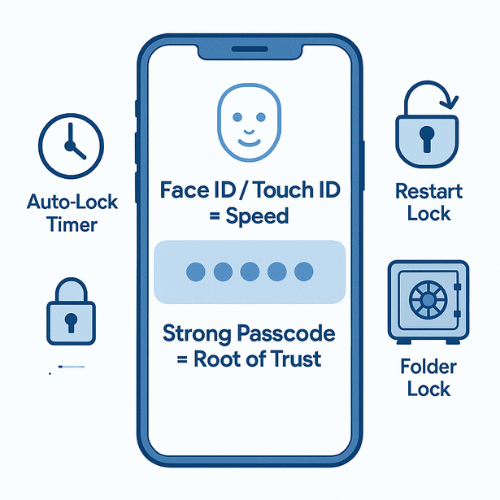
If you only have a minute, aim for this setup:
- Use biometrics for speed, a strong passcode as the real root of trust, and auto lock timers everywhere.
- Turn biometrics off for the most sensitive tasks, like changing security settings or exporting backups.
- Add an encrypted vault such as Folder Lock for truly private photos, documents, and wallets, so a stolen unlock still does not expose everything.
Biometric Unlock In Plain Language
Face ID, Touch ID, and Android fingerprint or face unlock all do roughly the same thing:
- They store a mathematical template of your face or fingerprint inside a secure chip on the device.
- That chip, such as Apple’s Secure Enclave or Android’s trusted execution environment, checks matches locally and only answers yes or no.
- Apps never see your actual biometric data. They just ask the system: “Is this the right person right now?”
So if someone copies your cloud backup, they don’t get your face or fingerprint. They still need the live device.
Where things go wrong is not the cryptography. It is usually:
- Weak fallback passcodes.
- Over-trusting biometrics for everything.
- Poor handling of stolen or coerced unlocks.
That is why fallback rules matter as much as the biometric feature itself.
How Face ID And Touch ID Protect You
1.1 The Hardware Side
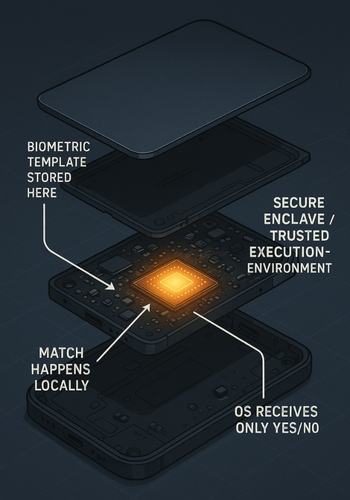
On recent iPhones and iPads:
- Face ID stores your face template in the Secure Enclave.
- The Secure Enclave has its own processor and memory, and is isolated from iOS.
- Matching happens inside that chip. iOS only learns if it succeeded.
- A passcode still backs everything. Fail biometric too many times, and the device returns to passcode only.
On Android:
- Fingerprint and face data live in a hardware backed secure environment, such as a TEE or secure element.
- The Android Keystore can tie encryption keys to a successful biometric match, so apps never see the raw keys.
This is why well built banking apps and vault tools rely only on the system APIs, not their own biometric logic.
1.2 What Biometrics Do And Do Not Cover
| Thing | Biometrics Help? | What Actually Protects It |
|---|---|---|
| Unlocking the phone | Yes | Face / Touch + passcode |
| Access to local app data | Often | App storage + OS sandbox + app specific PIN |
| Cloud backups | Indirect | Account password, 2FA, device trust |
| Bank transfers | Sometimes | Bank app, risk engine, device binding, strong auth rules |
| Hidden photo or file vault | Often | App encryption keys tied to PIN or biometric enabled vault |
Fallback Best Practices: The Real Root Of Trust
Biometrics are reversible. Passcodes are not. Your model should be:
- Biometric for convenience.
- Passcode for power.
2.1 Build A Safe Fallback Strategy
- Use at least a 6 digit PIN, ideally an alphanumeric passcode.
- Never reuse your device PIN as a banking PIN or debit card PIN.
- Change your device passcode if you think anyone has watched you type it.
- Require passcode instead of biometrics for:
- Changing security settings.
- Adding new biometrics.
- Resetting a password manager.
On iOS you can tighten some of this under:
- Settings
- Face ID & Passcode
- Require Passcode
On many Android phones you can go to:
- Settings
- Security or Security & privacy
- Screen lock
Pick PIN or password and keep it long enough that shoulder surfing is difficult.
When To Say Yes And No To Biometric Unlock
3.1 Safe Uses For Face ID Or Touch ID
These are usually fine to protect with biometrics:
- Unlocking the phone itself.
- Opening everyday apps like messaging or social media.
- Quick check of a password manager that still requires master password on fresh installs.
- Unlocking a vault app such as Folder Lock when the device just woke from sleep and you are in a familiar place.
Folder Lock is a good example. It uses a master password or PIN to protect encrypted lockers for photos, videos, documents, and wallet items, with support for mobile access and extra security features such as hack attempt monitoring and stealth modes.
You can then add biometrics inside the app, so Face ID or fingerprint becomes a fast unlock on top of that master secret.
3.2 Times You Should Avoid Biometrics
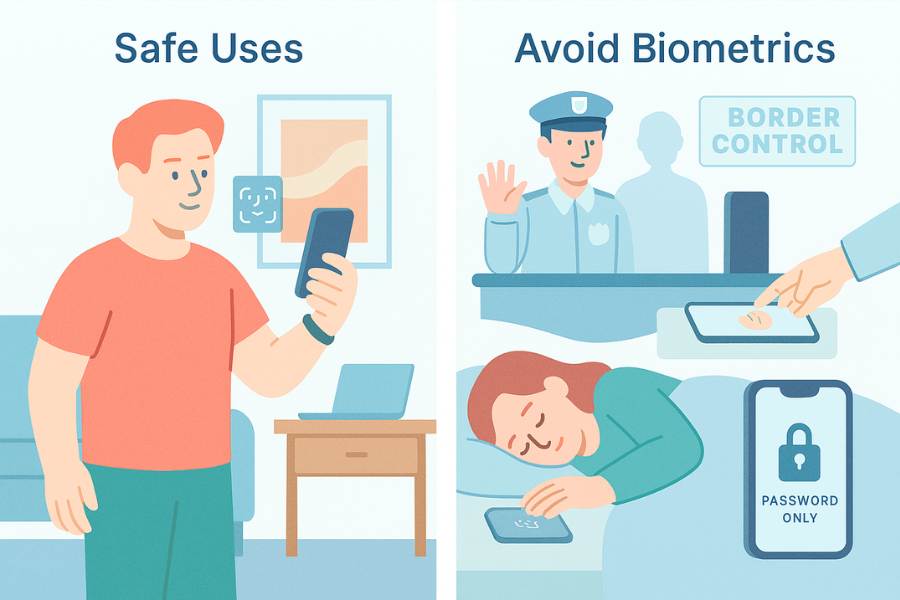
In these situations, rely only on the passcode inside the app or service:
- You are crossing a border where officers can physically hold your device.
- You are worried about family or colleagues using your finger or face while you sleep.
- You store legal, medical, research, or client records with high sensitivity.
- You share the phone with children or staff and cannot control who is holding it.
For those scenarios, keep biometric unlock only for the basic device, and use a vault such as Folder Lock with a separate strong password for the really sensitive material.
How To Set Up Safe Biometric Unlock On Ios
4.1 Prerequisites And Safety
- iPhone or iPad with Face ID or Touch ID.
- iOS fully updated.
- You know your Apple ID and device passcode.
- You understand that losing both passcode and Apple ID can lock you out for good.
4.2 Step 1: Clean Up Your Passcode
- Open Settings.
- Tap Face ID & Passcode or Touch ID & Passcode.
- Enter your current passcode.
- Tap Change Passcode.
- Pick a custom alphanumeric code or at least a custom numeric code.
Gotcha: people often stay with 4 digits out of habit; tap “Passcode Options” so you actually see the longer choices.
4.3 Step 2: Re Enroll Face ID Or Touch ID
- In the same menu, tap Set Up Face ID or Add a Fingerprint.
- Follow the prompts to scan your face or finger.
- Add a second finger for the hand you actually use to hold the phone.
Gotcha: avoid adding fingers for people you do not fully trust. Shared access breaks the whole model.
4.4 Step 3: Set Secure Behavior After Restart And Timeout
iOS already forces a passcode:
- After restart.
- After 48 hours without unlock.
- After several failed biometric attempts.
You can harden this by:
- Staying in Face ID & Passcode.
- Under “Require Passcode”, choose “Immediately”.
Gotcha: some users pick 15 minutes and then forget, which leaves a long window if the phone is lost.
4.5 Step 4: Control Which Actions Use Biometrics
In Face ID & Passcode you can switch off Face ID for:
- iPhone Unlock.
- iTunes & App Store.
- Password AutoFill.
- Wallet & Apple Pay.
For more sensitive workflows:
- Turn off Face ID for Password AutoFill.
- Keep Face ID for unlock and Apple Pay, where risk is mitigated by other controls.
Gotcha: if you disable Face ID for unlock, iOS will require the passcode every time, which many people find annoying and undo.
4.6 Step 5: Add An Encrypted Vault Such As Folder Lock
To stop one successful device unlock from exposing everything, add a vault.
Folder Lock from NewSoftwares lets you:
- Create encrypted Lockers for photos, videos, documents, and backups.
- Store wallet data, card details, and notes in secure Wallets.
- Protect portable copies on USB or external drives with the same master password model.
On iOS or Android:
- Install Folder Lock from the official store.
- Create a strong master password unique to this app.
- Turn on biometric unlock inside Folder Lock settings, so Face ID or fingerprint simply replaces typing that password every time.
Gotcha: do not reuse your device passcode as the Folder Lock master password.
4.7 Step 6: Verify That Everything Works
Do this short test:
- Lock the phone.
- Wake it and unlock with Face ID or Touch ID.
- Open Folder Lock or another sensitive app.
- Confirm it asks for biometric.
- Reboot the phone.
- Confirm that the device demands the passcode before any biometric unlock.
- Open Folder Lock again and see that it still unlocks only after the device is trusted.
You should see:
- Passcode prompt after restart.
- Biometric prompts only when the phone is in a normal unlocked state.
If an app opens straight into sensitive content after restart without fresh authentication, tighten its settings.
Setting Up Safe Biometrics On Android
Android varies by vendor, but common lines are similar.
5.1 Prerequisites And Safety
- Android phone with secure lock screen and a fingerprint or face module.
- Recent Android version, preferably with hardware backed Keystore.
- You know the Google account and screen lock PIN or password.
5.2 Step 1: Fix The Screen Lock
- Open Settings.
- Go to Security or Security & privacy.
- Tap Screen lock.
- Choose PIN or Password and pick at least 6 digits or a strong phrase.
Gotcha: avoid simple patterns like 123456 or 111111, and avoid visible swipe patterns where smudge lines reveal the path.
5.3 Step 2: Enroll Biometrics
- In Security, tap Fingerprint, Face Unlock, or similar.
- Follow the prompts to add fingerprints or a face.
- Add at least two fingerprints from the fingers you use most.
Gotcha: some phones support “fast face unlock” that relies mainly on the camera. Disable any option that warns it may be fooled by a photo.
5.4 Step 3: Control Lock Timers
- In Security, find options like “Automatically lock” or “Lock after screen timeout”.
- Set the lock time to “Immediately” or the lowest practical value.
Gotcha: some vendors default to long delays such as 5 or 10 minutes. Shorten this to cut the window for opportunistic theft.
5.5 Step 4: Use A Vault App Such As Folder Lock
Folder Lock for Android lets you:
- Lock photos, videos, documents, audio and other files with a master password.
- Store wallet cards and confidential notes in dedicated secure sections.
- Turn on decoy and stealth modes and hack attempt monitoring for extra safety.
Inside Folder Lock:
- Set a master password that is not your screen PIN.
- Open app settings and enable fingerprint unlock if your device supports it.
- Put your most sensitive items inside vaults instead of leaving them in the regular gallery or file manager.
5.6 Step 5: Verify Behavior
Repeat the same test pattern:
- Lock, wake, and unlock with fingerprint or face.
- Open Folder Lock and other sensitive apps.
- Confirm they ask for biometric or app PIN.
- Reboot the phone.
- Confirm the phone demands the screen PIN before any biometric replay.
If an app skips straight into data after reboot, check its own security settings; many vault apps have an “always ask for PIN after restart” option that you can enable.
Troubleshooting Biometrics: Symptom To Fix
6.1 Common Error Messages And Fixes
| Symptom Or Message | Likely Cause | Fix First |
|---|---|---|
| “Face ID is not available” | Camera blocked, sensor dirty, or restart required | Clean sensors, restart device |
| “Too many attempts. Use passcode” | Repeated failed matches | Enter passcode, then re enroll biometrics |
| Fingerprint never registers | Damaged sensor or very dry or wet fingers | Clean sensor, try a different finger |
| App no longer asks for biometric after update | App settings reset | Open app security settings and re enable option |
| Folder Lock asks for password every time | Biometric toggle not active or device not trusted | Turn on fingerprint / Face ID in the app, unlock device fully |
Root Causes Ranked From Most To Least Common
- Weak or reused passcodes that undermine the whole setup.
- Mis configured timeouts and auto lock rules.
- Third party apps trying to build their own biometric logic rather than using system APIs.
- Hardware faults on older fingerprint sensors.
- Compromised devices with root or jailbreak, where apps cannot fully trust the OS.
Always fix the first three before worrying about exotic attacks.
Non Destructive Checks Before Drastic Actions
Before you wipe or factory reset anything:
- Reboot the device and try again.
- Remove and re enroll fingerprints or Face ID.
- Check app specific security pages for toggles disabled by an update.
- Test another app that uses biometrics to see if the problem is global or isolated.
Only when all of that fails and you have a backup should you consider a reset.
How Vault Tools From NewSoftwares Add Another Layer
System biometrics control access to the device. Vault software controls access to the data itself.
Folder Lock from NewSoftwares focuses on:
- Strong AES encryption for files and folders.
- Encrypted Wallets for personal and financial information.
- Portable copies on USB and external drives that stay encrypted even when moved.
On mobile you can:
- Combine system biometrics with a separate master password.
- Use features like decoy mode and stealth mode so the app itself is less discoverable.
- Rely on hack attempt logs to notice repeated wrong unlock attempts.
That way, even if someone forces a biometric unlock, they still face another layer for the most sensitive content.
Security Specifics In Practice
- Biometric templates stay encrypted in secure hardware rather than app storage.
- Apps such as Folder Lock request access to keys through system APIs, so they benefit from the same hardware protections.
- Timeouts, passcode length, and separate vault passwords do more for real world safety than obsessing over tiny variations in biometric algorithms.
A practical model is:
- Device passcode as the root key.
- Biometric unlock for speed.
- Vault tools for deep privacy.
When You Should Not Rely On Biometrics
Avoid biometrics alone when:
- You face legal pressure where keys in your head have different protection than your body.
- Your work involves sensitive sources, whistleblowing, or confidential field research.
- You live or travel in areas where forced unlock is a realistic threat.
In those cases:
- Disable biometrics for at least your vault and password manager.
- Keep strong passcodes and store them securely in your own memory and possibly a printed backup in a locked safe.
Verdict By Persona
Student with shared devices
Use Face ID or fingerprint for speed, but keep photo vaults and documents in Folder Lock behind a different password. Short auto lock timers, no shared fingerprints.
Freelancer with client files
Keep biometrics on for device unlock. Use Folder Lock or similar for client folders and wallets, with biometrics enabled in the app only after a strong master password is set. Avoid letting others use your phone unattended.
Small business admin
Use mobile device management to enforce strong passcodes and limit biometrics in high risk apps such as remote admin tools. Put sensitive exports and backups inside encrypted vaults and keep records of which staff have biometric access on which devices.
Sample “Proof Of Work” Snapshots
These are not strict benchmarks, but simple checks you can reproduce.
7.1 Settings Snapshot: Ios
- Passcode: custom alphanumeric, at least 10 characters.
- Face ID: enabled for device unlock and app unlock, disabled for Password AutoFill if you want stricter control.
- Require Passcode: Immediately.
- Folder Lock: master password set, Face ID unlock enabled inside the app.
7.2 Settings Snapshot: Android
- Screen lock: PIN with 6 or more digits, or a strong phrase.
- Auto lock: immediately after screen turns off.
- Fingerprints: two per main user only.
- Folder Lock: app PIN not equal to screen PIN, fingerprint unlock active.
7.3 Verification Routine
- Restart device: confirm passcode blocks everything.
- Open vault: confirm it needs biometric or vault password even if phone is unlocked.
- Turn biometrics off temporarily: confirm you fall back safely to passcodes and can still reach your data.
7.4 Share Safely Example
If you use Folder Lock to store a shared document or wallet:
- Keep the vault password in a secure channel such as an end to end encrypted messenger with expiring messages.
- Do not send it through plain SMS or email.
- Avoid sharing biometrics; keep each person on their own device with their own copy when possible.
FAQs
1. Is Face ID More Secure Than A 4 Digit Pin?
Yes in most cases. Apple reports extremely low false match rates for Face ID, and 4 digit PINs are easy to guess or observe. A longer PIN or password plus Face ID is better than either one alone.
2. Can Someone Unlock My Phone With Face ID While I Am Asleep?
Face ID normally checks for attention by tracking your eyes. That setting can be turned off, though, so confirm “Require Attention for Face ID” is enabled in settings if you are worried.
3. Should I Enable Biometrics In My Banking Apps?
If your bank supports system biometrics and still has strong risk checks and device binding, it is usually safe and convenient. Pair this with a strong device passcode and avoid installing banking apps on rooted or jailbroken devices.
4. Is Fingerprint Unlock Safe On A Rooted Or Jailbroken Phone?
No. Once the OS is modified, apps can no longer fully trust the secure hardware or the biometric APIs. For rooted or jailbroken devices, avoid using biometrics for sensitive apps and move key activities to a clean device.
5. What If Face ID Or Fingerprint Suddenly Stops Working?
First restart the device and clean the sensor area. Then re enroll your face or fingers. If the issue remains, check for OS updates or device admin rules that might have changed biometric policies.
6. How Often Should I Change My Device Passcode?
There is no fixed schedule, but change it whenever you suspect someone has seen it or when you have handed your phone to many people, for example during travel or events.
7. Do Biometrics Replace My Passwords Completely?
No. Biometrics are a way to unlock keys stored on the device. Passwords, recovery phrases, and other secrets still exist underneath and you must keep them safe.
8. How Does Folder Lock Use Biometrics In Practice?
On supported phones Folder Lock lets you unlock your encrypted vaults using the same Face ID or fingerprint you use for the device, instead of typing the master password each time, while still keeping your content encrypted and hidden.
9. What Happens If My Fingerprint Changes Or My Face Looks Different?
Minor changes such as glasses, beard, or small cuts are usually fine. For bigger changes you may need to re enroll. That is another reason you always keep a strong passcode as backup.
10. Can Photos Or High Resolution Prints Fool Biometric Sensors?
Early face unlock systems were weak. Modern Face ID and many newer Android devices add depth sensing or liveness checks, which stops simple photo attacks on well designed hardware, although quality still varies by model.
11. Is It Safe To Use Face ID Or Fingerprint For Password Managers?
Yes if the password manager uses system biometric APIs and still relies on a strong master password underneath. Many leading tools do this and tie keys to the secure hardware instead of storing secrets in plain app storage.
12. What Is The Single Most Important Change I Can Make Today?
Set a longer device passcode and shorten your auto lock timer. That alone makes every biometric setup safer, across both the phone and any vault or finance apps you use.
Conclusion: Passcode Is The Root, Biometric Is The Convenience
For strong mobile security, the device passcode must be the real root of trust, protecting the biometric templates and providing the final, uncoerced fallback. Biometrics like Face ID and Touch ID are designed for speed and convenience, not ultimate security isolation. By enforcing a long, alphanumeric passcode, setting auto lock to “Immediately,” and adding a separate encrypted vault like Folder Lock for high-risk data, users create a layered defense that ensures their sensitive content is safe from opportunistic access, even if the primary biometric unlock is compromised.
Structured Data (JSON LD)
{
  "@context": "https://schema.org",
  "@type": "HowTo",
  "name": "Set up safe Face ID and Touch ID with strong fallbacks",
  "description": "Step by step configuration of biometric unlock with strong passcodes and encrypted vaults on iOS and Android.",
  "step": [
    {
      "@type": "HowToStep",
      "name": "Strengthen your device passcode",
      "text": "Open Settings, go to Face ID & Passcode or Security, and change to a longer PIN or password."
    },
    {
      "@type": "HowToStep",
      "name": "Enroll or re-enroll biometrics",
      "text": "Set up Face ID, Touch ID, or Android fingerprint and avoid enrolling people you do not fully trust."
    },
    {
      "@type": "HowToStep",
      "name": "Tighten lock timers",
      "text": "Set auto lock to trigger immediately or after a short timeout so lost phones lock quickly."
    },
    {
      "@type": "HowToStep",
      "name": "Install and configure a vault such as Folder Lock",
      "text": "Create a master password in Folder Lock, then enable biometric unlock inside the app on supported devices."
    },
    {
      "@type": "HowToStep",
      "name": "Verify behavior after restart",
      "text": "Restart the phone and confirm it requires the passcode first and still protects vault content."
    }
  ],
  "tool": [
    {
      "@type": "HowToTool",
      "name": "iPhone or Android phone with biometric support"
    },
    {
      "@type": "HowToTool",
      "name": "Folder Lock mobile application"
    }
  ]
}