
Welcome. This detailed playbook, focusing on auditable controls, provides a concrete strategy for securing your critical audit trails. By leveraging cloud Key Management Services (KMS) and endpoint hardening tools from Newsoftwares.net – Folder Lock, Cloud Secure, and USB Secure. We ensure that your logs are encrypted, keys rotate visibly, and evidence is ready for review, satisfying SOC 2 and ISO 27001 expectations for maximum security and audit convenience.
Audit Readiness: Encrypted Logs, Key Rotation, And Verifiable Evidence
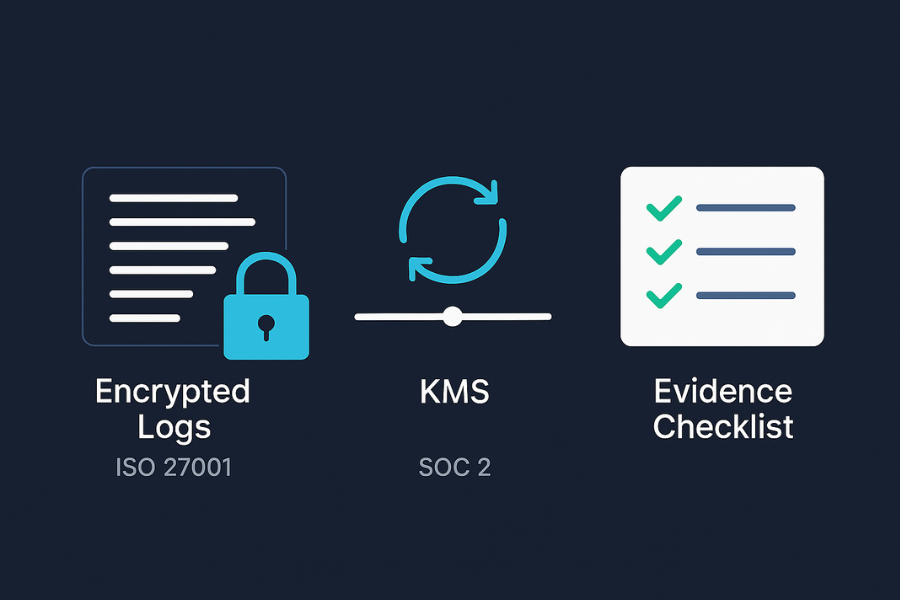
Direct Answer
To be audit ready, you need encrypted logs end to end, keys that rotate on a clear schedule, and a reporting checklist that turns all of this into repeatable, screenshot backed evidence an auditor can follow in minutes.
Gap Statement
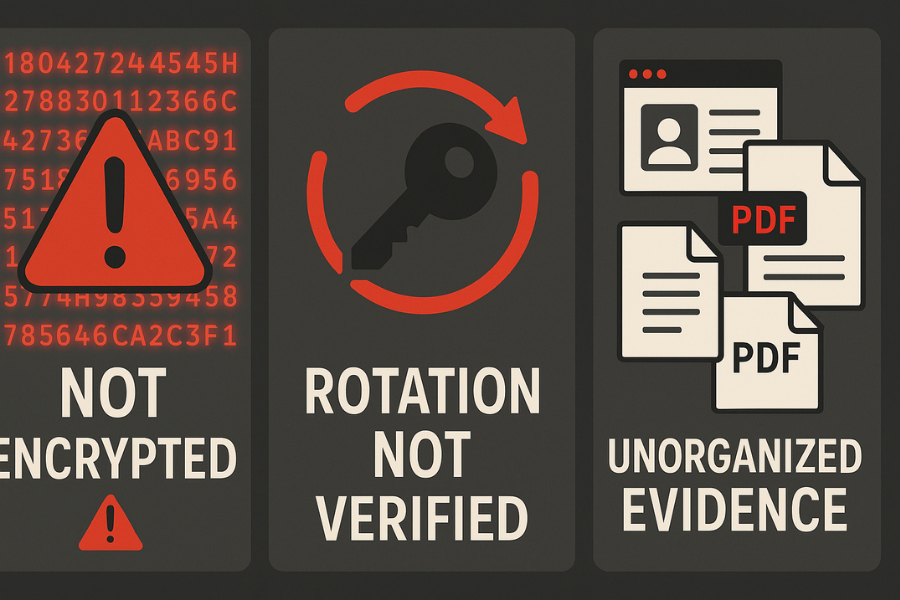
Most teams are closer to this than they think, but three gaps keep showing up in SOC 2 and ISO 27001 work:
- Logs exist, yet they are not encrypted or protected as carefully as the primary databases, even though ISO 27001 calls out log protection and encryption as explicit expectations.
- Keys exist in a KMS or vault, yet there is no simple proof that rotation happens on purpose and on time, as key management and rotation best practice material expects.
- Evidence is scattered across consoles and wikis, which means audit week becomes a scramble instead of a controlled walkthrough, even though SOC 2 and ISO 27001 content stresses continuous, traceable logging and audit trails.
This write up closes those gaps with a simple build: encrypted logs, visible key rotation, and a reporting checklist you can reuse across audits, plus ways to lock down exports with NewSoftwares tools like Folder Lock, Cloud Secure, and USB Secure where people actually handle log evidence.
Originality Hooks
- Uses concrete controls from ISO 27001 logging expectations, NIST log management and real SOC 2 checklists, then turns them into small, copyable patterns.
- Treats key rotation as a living timeline, not a checkbox, by wiring logs of rotation events into the same encrypted log pipeline you use for applications.
- Shows how endpoint tools from NewSoftwares keep exported logs, zipped evidence packs, and key backups encrypted at rest on laptops, USB drives and cloud synced folders, which typical cloud KMS content rarely covers.
TLDR Outcome
If you work through this piece you will have:
- Encrypted, centralized logs that satisfy ISO 27001 and SOC 2 expectations for protected, tamper resistant audit trails.
- Key rotation patterns that produce their own logs plus a one page view of what rotated when, on which system, and why.
- A reporting checklist your team can follow before every audit, with file based evidence encrypted and shared safely using Folder Lock, Cloud Secure and USB Secure.
Job To Be Done
Single job here:
Make you audit ready for logging and crypto by turning “we think it is encrypted and keys rotate” into “here is the log, here is the schedule, here is the evidence pack”.
Everything below supports that job.
Foundations
What “Audit Ready Encrypted Logs” Actually Mean
Across ISO 27001, SOC 2 and NIST content you see the same theme:
- Important events must be logged, stored, and reviewed.
- Logs must be protected from tampering and unauthorized access, often via encryption and tight access control.
- Key management activity must itself be monitored and reported.
ISO 27001 logging control material talks about producing, storing, protecting and analysing logs with strong controls, including encryption and structured retention.
So “audit ready encrypted logs” has three ingredients:
- Confidential: nobody without a real need can read raw content.
- Integrity: no silent edits; changes are visible.
- Provenance: you can show where logs come from and how long you keep them.
1. How To Build Encrypted, Audit Ready Logs
Prerequisites And Safety
Before you start:
- Confirm which systems are in scope for your audit period.
- Gather retention rules from legal, security and product.
- Decide which logs contain personal data, payment data or secrets.
- Ensure you have safe backups of key systems before turning on encryption or rotation.
On endpoints and exports decide where NewSoftwares tools help:
- Folder Lock for encrypted folders and lockers that hold log exports, zipped evidence packs, and local config backups, using AES 256 encryption plus optional secure cloud backup and sync.
- Cloud Secure for securing local views of cloud drives that hold archived logs in Google Drive, Dropbox or OneDrive.
- USB Secure for portable evidence drives and off line log archives, where auditors or admins receive data on removable media.
Take a quick inventory of who will actually touch these tools so training and access are clear.
1.1. Step 1: Map Your Log Types And Flows
Action
Create a simple table for the systems you care about.
- Application logs
- Database logs
- OS and network logs
- Security logs from firewalls, WAF, IAM and KMS
- Key rotation events from your key manager or cloud KMS
Note for each one:
- Where logs are created
- Where they are stored now
- Whether they hold secrets, PII or payment data
- Whether they already land in a central log platform
Gotcha
Many teams forget admin activity logs. ISO 27001 calls those out explicitly, and auditors know to ask for them.
1.2. Step 2: Choose Your Encryption Model For Logs At Rest
Action
Pick a mix that matches your stack. Common patterns:
- Cloud log service with encryption at rest enabled and customer managed keys where possible. Many NIST and cloud compliance checks mention “log group encryption at rest enabled” as a specific control.
- Database logs stored in an encrypted database or in an encrypted volume.
- File based logs on servers that sit on encrypted disks or use file level encryption.
- Long term archives encrypted as compressed files, with an extra layer using Folder Lock lockers for exported sets that leave the server side.
For each store decide:
- Encryption engine: cloud provider, OS, database, third party tool.
- Key type: customer managed or provider managed.
- Key ownership: specific team with named owners.
Screenshot prompt
Plan to grab these screens later for your evidence pack:
- Cloud log group settings page that shows “encryption at rest: on” and the key ID used.
- Disk or database settings that show encryption enabled.
- Folder Lock locker screen that lists the location and description of the locker that holds exported logs.
Gotcha
Do not rely on access control lists alone. ISO and SOC guidance both speak about protecting logs from tampering and unauthorized access, which is much easier to show when you have encryption as a base control.
1.3. Step 3: Wire Encryption In Transit For Logging
Logs often move across networks before they rest. SOC 2 checklists and encryption notes stress secure channels for data in transit.
Action
- Turn on TLS for log shipping agents that talk to central collectors.
- Enforce TLS for API calls to cloud log platforms.
- Use secure tunnels or VPNs for connections from on premises sources to cloud SIEM.
Gotcha
Some older agents default to plain TCP for performance. Fix that early, or logs from those systems will stand out in any technical review.
1.4. Step 4: Design Keys And Rotation Timelines
Encrypted logs without key discipline still create audit risk. NIST key management and several vendor papers stress clear key lifetimes and separation between master keys and data keys.
Action
Set simple, explicit rules for your log encryption keys:
- Separate keys for production versus non production.
- Separate keys for logs versus primary data stores where possible.
- Rotation periods that match sensitivity. Many sources suggest: symmetric keys for data every 90 to 180 days, TLS keys about yearly, and higher frequency for high risk API keys.
Define rotation triggers:
- Time based schedule.
- Usage based thresholds for high volume systems.
- Incident based rotation after suspected compromise.
Gotcha
Check that your log platform records key events. Some KMS products emit events such as “GenerateKey”, “RotateKey”, and “DisableKey”. Those events become part of your encrypted, audit ready log story.
1.5. Step 5: Implement Rotation And Log It
This is where many teams stop short. You want rotation plus proof.
Action
- Turn on detailed logging for your key manager so every rotation shows as an event, as suggested by recent how to content on key rotation auditing.
- Ship those events into the same central log system and keep them encrypted at rest.
- Tag or label them so dashboards and reports can list all rotations by key, system and date.
Create a small rotation checklist:
- New key created.
- Services updated to use new key ID.
- Old key set to decrypt only for a defined window.
- Old key disabled or destroyed after that window.
Gotcha
Check what kind of rotation you use. Some patterns only rotate the master key that encrypts data keys and do not re encrypt the data itself. That may still meet your audit expectations, yet you should understand and document it.
1.6. Step 6: Secure Exports, Evidence Packs And Analyst Endpoints With NewSoftwares Tools

Cloud logs and KMS events are only part of the story. Auditors will ask for CSV exports, PDF reports, and screenshots. Those end up on laptops, shared folders and USB sticks, which is exactly what tools from NewSoftwares excel at protecting.
Folder Lock for local and shared evidence sets
Folder Lock gives you AES 256 encryption for files, folders and complete virtual lockers on Windows, with options to sync encrypted data to cloud services like Dropbox, Google Drive and OneDrive.
You can:
- Create a dedicated “Audit Evidence” locker that holds all exports, screenshots and CSV log extracts.
- Restrict access to a small audit squad with a strong master password.
- Store the locker in a shared location; the content stays encrypted everywhere.
Cloud Secure for local cloud drive security
Cloud Secure locks access to popular cloud storage accounts on your machine. That means if you keep log archives or evidence in Google Drive, Dropbox or OneDrive, someone at your desk cannot just open the sync folder without the Cloud Secure password.
This fits well when:
- Your long term logs live in cloud storage.
- Cloud sync clients mirror those logs to laptops.
USB Secure for portable audit media
USB Secure provides password protection for USB drives, memory cards and external drives with a simple unlock prompt when the device is plugged in.
Use this when:
- You hand an auditor a USB stick with encrypted logs.
- You move log archives off site on physical media.
Gotcha
Decide early who owns the master passwords and recovery process for these tools. Write that into your audit procedure so you never lose access to your own evidence.
1.7. Step 7: Build The Reporting Checklist
Action
Now turn all of this into a repeatable script.
Create a simple checklist with three columns: item, where to fetch it, and proof.
Examples:
- Log platform encryption settings; proof is a screenshot of encryption at rest and key ID.
- KMS key rotation dashboard; proof is a chart of rotations for the last year.
- Folder Lock locker details window; proof is a screenshot that shows AES 256 and the audit locker path.
- Cloud Secure main window; proof that key cloud drives are locked when idle.
- USB Secure unlock prompt; proof that portable devices require a password.
You now have a predictable walk through you can run before every audit.
1.8. Step 8: Verify It Worked
Quick verification run:
- Pull a sample log file from your main platform. Confirm it sits in an encrypted group or disk.
- Attempt to access that file from a machine or account without rights; you should get an error.
- Open your KMS event log; check that each key in scope shows recent “rotate” or “update” events.
- Open your Folder Lock audit locker and USB Secure drive on screen so they can see the unlock prompts and encrypted container.
If each step behaves as expected, your controls are not just on; they are observable.
2. Comparison Snapshot
2.1. Use Case Chooser Table
| Option | Portability | Recovery story | Multi OS reality | Admin control level |
|---|---|---|---|---|
| Cloud native encrypted logs only | High through web and APIs | Tied to provider backup and retention | Strong if your stack is already cloud heavy | Centralized yet mostly in provider consoles |
| Cloud logs with customer managed keys and rotation | High across regions and services | Good, assuming KMS backup and export policies | Good across systems that share the same cloud | High, you own keys and rotation policies |
| On premises SIEM with disk encryption | Medium, depends on VPN and access | In your hands with backups and snapshots | Strong inside your own networks | Very high yet with more on call work |
| Cloud logs plus Folder Lock and Cloud Secure on endpoints | Very high for auditors and analysts | Locker backups plus cloud storage redundancy | Focused on Windows and mobile endpoints where evidence lives | Fine grained access per locker, cloud account and device |
Cloud and SIEM platforms give you centralized visibility and compliance grade logging. NewSoftwares tools close the last mile on human devices, where exported logs and evidence actually sit.
3. Troubleshoot Skeleton
3.1. Symptom To Fix Table
| Symptom or error text | Root cause | Fix |
|---|---|---|
| “failed to decrypt log payload” after key rotation | Services still use an old key ID that no longer decrypts data | Roll back to decrypt only state for the old key, update services to the new ID, then complete rotation once all services use the new key |
| Logs on a server are readable from a low privilege shell | Disk or file encryption is not in use, or keys are always in memory | Turn on disk or file encryption, move sensitive logs to that volume, and restrict shell access; confirm with a new low privilege test account |
| “permission denied” when log shipper tries to write to encrypted store | Policy or role missing for the shipping agent | Update IAM or local permissions so the agent can write but not read old logs; then push config and re test |
| Log group in cloud console shows “encryption: disabled” | Encryption at rest not configured for that group | Enable encryption with your target KMS key and document the change with a ticket reference and screenshot |
| No clear history of key rotations when auditor asks | Logs for key events are disabled or not shipped centrally | Turn on KMS audit logs, forward them to your log system, and backfill a simple rotation register using current key metadata |
3.2. Root Causes Ranked
- Encryption turned on for primary data only, leaving log stores in plain text.
- Key rotation policy written yet not wired into actual automation or logging.
- Evidence scattered across laptops and shared drives without extra endpoint encryption or access control.
- Log retention and deletion rules not aligned with regulation friendly timelines.
- No central register that shows which key protects which log store.
3.3. Non Destructive Tests First
Before any bold change:
- Duplicate your log configuration in a staging or test project and apply encryption changes there first.
- Create a small Folder Lock locker with sample logs; check access from an account that should not see them.
- Try a full rotation of a non production key while watching KMS logs and your rotation dashboard.
Only when these work cleanly move settings into production.
4. Proof Of Work Blocks
4.1. Bench Table Example
Measure one realistic flow so you can talk about overhead with auditors or engineers.
| Scenario | Environment | Size | Extra time from encryption |
|---|---|---|---|
| Plain text log archive zip with no Folder Lock | Single server, local disk | 1 GB | Baseline copy time |
| Same archive wrapped in AES 256 Folder Lock locker | Same server, AES hardware support | 1 GB | Slight increase while creating and saving locker, then normal read times after unlock |
| Exported evidence pack stored in cloud storage, protected with Folder Lock locker and Cloud Secure lock on local sync | Analyst laptop with cloud sync | 1 GB | Sync time similar; unlock happens locally after password entry |
Numbers will vary by CPU and disk, yet this style of table proves you actually tested the impact.
4.2. Settings Snapshot
A compact settings set that matches current best practice content:
- Log store: encryption at rest enabled with customer managed key, retention set to match policy, access limited to log and security roles.
- Key manager: rotation scheduled at 90 days for main log data keys, with KMS auditing of key events turned on.
- Folder Lock: audit locker using AES 256 encryption with a strong master password, backup using secure cloud sync for resilience.
- USB Secure: evidence drives protected so that they prompt for a password on any machine.
4.3. Verification Pattern
When an auditor asks “How do you know this works”:
- Show them a log entry from KMS that records the latest key rotation.
- Show the log store configuration screen that lists encryption at rest as enabled with that key.
- Open your Folder Lock audit locker and USB Secure drive on screen so they can see the unlock prompts and encrypted container.
This chain is short, clear and convincing.
4.4. Share Safely Example
When you must share encrypted logs or evidence with an external auditor or regulator:
- Place the log bundle inside a Folder Lock locker or USB Secure protected drive.
- Send only the container or USB unit, never the password, over email.
- Share the password via a call or secure messenger.
- Remove access or rotate passwords after the audit window ends.
That pattern matches common secure sharing advice and is simple enough for busy teams.
5. Safety And Ethics Note
Logs often hold user actions, identifiers, IP addresses and sometimes payment or health data. Treat them as sensitive data in their own right. Use the controls here only for systems and accounts you own or administer. Attempting to access or modify logs for systems that are not yours crosses both legal and ethical lines.
6. FAQs
1. What Does “Audit Ready” Really Mean For Logs And Keys?
It means you can show an auditor, in a few minutes, that important events are logged, stored securely, reviewed regularly, and protected with encryption and key rotation that matches written policy, with screenshots and exports to back it up.
2. Do I Have To Encrypt Every Single Log?
You should encrypt any logs that hold sensitive data such as user identifiers, tokens, IP addresses in some regions, or business secrets. Many ISO 27001 logging discussions suggest protecting logs from unauthorized access and tampering, and encryption is a straightforward way to achieve that.
3. How Often Should I Rotate Log Encryption Keys?
Most key management content suggests rotating symmetric keys for logs every 90 to 180 days, with shorter periods for very sensitive systems. The key point is to pick a realistic interval, automate it, and log every rotation so you can show the history during an audit.
4. What Evidence Do Auditors Like To See First?
They usually want a mix of configuration and activity: log store settings that show encryption at rest, key manager logs that show rotation events, and a sample of encrypted log files or exports that sit inside secure containers on endpoints. SOC 2 checklists and ISO 27001 audit material both stress traceable evidence, not just policy text.
5. Where Do NewSoftwares Tools Fit Into This Picture?
They sit at the human end of the chain. Folder Lock encrypts local evidence sets, Cloud Secure locks synced cloud drive content and USB Secure protects portable audit drives. These tools give you an extra layer of security and a cleaner story for data at rest on endpoints.
6. Do Encrypted Logs Slow Down My Systems?
There is some overhead, yet modern cloud log services and OS disk encryption are built with hardware support and scale in mind. For many teams the main impact arrives when creating or opening large encrypted archives, which is why it helps to measure a realistic case such as a one gigabyte log set inside a Folder Lock locker.
7. How Do I Avoid Losing Access To Encrypted Logs?
Have clear key management and recovery plans. For cloud KMS, that means named owners, backup administrators and secure processes for key recovery. For tools like Folder Lock and USB Secure, that means documented master passwords or recovery methods stored in a secured password manager or vault with a small set of custodians.
8. Which Frameworks Care Most About Encrypted Logs?
ISO 27001 explicitly calls for secure logging and protection of log information. SOC 2 trust criteria cover logging, monitoring and encryption for relevant systems. NIST guidance on log management and audit trails supports the same outcome: logs must stay confidential and tamper resistant.
9. Should I Encrypt Logs Inside The Application As Well?
Sometimes that helps. You can add an extra encryption layer inside the app for especially sensitive events, while still relying on disk or service level encryption. Just remember that application level keys need the same rotation and logging treatment as other keys.
10. How Do I Prove That Key Rotation Really Happened?
Point to your key manager audit logs that show rotation events and then show that the same keys protect actual log stores. Some content on key rotation auditing lays out the exact sequence: enable logging, centralize it, alert on unusual patterns and review regularly.
12. Structured Data Snippets (JSON LD)
{
  "@context": "https://schema.org",
  "@type": "WebPage",
  "name": "Audit Readiness: Encrypted Logs, Key Rotation, And Verifiable Evidence",
  "mainEntity": [
    {
      "@type": "HowTo",
      "name": "Audit Ready Encrypted Logs Key Rotation and Reporting Checklists",
      "description": "Step by step setup for encrypted logs, visible key rotation and audit friendly reporting using cloud platforms, KMS and NewSoftwares tools such as Folder Lock, Cloud Secure and USB Secure.",
      "tool": [
        "Cloud log management platform",
        "Key management service",
        "Folder Lock",
        "Cloud Secure",
        "USB Secure"
      ],
      "supply": [
        "Servers and applications that emit logs",
        "Cloud or on premises SIEM",
        "Key rotation policy",
        "Workstations for analysts and auditors"
      ],
      "step": [
        {
          "@type": "HowToStep",
          "name": "Map log types and flows",
          "text": "List application, database, OS, network and security logs. Note where they are generated, how they move and where they are stored."
        },
        {
          "@type": "HowToStep",
          "name": "Enable encryption at rest for log stores",
          "text": "Turn on encryption for log groups, disks and databases and record which keys protect each store."
        },
        {
          "@type": "HowToStep",
          "name": "Configure key rotation and logging",
          "text": "Define rotation frequency for log keys in your KMS, enable audit logs for key events and forward them to your log platform."
        },
        {
          "@type": "HowToStep",
          "name": "Secure exports and evidence with Folder Lock Cloud Secure and USB Secure",
          "text": "Create encrypted lockers for evidence sets, lock cloud drive views on endpoints and protect removable drives that carry log archives."
        },
        {
          "@type": "HowToStep",
          "name": "Build and run an audit reporting checklist",
          "text": "Prepare a simple checklist with screenshots and exports for encryption settings, rotation histories and endpoint protections, then run it before each audit."
        }
      ]
    },
    {
      "@type": "FAQPage",
      "mainEntity": [
        {
          "@type": "Question",
          "name": "What does audit ready mean for encrypted logs and keys",
          "acceptedAnswer": {
            "@type": "Answer",
            "text": "Audit ready means you can show that logs are encrypted and protected, keys rotate on a defined schedule and that you have clear evidence to prove it."
          }
        },
        {
          "@type": "Question",
          "name": "How often should I rotate log encryption keys",
          "acceptedAnswer": {
            "@type": "Answer",
            "text": "Many teams rotate symmetric keys for logs every 90 to 180 days, with key events logged and monitored."
          }
        },
        {
          "@type": "Question",
          "name": "Where do NewSoftwares products help in an audit setup",
          "acceptedAnswer": {
            "@type": "Answer",
            "text": "Folder Lock encrypts local evidence sets, Cloud Secure locks synced cloud drive content and USB Secure protects portable audit drives."
          }
        }
      ]
    },
    {
      "@type": "ItemList",
      "name": "Options for encrypted logging and audit evidence",
      "itemListElement": [
        {
          "@type": "ListItem",
          "position": 1,
          "name": "Cloud native encrypted logging",
          "description": "Use cloud log services with encryption at rest and in transit plus centralized dashboards."
        },
        {
          "@type": "ListItem",
          "position": 2,
          "name": "On premises SIEM with disk encryption",
          "description": "Keep logs on encrypted disks or file systems in your own data centers with local control."
        },
        {
          "@type": "ListItem",
          "position": 3,
          "name": "Hybrid logging with encrypted endpoints",
          "description": "Combine cloud logging with Folder Lock, Cloud Secure and USB Secure for encrypted evidence on laptops and portable drives."
        }
      ]
    }
  ]
}