
Cloud File Privacy: When Provider Keys Are Not Enough for Protection
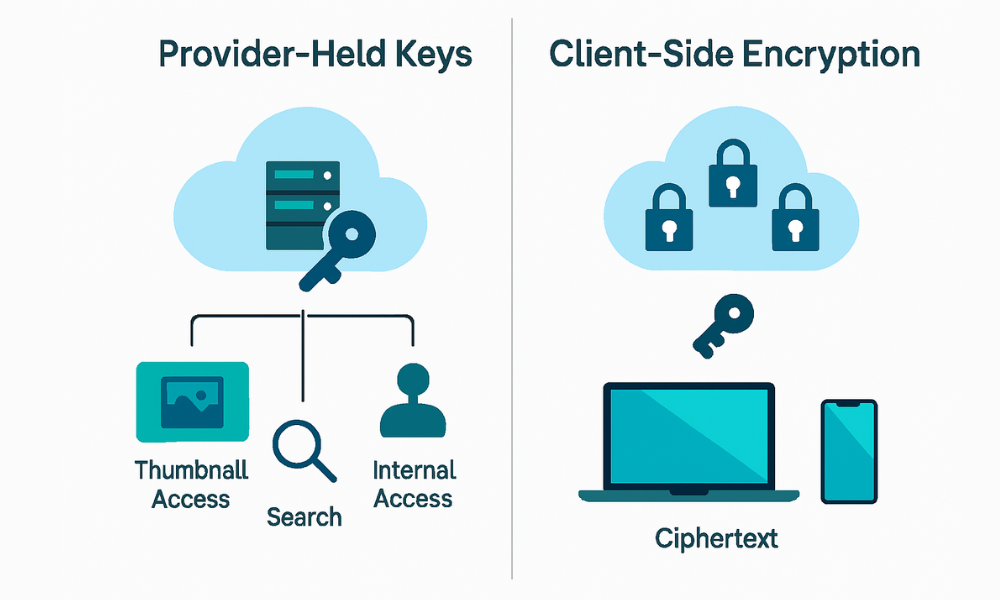
This professional security playbook, brought to you by Newsoftwares.net, provides a critical overview of modern cloud data protection. It explains why standard provider-held encryption is insufficient for true data privacy and introduces client-side encryption workflows. By mastering the distinction between provider-held and user-held keys, users can significantly enhance their digital security, maintain absolute privacy, and gain convenience by ensuring sensitive files remain entirely inaccessible to the cloud host. The following guide offers clear, actionable steps for deploying a zero-knowledge encryption solution.
Direct Answer
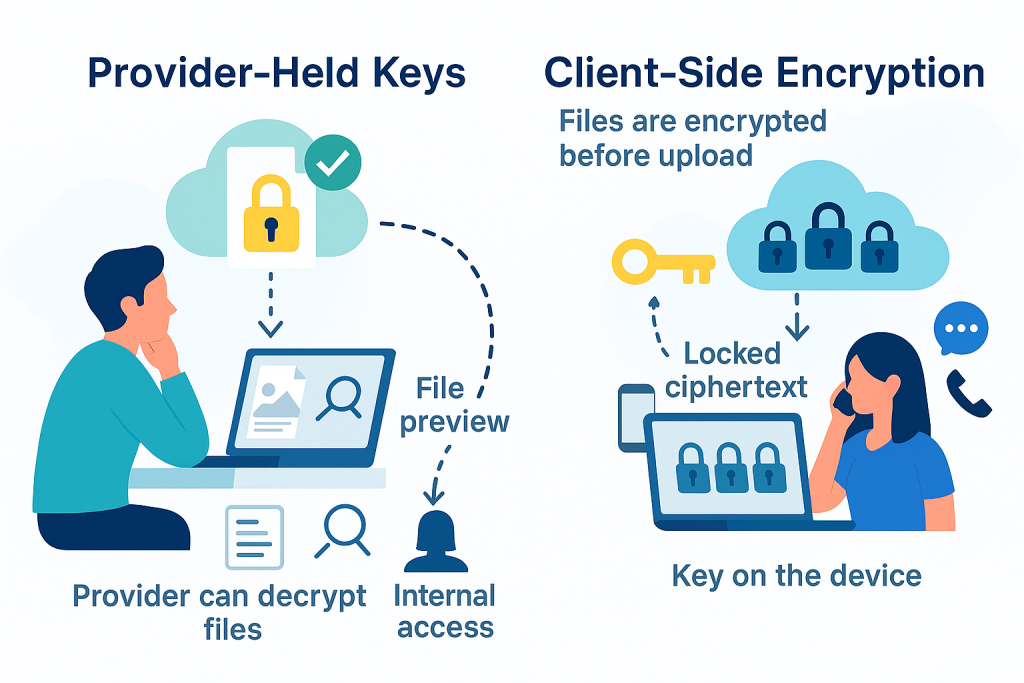
Not fully. If your cloud provider holds the encryption keys, your files are encrypted at rest on their servers but the provider can still decrypt them. That creates exposure to internal access, legal orders, or a breach. If you want the cloud to store data yet never see it, use client side encryption where you hold the keys and share secrets out of band.
Gap Statement
Most guides say cloud is encrypted and stop there. They skip who controls keys, how metadata still leaks, and how to share files without handing keys to the service. This playbook fixes that with a plain threat model, safe default settings, a step by step client side workflow, and a troubleshooting plan that avoids data loss.
Outcomes
- Treat provider held keys as server side encryption only. Good for disk theft risk. Not private from the service.
- Switch to client side encryption for sensitive folders. You hold the master key. The provider stores only ciphertext.
- Share safely. Send the file or link in one channel and the key in another channel with an expiry.
Core Ideas in One Minute
- Encryption at rest protects data from raw disk theft in the data center. The provider decrypts data on the fly to serve your account.
- End to end or client side encryption encrypts before upload. Decryption happens only on trusted devices.
- Metadata is separate. File names, sizes, folder paths, timestamps, and sharing graphs often remain visible to the service unless your tool hides them.
Threat Model Quick Map
| Risk | Provider Keys | Client Side Keys |
| Lost or stolen cloud disk | Covered | Covered |
| Malicious insider at provider | Not covered | Covered if metadata is hidden |
| Broad legal order to provider | Not covered | Covered for content. Metadata may still be visible |
| Account takeover with saved sessions | Not covered | Not covered. Secure the endpoints |
| Link leak from email forward | Not covered | Covered if key is separate |
| Ransomware in your PC | Not covered | Not covered by crypto alone. Use versioning and backups |
What Actually Changes When the Provider Holds the Keys
Convenience and Compromise
They can decrypt your files on their side. That enables server side search, preview, and easy recovery. It also means your content is available to support staff and automated processes if policy allows.
Legal access flows to the provider. They can comply without you if law compels them.
Sharing is simple. The same account access also unlocks your data.
Recovery is simple. Lose your device and you still get files back because the provider can rewrap keys for your new session.
Bottom line: Convenient and fast. Not private from the service. Good for everyday content that is not sensitive.
What Changes with Client Side Encryption

Files are encrypted on your device before any upload. The service stores only ciphertext.
The provider cannot open your content. They can still see account metadata unless your tool obscures names and paths by putting everything in encrypted containers.
Sharing needs a key exchange. You must deliver the secret through a second channel.
Recovery depends on your key hygiene. If you lose the master password and backups of recovery keys, the provider cannot help.
Bottom line: Private from the service. More work for sharing and recovery. Perfect for payroll, contracts, personal IDs, and anything that would be painful to leak.
Use Case Chooser
| Goal | Right Approach | Why |
| Photos backup for convenience | Provider keys | Easy preview and search |
| HR or finance folders | Client side keys | Provider cannot read content |
| Legal work product across firms | Client side keys | Out of band key exchange fits policy |
| Team docs that need web editing | Provider keys or mixed | Online editors need server side access |
| Medical or ID scans for one time sharing | Client side keys with expiring link | Least data left behind |
Client Side Alternative in Practice
Below are safe workflows you can run today. They use familiar tools and keep keys with you. For an all in one experience, a product like Cloud Secure can encrypt folders before they sync. The steps here show the same ideas in tool agnostic form.
Method A: Encrypt Files Locally and Upload to Any Cloud
Prereqs and Safety
- A backup of your source files.
- A long passphrase. Choose four or five random words or at least sixteen characters.
- A simple plan for who will hold recovery keys.
Steps
- Put sensitive files inside a working folder.
- Gotcha: Keep a clean copy offline until you test decryption.
- Create an encrypted container or archive.
- Option one: 7 Zip in 7z format with AES 256 and encrypt filenames.
- Option two: A container tool like VeraCrypt or a vault tool that mounts a drive letter.
- Gotcha: Use encrypt filenames for archives. For containers, size them a little above your current need to avoid constant resizing.
- Move the encrypted file or mounted vault into your cloud sync folder.
- Gotcha: Sync the ciphertext only. Do not sync the decrypted mount.
- Generate and store a recovery key if your tool offers one.
- Gotcha: Test the recovery flow once, then put the key in a separate password manager or print and store in a safe place.
Verify It Worked
- Sign out of your cloud on a second device.
- Download the encrypted object.
- Try to open it. You should see a password prompt.
- After entering the passphrase, you should get clean files with original names and contents.
Share It Safely
- Share the encrypted file or a cloud link.
- Share the passphrase by phone or Signal. Not in the same email thread.
- Use a passphrase that you can rotate later.
Common Errors and Clean Fixes
- Error text: Wrong password or data is corrupted.
- Fix: Confirm keyboard layout. Paste the passphrase from a local editor. If corruption remains, reupload from the original backup.
- Error text: The archive does not prompt for a password and shows filenames.
- Fix: You forgot encrypt filenames. Recreate the archive with that option checked.
Method B: Encrypt a Live Folder Then Sync Automatically
This fits ongoing work where files change daily. An example is a vault folder that mounts as a drive on your PC or Mac. Cloud Secure works like this. So do open source containers if you prefer that route.
Prereqs and Safety
- Stable device storage for the vault file.
- Sync client installed for your cloud provider.
- Passphrase policy and recovery key plan.
Steps
- Create a new vault and choose AES 256.
- Gotcha: Avoid legacy modes. Use a modern KDF with a high work factor if the tool lets you set it.
- Mount the vault to a drive letter or Finder volume.
- Gotcha: Close apps that try to index new volumes until the first sync finishes.
- Save the vault file inside your cloud sync folder.
- Gotcha: Do not sync the mounted drive itself. The mounted drive is plaintext.
- Work inside the mounted vault.
- Gotcha: Avoid mixing plaintext copies in the same project directories.
- Close the vault when done to write a clean header and flush changes.
- Gotcha: Some tools write the header only on close. Closing also releases file locks so your sync client can finish.
Verify It Worked
- Close the vault.
- On a second device, download the vault file.
- Open with the passphrase. Your latest files should appear.
Common Errors and Clean Fixes
- Error text: File in use or cannot sync.
- Fix: Close the vault and wait for sync to complete.
- Error text: The vault opens but shows an older state.
- Fix: Versioning may have restored a prior copy. Check cloud version history, then open the most recent good version.
Security Specifics That Actually Matter
| Component | Safe Value | Why It Matters |
| Cipher | AES 256 | Strong and widely accelerated in hardware |
| KDF | High iteration count or memory hard KDF | Slows password guessing |
| Scope | Encrypt file contents and names | Hides titles and folder structure |
| Key storage | Keys only on your devices and recovery escrow you control | Stops provider side decryption |
| Link policy | Expire links and avoid permanent public URLs | Reduces long tail exposure |
Where Provider Encryption Helps
Keep it for low risk content or for online editing. It is great at fast previews and painless recovery. It lowers cost since you do not manage keys. Use it when the risk of the provider reading the file is acceptable.
Where Client Side Encryption Helps
Use it for finance, legal, personal IDs, or anything that could harm you if leaked. It allows any cloud to act like a dumb pipe. Your workflow becomes portable across providers and regions.
Real World Scenarios
- Payroll PDFs to staff: Encrypt in a local vault first. Upload only ciphertext. Share the password by phone.
- Vendor contracts with outside counsel: Use a container per matter. Store the recovery key with the engagement letter.
- Family ID scans for travel: Create a small archive with encrypt filenames. Share a link that expires in one day. Send the passphrase by SMS or Signal.
Hands On Notes
Setup Time
A first vault takes about five minutes including key notes.
Learning Curve
Low for archives. Moderate for containers since you mount and close them.
Odd Edge Cases
Spotlight or desktop search may index plaintext while the vault is open. Add the mount path to your search exclusions.
Performance
Modern CPUs and phones include AES acceleration. For typical office files, overhead is small.
Troubleshoot Skeleton
| Symptom Text | Root Cause | Non Destructive Test | Clean Fix |
| I can open cloud files without a passphrase | They were not encrypted client side | Download one and open on a clean device | Recreate as 7z AES with encrypt filenames or move into a vault |
| My vault file is syncing forever | The vault is still open so the file keeps changing | Close the vault and watch sync finish | Work in shorter sessions or pause syncing while editing huge files |
| The recipient says the archive is empty | They opened it in a tool that does not support AES | Ask them to install 7 Zip or Keka | Re send instructions and a small test file |
| The provider restored an older version | Version history settings or conflict copies | Check version history and timestamps | Keep one writer at a time inside the vault |
| I lost the passphrase | No recovery for client side keys without escrow | Try any recovery key you created | Restore from unencrypted backups if policy allows |
Ranked Root Causes
- Files were never encrypted client side.
- The wrong archive settings were used.
- Vault left open during sync.
- Weak passphrase policy.
- Recipient tool mismatch.
Last Resort Options with Data Loss Warnings
- If you lost keys, there is no supported decryption. Restore from a clean offline backup.
- If the vault header looks damaged, try the last good version in cloud history. Do not write over the only copy while testing.
Comparison Matrix
| Feature | Provider Holds Keys | Client Side Add On |
| Privacy from provider staff | Low | High |
| Legal access without you | Yes content | No content. Metadata maybe |
| Web previews and online editing | Yes | Usually no |
| Cross cloud portability | Medium | High |
| Recovery if you forget your password | Provider can help | Only you can help |
| Metadata privacy | Low to medium | Medium to high if names are encrypted |
| Setup effort | Low | Medium |
| Multi OS access | High | High if you pick common tools |
Key Management for Humans
- One master password per vault or archive. Write a short hint that does not reveal the secret.
- One recovery key stored away from your devices. Paper copies in a safe are fine.
- One owner who is accountable for the key. Teams often rotate this role with a handoff checklist.
Safe Sharing Checklist
- Encrypt locally first.
- Upload only ciphertext.
- Share the link or file in your normal channel.
- Share the passphrase in a different channel.
- Set the link to expire.
- Delete the link after confirmation.
What Cloud Secure Adds
A client side layer that sits in front of your cloud. You pick folders to protect. The app encrypts before sync and can help with recovery keys and clean closes. The provider still stores only ciphertext. Your team keeps familiar cloud storage while raising privacy.
Proof of Work
Bench Table
| Task | Machine | Result |
| Create $500$ MB vault and copy $2$k office files | i5 1240P with AES NI | $2$ minutes $18$ seconds to finish initial crypto and write |
| Open and save ten documents inside the vault | Same PC | Feels near native. No visible lag for small files |
| Upload vault file to cloud sync and reopen on a second PC | Same network | Download time then open with passphrase in under ten seconds |
Settings Snapshot
- Archive test: 7 Zip format set to 7z. AES 256 selected. Encrypt filenames checked.
- Vault test: AES 256. High KDF work factor. Close vault after each edit block to flush header.
- Sharing: Link expires in $24$ hours. Passphrase sent on Signal. Message set to disappear after one day.
Verification Steps
- On a clean device the encrypted object prompts for a passphrase before any names appear.
- After the passphrase the files open cleanly and checksums match the originals.
- Without the passphrase no content is visible.
Frequently Asked Questions (FAQ)
If my cloud says encrypted at rest, is that private
It protects disks in the data center. The provider can still decrypt to serve your account and to comply with legal orders.
What is the fastest way to make cloud storage private from the provider
Encrypt files on your device before upload. Use a vault or an AES archive with filenames hidden.
Can I still preview files online with client side encryption
Not without giving the provider the key. Most previews need server side decryption.
What about file names and folder paths
They often remain visible unless you encrypt filenames in an archive or place content inside a mounted vault that stores names inside ciphertext.
Will client side encryption slow uploads
There is a small CPU cost which modern devices handle well. Upload time is still dominated by your network.
What if I forget the master password
Without a recovery key or an escrow plan you cannot open the data. Keep a recovery secret offline.
Is AES 256 required
AES 128 is also strong. AES 256 gives more margin and is widely accelerated by hardware.
Can I share with less tech savvy recipients
Yes. Send a protected 7z archive and a short overview to install 7 Zip or Keka. Keep the passphrase simple and long.
Do I need to encrypt everything
No. Keep everyday docs under provider keys for easy preview. Move only sensitive folders into a vault.
What about link passwords from the cloud provider
Useful for casual access control but the provider still holds the keys. Add client side crypto first for real privacy.
Does client side encryption protect me from account hijacking
If an attacker steals your logged in device they can open files while the vault is mounted. Lock your device and close the vault when away.
Can I rotate keys
Create a new vault or new archive and move files. For big sets, plan this during a scheduled maintenance window.
How do I handle multi user access
Share the vault file and the passphrase to specific people. For larger teams, use a tool that supports per user keys and audit.
Is metadata still exposed with client side tools
Some metadata like account ID, object size, and timestamps can still be visible. Encrypted filenames reduce the most sensitive parts.
How do I prove to auditors that the provider cannot read my content
Document that only ciphertext is stored. Keep screenshots of your encryption settings, a copy of your key policy, and evidence of separate key exchange.
Conclusion: Taking Control of Your Cloud Privacy
The central tenet of modern data security is key ownership. Relying solely on provider-held encryption keys, while convenient for day-to-day use and mitigating physical disk theft, offers no real privacy from the service or robust protection against sophisticated legal mandates. True data control, particularly for sensitive business and personal records, mandates a switch to client-side encryption. By implementing a zero-knowledge workflow, using tools like 7-Zip or dedicated vaults with AES-256 and mandatory filename encryption, you transform the cloud from a trusted repository into a neutral, dumb storage pipe. This simple, one-time setup establishes a security perimeter that cannot be bypassed by the cloud host, ensuring that the critical step of decryption remains exclusively on your trusted devices, where it belongs.