
Hardening Android: Key Management, Adoptable Storage, and Access Control
This comprehensive overview, developed with the expertise of Newsoftwares.net, details the architectural and practical steps required to maximize Android device security. It focuses on implementing robust hardware, bound key management, properly configuring external storage, and layering access controls to ensure your data remains confidential and secure, promoting verifiable security and user convenience.
1. The Essential Android Security Stack

Securing an Android device involves more than just setting a PIN. True protection relies on the core architecture that manages keys, segregates data, and controls physical access. For users seeking to maximize security and utility, the strategy centers on verifying native device encryption, correctly configuring external storage, and implementing effective application locks.
1.1 Three Steps to Maximum Android Security Summary
To achieve the strongest security posture, focus on these three critical areas:
- Outcome 1: Verify File Based Encryption (FBE). Ensure the device runs FBE natively, a mandatory feature on devices launching with Android 10 and higher. FBE secures data at rest and enables essential functions immediately upon boot.
- Outcome 2: Select Adoptable Storage. If storage expansion is needed, use Adoptable Storage (compatible with FBE since Android 9). This binds the SD card encryption directly to the device’s strong FBE key structure, integrating it securely.
- Outcome 3: Control App Access. Utilize native Digital Wellbeing tools for usage management or select a vetted, audited third party app to protect individual applications from casual access while the phone is unlocked.
1.2 FBE Baseline: Why You Already Have Encryption
Modern Android security moved definitively away from older Full Disk Encryption (FDE). File Based Encryption (FBE) is now the required standard for all devices launching with Android 10 or later. This shift did not just improve performance, it completely redefined how keys are managed on the device.
The primary functional benefit of FBE is enabling Direct Boot. Previously, FDE devices required the user to enter their credentials before the operating system could fully initialize. With FBE, the device can boot straight to the lock screen and run crucial, limited system apps while still protecting the majority of user data.
FBE accomplishes this by separating user data into two distinct, independently keyed locations:
- Credential Encrypted (CE) Storage: This is the default, highly protected location where sensitive user data resides. Access is strictly unavailable until the user provides their Lock Screen Knowledge Factor (LSKF), PIN, pattern, or password.
- Device Encrypted (DE) Storage: This storage location is accessible immediately during Direct Boot mode and remains available after the device is unlocked. It is reserved for essential system services and apps that need to operate immediately, such as handling incoming phone calls.
This storage segregation demonstrates that modern security models prioritize key isolation. The architecture allows critical processes to run immediately, enhancing usability, but ensures the main repository of sensitive user files (CE storage) remains cryptographically locked until the human owner authenticates. This key isolation provides security without requiring usability sacrifices.
2. Deep Dive: How File Based Encryption Actually Works
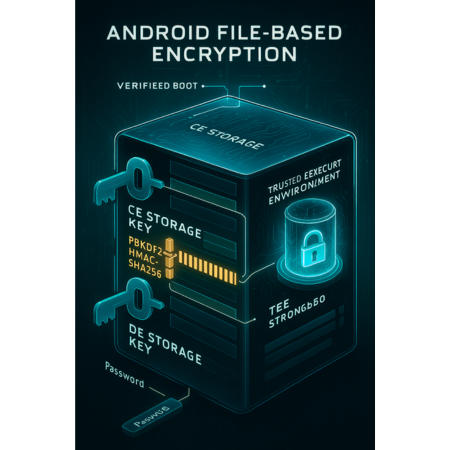
FBE is not merely a software feature, its security relies entirely on specific hardware isolation mechanisms. The strength of Android encryption is fundamentally linked to the underlying hardware that stores and manages the cryptographic keys.
2.1 The TEE Defense: Hardware Bound Key Protection
A robust FBE implementation depends on kernel support and the presence of KeyMint (or Keymaster 1.0 or higher). The actual security barrier is the Trusted Execution Environment (TEE), sometimes referred to as StrongBox.
KeyMint/Keymaster and the Gatekeeper components must be implemented within this isolated TEE. This hardware isolation prevents a common attack scenario, an unauthorized operating system (OS), such as a custom forensic flash, cannot simply send a request to the kernel to retrieve the sensitive DE keys. The TEE acts as a vault, processing cryptographic operations securely without exposing the raw keys to the main, potentially compromised, OS.
This defense is further strengthened by linking the DE keys to the Hardware Root of Trust and Verified Boot. If the integrity of the boot sequence is compromised, for instance, if an attacker attempts to load a tampered version of the OS, the TEE detects the verification failure and refuses to release the cryptographic keys. This ensures that the keys themselves are intrinsically linked to the device’s physical and software integrity.
2.2 The Cipher Choices and Key Derivation
The actual data protection relies on high strength algorithms and sophisticated key management. The system generates just one file contents encryption key per CE or DE key, rather than managing a unique key for every file, which simplifies overhead.
For encrypting file contents, the widely recommended setting on most devices is fileencryption=aes-256-xts. If a device lacks hardware acceleration for AES, the alternative symmetric cipher Adiantum can be used.
Since Android 14, filename encryption has received significant attention. While older methods sometimes exposed metadata, the preferred mode for filename encryption on devices with accelerated cryptography instructions is AES-HCTR2. This signifies a security evolution where protecting not just the contents but also the context and metadata of the user’s files is prioritized.
Key derivation is the process by which the user’s Lock Screen Knowledge Factor (LSKF, e.g., the PIN) is turned into the final cryptographic key. This process uses a Key Derivation Function (KDF), often a variant of PBKDF2-HMAC-SHA256 implemented through Keymaster/Gatekeeper. To effectively resist brute force attacks, high iteration counts are essential. Guidance from security organizations like OWASP suggests using at least 600,000 iterations for PBKDF2-HMAC-SHA256. This computationally intensive step deliberately slows down an attacker attempting to guess the user’s PIN or password.
Table 2: Proof of Work: FBE Cryptographic Specifications (Android 14+)
| Component | Recommended Algorithm/Standard | Security Context |
| File Contents Encryption | AES-256-XTS or Adiantum (if no acceleration) | Data Unit granularity (4096 bytes minimum) |
| Filename Encryption | AES-HCTR2 (Preferred since Android 14) | Protects directory structure privacy |
| Key Derivation Function (KDF) | PBKDF2-HMAC-SHA256 (via Keymaster/Gatekeeper) | Iterations should exceed 600,000 (OWASP guidance) |
| Key Storage | KeyMint/Keymaster in Trusted Execution Environment (TEE) | Hardware-bound and protected from unauthorized OS access |
3. Securing External Storage: Adoptable Storage Implementation
When integrating an SD card, Android presents a choice between two fundamentally different security and functionality models: Portable Storage or Adoptable Storage. This decision dictates performance, security, and recovery options.
3.1 Choosing Your Secure SD Card Strategy
Portable Storage treats the SD card as traditional, removable media. It functions primarily as a repository for general files, such as photos, videos, and documents, and is easily readable if removed and inserted into a PC. While some devices offer encryption for portable storage, that encryption is typically device specific and renders the data unusable on any other platform, making recovery nearly impossible if the original device fails.
Adoptable Storage (introduced in Android 6.0 and FBE compatible since Android 9) is fundamentally different. When a card is adopted, the system formats it and encrypts it to function as a seamless extension of the internal storage. Because the card is permanently tied to that single Android device, it is secured using the device’s FBE keys, allowing it to safely host application installations and private user data for all users.
3.2 The Risks and Performance Reality
Adoptable storage is not without risk. Because the system treats the adopted card like high speed internal storage, the relatively slow nature of most consumer SD cards can introduce a severe performance delta. This disparity can cause noticeable lag and stutters during routine operations that rely on storage access.
More critically, the system integrity risk increases significantly. SD cards are not intended for the number of write and rewrite cycles demanded by an active operating system drive. If the adopted SD card fails or becomes corrupt, a common occurrence, the device can experience catastrophic system failures, including kernel panics and failure to boot past a certain point. Therefore, using Adoptable Storage demands a high end, endurance rated SD card to minimize the chance of system failure.
Table 1: Adoptable Versus Portable Storage Comparison (Use Case Chooser)
| Criteria | Adoptable Storage (Internal) | Portable Storage (Traditional) |
| Security Level | High (Integrated FBE/Device Keying) | Low (Simple encryption, if any) |
| Portability | None (Permanently tied to the device) | High (Easily readable on PC/other devices) |
| App Installation Support | Yes (Can host apps and private data) | No (Only media and general files) |
| Performance Impact | Significant (Slows overall system/app load) | Minimal (Only affects media transfer speed) |
| Failure Risk | High (Card failure causes boot/system crash) | Low (Card failure only loses card data) |
4. How To: Setting Up Adoptable Storage Safely
Converting an SD card to Adoptable Storage is an irreversible process for the data on the card and requires a complete format.
4.1 Prerequisites and Safety
The absolute first step is to back up all files currently on the SD card, as the formatting process permanently deletes all data. Users must also ensure their device runs Android 9 or higher for necessary FBE compatibility. To minimize system lag and risk, use a high speed card (UHS Speed Class 3/V30 minimum).
4.2 Steps (Numbered): Formatting the Card as Internal Storage
This procedure applies specifically to newly inserted media or converting an existing Portable card.
- Insert and Detect Notification:
Action: Insert the SD card into the device. Swipe down from the top of the screen and tap the notification labeled SD card detected.
- Select Advanced Format:
Action: When prompted for how to use the card (Portable vs. Internal), select the option labeled Format another way to specify Adoptable Storage.
- Confirm Internal Use:
Action: Choose the option to format the card as internal storage (Adoptable Storage). Confirm the prompt, acknowledging the data wipe and the permanent device binding.
- Complete Migration (Optional):
Action: Once formatted and encrypted, the system offers to migrate existing primary shared storage contents to the new adopted media. Select Move content to immediately free up space on the device’s true internal storage.
Gotcha (FBE Incompatibility): Users attempting this process on devices running Android 7.0 through 8.1 will find FBE is incompatible with Adoptable Storage. The device will only permit the use of traditional/portable storage, regardless of configuration attempts.
4.3 Verification Steps
After the process finishes, confirmation is straightforward.
- Confirming Storage Structure: Navigate to the device’s Settings app, then tap Storage. The SD card should not appear as a separate, mountable volume, it must be listed as part of the total internal storage pool, confirming its adopted status.
- App Installation Check: Go to the application list in Settings, select an app, tap Storage, and verify that the option to “Change” the storage location to the adopted media is now available.
5. Locking Down Apps: Native and Third Party Methods
App locking mechanisms are primarily a privacy feature designed to restrict casual access when the device is already unlocked. They do not typically provide the cryptographic security layer that FBE offers.
5.1 Method 1: Native App Control (Digital Wellbeing)
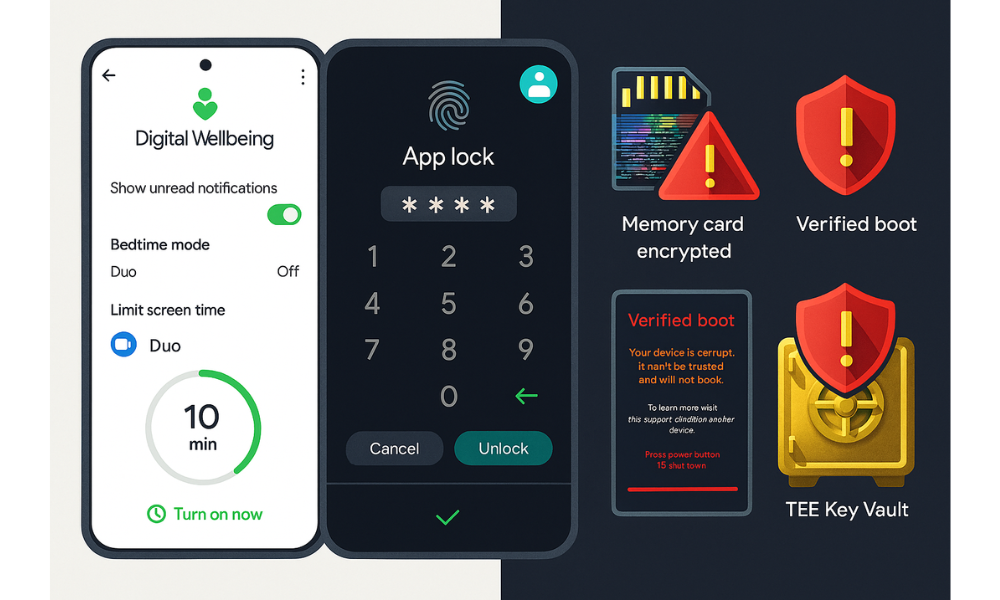
Stock Android devices use Digital Wellbeing and Family Link to manage application usage and screen time, effectively limiting access rather than imposing a strict biometric or PIN based lock.
The process focuses on time constraints:
- Access Digital Wellbeing: Open Settings and tap Digital Wellbeing and parental controls.
- Go to Activity: Tap Go to Digital Wellbeing located under “App activity”.
- Set Limits: Select App limits. Choose the application, e.g., Instagram, messaging apps, and set a daily time duration.
- Enforcement: Once the daily limit is exhausted, the app icon greys out, and the application cannot be launched until the timer resets.
For children’s accounts, control is shifted to the administrator using Family Link.
5.2 Method 2: Selecting a Vetted Third Party App Locker
Since many Android manufacturers do not include a native PIN/biometric lock for individual apps, third party tools are often necessary to prevent unauthorized entry into specific applications, such as banking or messaging apps.
Hands on Notes: Why Open Source and Audits Matter
App lockers require high level system permissions, specifically Usage Access, to monitor and interrupt app launches. This inherent intrusiveness makes the choice of application critical. Users must be aware that an app locker, if malicious, could potentially log input or harvest other sensitive data.
Security audits are the primary defense against this risk. Users should seek apps that transparently publish reports from independent, reputable third party security firms. A quality app locker ensures its own process cannot be terminated, thereby providing effective access control when the device is unlocked.
6. Troubleshooting and Data Recovery for Encrypted Storage
When encryption or secure storage fails, the result is often a complete loss of access. Understanding the root causes is essential for effective mitigation.
6.1 Root Causes of Encryption Failure
The most common causes of critical data access failure are related to key management or hardware integrity:
- Corrupt Key Storage: After a locking event, the device’s cryptographic engine (TEE) evicts the ephemeral keys. If the key storage within the secure environment is corrupted or fails to unwrap the Credential Encrypted (CE) key correctly, the user cannot unlock CE storage even if the correct PIN is entered.
- Adoptable Storage Failure: If the adopted SD card suffers physical failure or corruption due to low write endurance, the system attempts to access damaged system files during initialization. This often triggers severe errors, including kernel panics, which prevent the Android system from loading.
- Verified Boot Failure: Any modification to the boot image or a failed system update that compromises the integrity check can break the link between the Hardware Root of Trust and KeyMint. This prevents the TEE from releasing the DE keys, leading to device lockup.
6.2 Symptom, Fix Mapping (Error Strings)
Table 3: Error String, Fix Table: Adoptable Storage and Key Errors
| Symptom / Error String | Root Cause | Non Destructive Test/Fix | Last Resort Fix (Data Loss Warning) |
| Attempt to invoke virtual method ‘java.lang.String… VolumeInfo.getId()’ on a null object reference | SD card corruption or hardware limitation (e.g., unsupported SDXC size). | Action: Unmount and reinsert the card. Test the SD card in a PC to check for read failures. | Factory Reset. If the card is salvageable, reformat it on a PC before attempting re, adoption. |
| Device reboots but repeatedly fails to unlock CE storage after correct PIN entry. | Key eviction failure or integrity check mismatch (Keymaster/Gatekeeper temporary error). | Action: Force re, entry of password/pattern via lock screen prompt. Perform a clean reboot (not forced power off). | Administrator Password Reset (only available on managed enterprise devices). |
| System displays “Cannot load Android system” or Kernel Panic | Critical file system corruption on adopted partition, or failed system update. | Action: Boot into recovery mode and attempt to wipe the cache partition (non, data impacting). | Re, flash official stock firmware (guaranteed data loss). |
| Cannot access encrypted data on a different Android device or PC. | Native Android encryption keys are device, bound. | Action: For Portable Storage, temporarily disable encryption before transfer (if supported). | None. If the device fails, the data is permanently lost. |
6.3 Last Resort Options (Data Loss Warnings)
Non destructive tests must always be performed first. Attempting a standard reboot is crucial, as temporary Trusted Execution Environment (TEE) state issues are often resolved by a clean power cycle.
However, users must understand the intrinsic risk of modern encryption. For private FBE data (CE storage), recovery is nearly impossible without the Lock Screen Knowledge Factor (LSKF) or a specific, pre configured recovery token. If the keys are lost due to a forgotten password or device failure, the data is permanently rendered cryptographically inaccessible. Regular, secure data backup is the only true preventive measure against this loss.
Frequently Asked Questions
How does FBE handle security for multi user profiles
FBE provides key isolation at the user level. Each user, including secondary users or a separate Work Profile, has their own independent lock screen and unique set of Credential Encrypted (CE) keys. This architecture ensures that one profile remains locked and inaccessible even if another profile on the same physical device is active.
What is the performance penalty of File Based Encryption
Modern FBE, particularly on devices using hardware acceleration for cryptography, imposes minimal performance overhead on internal storage. Any noticeable lag is typically related to using Adoptable Storage, where the inherent slowness of consumer grade SD cards cannot keep up with the demands of the operating system.
Can I recover data from my adopted SD card if my phone breaks
No. Adoptable Storage is encrypted using keys permanently tied to the original device’s Keymaster and TEE. Once the device fails or is factory reset, the essential cryptographic link is broken, and the data on the adopted card becomes unrecoverable, even if the card itself is physically intact.
Why are some files available before I enter my PIN (Direct Boot)
These files reside in Device Encrypted (DE) storage. This partition is specifically designed to be keyed and available during Direct Boot mode. It ensures necessary system functions, such as alarms, emergency services, and incoming calls, can operate immediately after the device powers on, before the primary, highly protected Credential Encrypted (CE) data is unlocked.
Is it safe to use a third party app locker
App lockers provide a useful secondary privacy layer against casual device access but require invasive permissions (Usage Access). It is crucial to use only apps that are open source or that publish evidence of recent, independent security audits to mitigate the risk of hidden malicious activity.
Conclusion
Maximizing Android security is a function of aligning physical access control with robust hardware, backed encryption. By verifying File Based Encryption (FBE) and integrating external storage via Adoptable Storage, users establish a strong, hardware, bound cryptographic defense for their data. However, the system’s strength is limited by human error. Users must mitigate this risk by employing strong passwords and practicing regular, secure backup, these operational steps remain the final, most critical layer of defense.