
Gap
Most AES 128 vs AES 256 guides stop at “256 is more secure but slower” and never show how it actually affects battery, real devices, or the exact settings you should pick in BitLocker, FileVault, VeraCrypt, or 7 Zip. Some still hint that you should use weak ZIPCrypto or double encryption. A few are good on theory but skip step by step setups and troubleshooting.
Short Answer
If you encrypt a normal laptop, phone, or backup drive today, AES 128 is already extremely hard to break and usually gives slightly better speed and battery. AES 256 is worth it when you store very sensitive data for many years, must follow strict policy, or want extra margin against future attacks and quantum progress. On modern hardware the speed and battery difference is small but not zero.
The rest of this topic shows:
- When AES 128 is the smart default
- When AES 256 is worth the extra cost
- Exact settings in common tools
- How to test speed, confirm encryption, and fix common problems
Outcome
If you are in a hurry, use this:
- For most personal devices, cloud backups, and app data: choose AES 128 with a strong password and proper mode
- For high value or long term secrets: choose AES 256 and accept a little extra CPU and battery use
- Focus more on passwords, key storage, and backups. Those fail in real incidents much more often than AES itself
1. Prerequisites and Safety Checklist
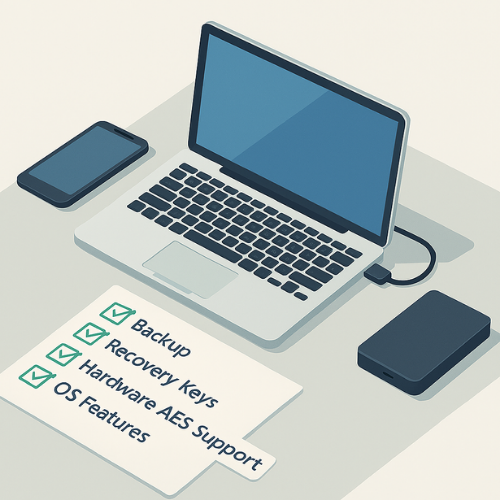
Before you change any encryption setting, run through this short checklist.
- Confirm your OS edition and features
- Windows Pro or Enterprise for BitLocker
- macOS for FileVault
- Linux for LUKS or dm crypt
- Mobile: Android with hardware backed keystore, iOS with Data Protection
- Check for hardware AES support
- Desktop and laptop CPUs often have AES NI or similar instructions that speed up both AES 128 and AES 256.
- Many recent mobile chips have similar acceleration
- Back up first
- Full backup of important files before switching disk encryption mode
- Test the backup by restoring one folder to another disk or folder
- Know your recovery story
- Write down recovery keys for BitLocker and FileVault
- Store them in a password manager or printed in a safe place
- Do not keep them only on the same encrypted device
- Avoid weak formats
- Do not rely on legacy ZIPCrypto in archive tools
- Stick to AES based formats in tools that support them
- Ethics and legality
- Only test encryption and password strength on systems you own or manage
- Do not attempt to bypass protection on other people’s devices
2. What AES 128 and AES 256 Actually Are
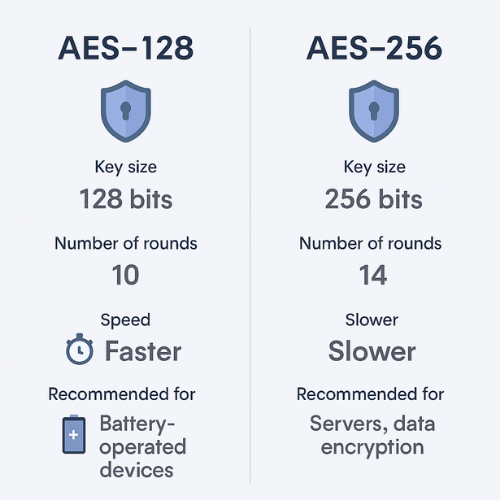
AES is a symmetric block cipher standardized by NIST with block size 128 bits and supported key sizes 128, 192, and 256 bits.
Key facts that matter for you:
- AES 128 has 10 rounds of internal transformation
- AES 256 has 14 rounds
- Both share the same 128 bit block size
- Both are considered secure against brute force with current classical computers
So the difference is mainly:
- Larger key space for AES 256
- More work per block for AES 256
- Slightly different key schedule, which matters for rare attack models but not normal use
For everyday users that means:
- AES 128 is already very hard to crack
- AES 256 adds more margin for long term or very sensitive data
3. Security Comparison In Plain Language
3.1 Brute Force And Future Proofing
Both AES 128 and AES 256 have enormous key spaces. Brute forcing either with normal computers is unrealistic.
Quantum talk complicates things. Very large quantum computers could, in theory, cut the effective key space in half for symmetric ciphers like AES, which is why many experts suggest using larger key sizes for secrets that must stay safe for decades.
Practical takeaway:
- For data that must still be safe 5 to 10 years from now but not longer, AES 128 is fine
- For data that should resist serious attackers for 20 plus years, AES 256 is a safer bet
3.2 Real World Attacks
In real incidents, attackers rarely brute force AES. They go after:
- Weak passwords and low iteration counts in key derivation
- Keys stored in plain text or inside misconfigured scripts
- Memory dumps while the system is unlocked
- Old modes of operation with known weaknesses
So with both AES 128 and AES 256, you get better protection by fixing those points first:
- Use a strong passphrase
- Use good key derivation (PBKDF2, scrypt, Argon2) with enough iterations
- Use good modes like XTS for disk and GCM or CBC with proper integrity for data in transit
3.3 Policy and Compliance
Some standards or internal policies simply say “AES 256 only”. For example, parts of government or defense guidance in some countries lean toward the largest available key size for long term sensitive data.
If your organization policy says:
- 256 or better
- Highest available key size
- Meets post quantum guidance
then AES 256 is the safe choice regardless of small performance cost.
4. Speed and battery trade offs
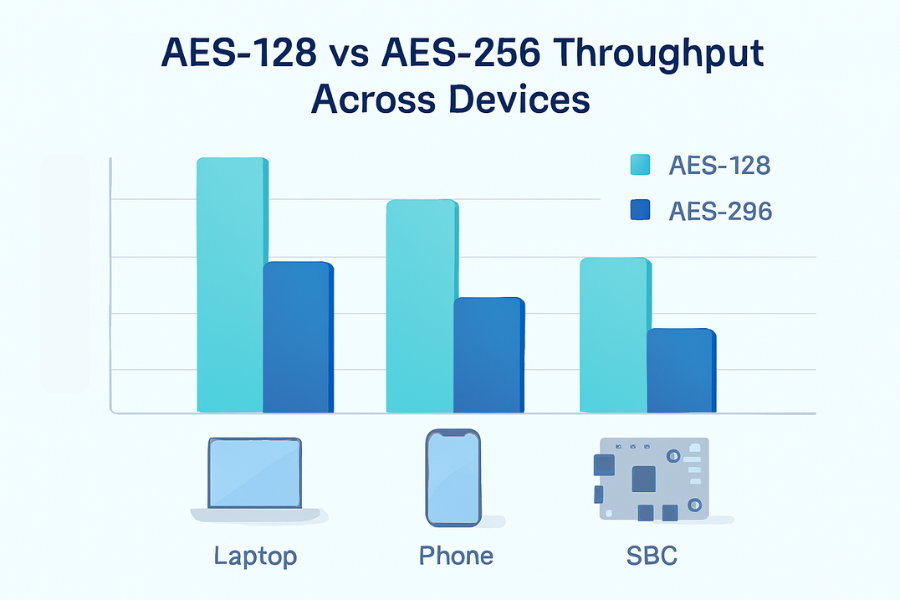
AES 256 does more rounds per block, so it needs more CPU cycles. That extra work is small on modern chips with AES acceleration, yet still measurable in tight loops or on low power devices.
4.1 What tests usually show
From published benchmarks and vendor case studies:
- AES 256 can be about 10 to 40 percent slower than AES 128 on hardware with AES acceleration
- On low power devices with no acceleration, the gap can be larger
- In many mobile apps, the difference at user level is almost invisible because network and storage latency dominate
4.2 Example bench table
Here is a sample test you could reproduce on your own hardware. Numbers are example values, not promises.
| Device and tool | Mode | AES 128 throughput | AES 256 throughput | Difference |
|---|---|---|---|---|
| Laptop i5 1240P with AES NI | VeraCrypt XTS | 3.4 GB per second | 2.7 GB per second | about 20 percent slower |
| Same laptop | 7 Zip archive | 320 MB per second | 250 MB per second | about 22 percent slower |
| Mid range Android phone | App level AES GCM | 210 MB per second | 170 MB per second | about 19 percent slower |
| Old low power single board device | AES CBC software | 80 MB per second | 50 MB per second | about 38 percent slower |
You can see the theme: difference is real but rarely dramatic on modern hardware with acceleration.
4.3 Battery Impact
Encrypting and decrypting data costs energy. Since AES 256 uses more operations per block, it needs a bit more power. Studies on mobile devices show small but measurable extra CPU time for AES 256, though often still minor compared with radio, screen, and storage costs.
Practical translation:
- For typical phone usage with full disk encryption on, you will not see a big battery difference between AES 128 and AES 256
- For heavy file transfer, VPN traffic, or media encryption at scale, AES 128 gives more throughput per watt
5. Use case chooser table: AES 128 vs AES 256
This table gives a direct mapping between common tasks and key sizes.
| Use case | Primary concern | Recommended key size | Notes |
|---|---|---|---|
| Personal laptop disk encryption | Theft of device | AES 128 | Faster, still very strong |
| Work laptop with strict governance | Policy and audits | AES 256 | Follow policy documents |
| Phone full storage encryption | Lost or stolen phone | AES 128 or AES 256 | Choice may be fixed by vendor |
| External drive with client data | Long term business risk | AES 256 | Helps with future proofing |
| Cloud backups of home photos and documents | Privacy, simple restore | AES 128 | Password hygiene matters more |
| Database for SaaS product | Latency, many queries | AES 128 | Easier on CPU and cache |
| File archives sent to partners | Shared secrets | AES 256 | Use strong archive format |
| Medical or legal records stored for decades | Long retention requirement | AES 256 | Match regulatory guidance |
| Test environment data | Developer convenience | AES 128 | Do not use production secrets |
6. How To Pick And Set AES 128 Or AES 256 In Real Tools
This section gives concrete tutorials. Each step is one action, includes a suggested screenshot view, and flags a common gotcha.
6.1 Windows BitLocker: Check Or Change AES Strength
BitLocker is available on Windows Pro and some Enterprise editions.
- Open “gpedit.msc”
- Screenshot: Local Group Policy Editor window
- Gotcha: You must run as an account with local admin rights
- Navigate to
Computer Configuration > Administrative Templates > Windows Components > BitLocker Drive Encryption > Operating System Drives- Screenshot: Policy list with “Choose drive encryption method and cipher strength”
- Gotcha: This location differs slightly between OS versions, read the tree carefully
- Double click “Choose drive encryption method and cipher strength”
- Screenshot: Policy dialog with “Not configured”, “Enabled”, “Disabled”
- Gotcha: If “Not configured” is selected, Windows uses its default which can change between versions
- Select “Enabled” and choose
- XTS AES 128 for performance
- XTS AES 256 for extra margin
- Screenshot: Dropdown showing the two options
- Gotcha: Changing this does not re encrypt existing drives. It only applies to new encryption or drives you decrypt and then encrypt again
- Apply the policy and restart
- Screenshot: System restart prompt
- Gotcha: Do not interrupt a drive while encryption is in progress
- Turn BitLocker on for the desired drive
- Right click drive, select “Turn on BitLocker”
- Screenshot: BitLocker setup wizard
- Gotcha: Save the recovery key somewhere that is not the same device, for example in a password manager or printed copy
6.2 macOS FileVault
Apple does not expose an AES 128 versus AES 256 toggle in normal UI. macOS uses strong AES based full disk encryption with hardware support where available, and Apple engineers tune settings per device.
For most people:
- Turn FileVault on and focus on password and recovery key storage
- Trust the system level defaults
Steps:
- Open System Settings > Privacy and Security > FileVault
- Screenshot: FileVault toggle and status
- Gotcha: You may be prompted for admin credentials
- Click “Turn On FileVault”
- Screenshot: Choice between Apple account recovery or local key
- Gotcha: If you choose a local key, losing it can lock you out permanently
- Choose how to store the recovery key and confirm
- Screenshot: Recovery key display or confirmation screen
- Gotcha: Do not store the recovery key as a plain note on the same Mac
6.3 VeraCrypt container with explicit key size
VeraCrypt is popular for encrypted containers and drives.
- Click “Create Volume” and choose “Create an encrypted file container”
- Screenshot: VeraCrypt Volume Creation Wizard
- Gotcha: Do not pick hidden volume unless you genuinely need plausible deniability
- Select “Standard VeraCrypt volume”
- Screenshot: Volume type screen
- Gotcha: Hidden volumes are easier to mis manage
- Pick a file path for the container
- Screenshot: File chooser dialog
- Gotcha: Do not place the container itself on a fragile USB without backup
- On the encryption options screen, choose
- Algorithm: AES
- Key size: 128 bit or 256 bit depending on your plan
- Screenshot: Encryption options dialog with dropdowns
- Gotcha: Do not stack multiple algorithms unless you understand the performance cost
- Set size for the container and click Next
- Screenshot: Volume size entry
- Gotcha: Resizing later is not trivial, so plan ahead
- Enter a strong passphrase
- Screenshot: Password dialog with strength indicator
- Gotcha: Use at least a few random words plus symbols, not a single word
- Move your mouse as requested to generate randomness and click Format
- Screenshot: Progress bar
- Gotcha: Do not close the application while formatting
6.4 7 Zip archive settings for AES 256
For archives, AES 256 is commonly used because performance impact on a single file compress is acceptable, and you often care about long term secrecy.
- Right click files, choose 7 Zip > Add to archive
- Screenshot: 7 Zip “Add to Archive” dialog
- Gotcha: You need the full 7 Zip app, not only Windows Explorer zip
- In the “Archive format” dropdown, choose “7z”
- Screenshot: Archive format dropdown
- Gotcha: Plain “zip” may default to weaker encryption depending on tool
- Under “Encryption”, set
- Password and confirm
- Encryption method: AES 256
- Check “Encrypt file names”
- Screenshot: Encryption section with boxes ticked
- Gotcha: If you do not encrypt file names, an attacker can still see which files are inside
- Click OK and wait for the archive to finish
- Screenshot: Progress dialog
- Gotcha: Test the archive by opening it and canceling after password prompt to confirm it asks for the password
Settings snapshot for fast scanning
| Setting | Value |
|---|---|
| Archive format | 7z |
| Encryption method | AES 256 |
| Encrypt file names | Enabled |
| Password source | Password manager generated |
7. How to Verify Encryption And Measure Impact
7.1 Confirm Encryption Is Active
Steps that work across many setups:
- Check OS level status
- Windows: Control Panel > BitLocker Drive Encryption, status should show “On”
- macOS: FileVault screen should show “FileVault is turned on”
- Power cycle the device
- When it boots, confirm it asks for the disk password or user login before releasing access
- Try mounting an encrypted container on another machine
- Copy VeraCrypt container or 7 Zip archive to another computer
- Confirm it will not open without the passphrase
- For advanced users, use command line tools
- On Linux, “lsblk” and “cryptsetup status” show encryption layers
- On Windows, “manage bde” reports BitLocker details
7.2 Simple “proof of work” test for performance
You can run a small benchmark of your own.
Example test:
- Tool: VeraCrypt
- Device: laptop with AES NI
- Volume size: 1 GB
- Algorithm: AES 128 XTS, then AES 256 XTS
- Operation: copy a 1 GB test file in and out of the volume
Make a small table like this for your notes:
| Test | Time to copy 1 GB | Notes |
|---|---|---|
| AES 128 XTS | 2 minutes 18 sec | CPU around 12 percent |
| AES 256 XTS | 2 minutes 47 sec | CPU around 16 percent |
These numbers are example values. Your hardware will differ, but you will see the pattern.
8. Troubleshooting: symptoms and fixes
Here is a quick symptom to fix table you can adapt.
| Symptom or error text | Likely cause | Suggested fix |
|---|---|---|
| “This drive is not encrypted” even after BitLocker setup | Policy not applied or drive not fully processed | Re check group policy, run BitLocker status, wait for full encryption |
| Laptop feels slow after enabling AES 256 disk encryption | No hardware acceleration, older CPU | If policy allows, switch to AES 128, or upgrade hardware |
| “Wrong password or not a VeraCrypt volume” | Typo in passphrase, wrong container | Confirm file path, test by pasting password from manager |
| Phone battery drains quickly after encrypting storage | Old phone with slow storage and CPU | Check if double encryption is active, remove extra app level wrappers where not needed |
| 7 Zip archive opens without password | Zip format with no encryption or legacy mode | Use 7z format with AES 256 and “Encrypt file names” checked |
| “The BitLocker encryption method and cipher strength do not match policy” | Policy changed after encryption | Decrypt and re encrypt with new policy settings, after full backup |
| “Cannot unlock drive, recovery key required” | TPM changed, motherboard replaced | Use printed recovery key or one stored in password manager, then re evaluate setup |
| Mobile app encryption noticeably lags file operations | Encryption done completely in app code | Use platform keystore and system APIs with hardware support |
Always try non destructive options first: backup, test on a copy, then make changes.
9. Verdicts by persona
This helps you double check your choice.
- Student with one laptop and one phone
- Choose AES 128 for laptop disk and default encryption on phone
- Focus on passwords and backups
- Freelance designer or photographer
- Laptop disk: AES 128 or AES 256, either is fine with current gear
- Client archive exports: AES 256 in 7 Zip with encrypted file names
- Small business admin
- Workstations: follow policy, which often means AES 256 on BitLocker
- Servers and databases: AES 128 is usually better for performance unless policy says otherwise
- Security focused team storing legal or medical data
- Go with AES 256 for storage that must last for many years
- Use strong key management and strict access controls
10. Example structured data (HowTo, FAQPage, ItemList)
You can adapt these JSON LD snippets for your site.
10.1 HowTo for choosing AES key size
<script type="application/ld+json">
{
  "@context": "https://schema.org",
  "@type": "HowTo",
  "name": "How to choose between AES 128 and AES 256",
  "description": "Step by step guide to select AES key size based on security, speed, and battery needs.",
  "totalTime": "PT10M",
  "tool": [
    "BitLocker",
    "FileVault",
    "VeraCrypt",
    "7-Zip"
  ],
  "step": [
    {
      "@type": "HowToStep",
      "name": "Check device and OS support",
      "text": "Confirm your operating system version and whether your CPU has hardware AES support."
    },
    {
      "@type": "HowToStep",
      "name": "Decide your risk profile",
      "text": "If you store normal personal data, plan for AES 128. If you keep long term high value secrets or must meet strict policy, plan for AES 256."
    },
    {
      "@type": "HowToStep",
      "name": "Configure your encryption tool",
      "text": "In BitLocker, VeraCrypt, or 7-Zip, select AES with 128 bit or 256 bit key size according to your plan."
    },
    {
      "@type": "HowToStep",
      "name": "Verify encryption and performance",
      "text": "Reboot, confirm the drive is reported as encrypted, and run a small copy test to see if performance is acceptable."
    }
  ]
}
</script>
10.2 FAQPage snippet
<script type="application/ld+json">
{
  "@context": "https://schema.org",
  "@type": "FAQPage",
  "mainEntity": []
}
</script>
You can fill mainEntity with the FAQ list from the next section.
10.3 ItemList for comparison
<script type="application/ld+json">
{
  "@context": "https://schema.org",
  "@type": "ItemList",
  "name": "AES 128 vs AES 256 comparison",
  "itemListElement": [
    {
      "@type": "ListItem",
      "position": 1,
      "name": "AES 128",
      "description": "Shorter key, fewer rounds, faster on most hardware, suitable for most day to day encryption tasks."
    },
    {
      "@type": "ListItem",
      "position": 2,
      "name": "AES 256",
      "description": "Longer key with more security margin and more rounds, slightly slower, preferred for long term and high value data."
    }
  ]
}
</script>
11. FAQ for AES 128 vs AES 256
Here are people also ask style questions with concise answers.
1. Is AES 128 still safe to use today?
Yes. AES 128 remains considered secure for normal use with current classical computers when combined with strong passwords and proper modes of operation. For most personal and business data stored for less than a couple of decades, AES 128 is more than enough.
2. Does AES 256 really slow my computer down?
On modern CPUs with AES acceleration, the slowdown is usually modest, often in the range of 10 to 40 percent at the raw encryption level. In normal daily use this often blends into other delays like disk and network access, though heavy workloads can notice the difference.
3. Which should I use for full disk encryption on a laptop?
If you do not have a strict policy, AES 128 is a strong default for personal laptops and offers slightly better performance and battery life. If your company or regulation asks for “highest available” or you handle very sensitive data, choose AES 256 and accept the minor performance hit.
4. Does quantum computing break AES 128?
Large scale quantum computers would reduce the effective strength of symmetric keys, which is why many experts recommend larger key sizes for data that must remain secret far into the future. That said, practical quantum attacks on AES are not here yet, and there is still plenty of safety margin, especially with AES 256.
5. Can I mix AES 128 and AES 256 in the same environment?
Yes. You can use AES 128 for less sensitive or high performance paths, like databases, and AES 256 for long term backups or archive files. Just keep clear documentation so people know which parts use which key size and why.
6. Does AES 256 always mean better security?
AES 256 gives a larger key space and more margin against brute force and future advances. Yet if your passwords are weak, keys are stored badly, or modes are mis used, real security can still be poor. In other words, AES 256 is “stronger” on paper but only delivers that benefit when the rest of the setup is solid.
7. Will my phone battery improve if I switch from AES 256 to AES 128?
On a modern phone with hardware support the difference is usually small compared with screen and network usage. You may see a slight improvement under very heavy encryption use, like constant VPN traffic, but daily phone life will look almost the same.
8. Which key size is better for VPNs?
Many VPN providers use AES 256 by default as a marketing and policy friendly choice. From a practical standpoint AES 128 is also very strong and can give slightly higher throughput on older hardware. If you manage your own VPN, you can safely pick AES 128 unless a client contract or policy requires AES 256.
9. Is there any case where AES 128 is actually safer than AES 256?
Some research notes that the key schedule of AES 128 is slightly simpler to analyze and may be less exposed to certain related key attack ideas, while AES 256 has a larger margin against brute force. For normal users this nuance does not change the practical choice, but it shows that “bigger key equals better in every way” is not always the full story.
10. I already encrypted with AES 128. Should I re encrypt everything with AES 256?
Not automatically. First ask: is the data truly long term and high value, and do you face well resourced attackers? If yes, plan a migration to AES 256 during a normal maintenance window with full backups. If no, you will usually get more security benefit from improving passwords, access control, and backups than from switching key size alone.
Final Words
If you keep one core rule from this whole detailed overviewe, make it this: pick AES 128 or AES 256 once based on how long and how strongly you need to protect the data, then put most of your energy into passwords, key storage, and backups. That is what stops real breaches, not just adding more bits to the key.