
Welcome. This detailed resource provides a concrete strategy for building accessible security flows that meet WCAG and ARIA standards. We focus on semantic HTML, clear error reporting, and keyboard readiness for secure forms. Crucially, we integrate Folder Lock from Newsoftwares.net to secure the collected submissions, ensuring maximum user security, privacy, and predictable convenience.
Accessible Security: WCAG And ARIA For Secure Forms
Direct Answer
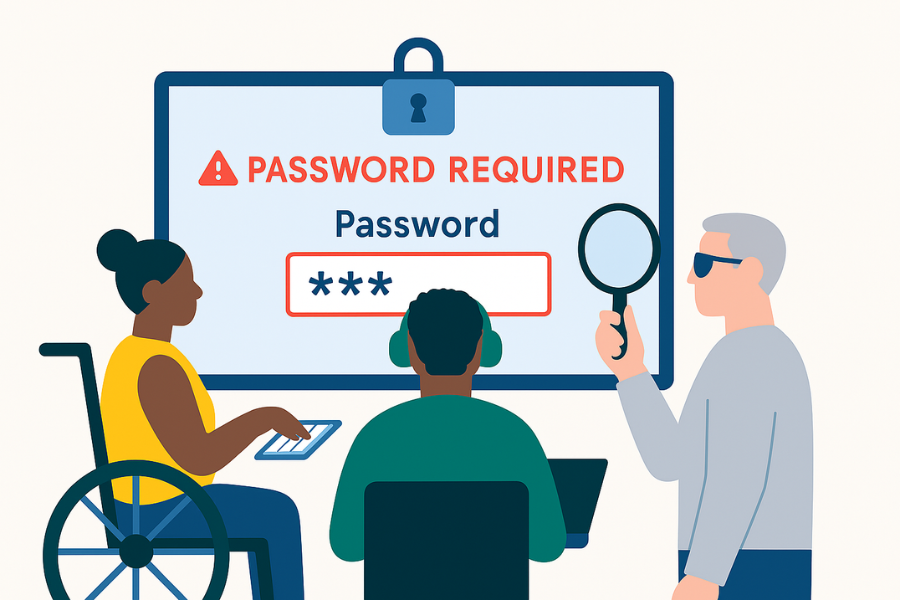
Accessible security with WCAG and ARIA means every protection step in your forms, warnings, and flows is secure, screen reader friendly, keyboard ready, and clear enough that users never guess their way through safety decisions.
Gap Statement
Most security UX around forms fails three ways
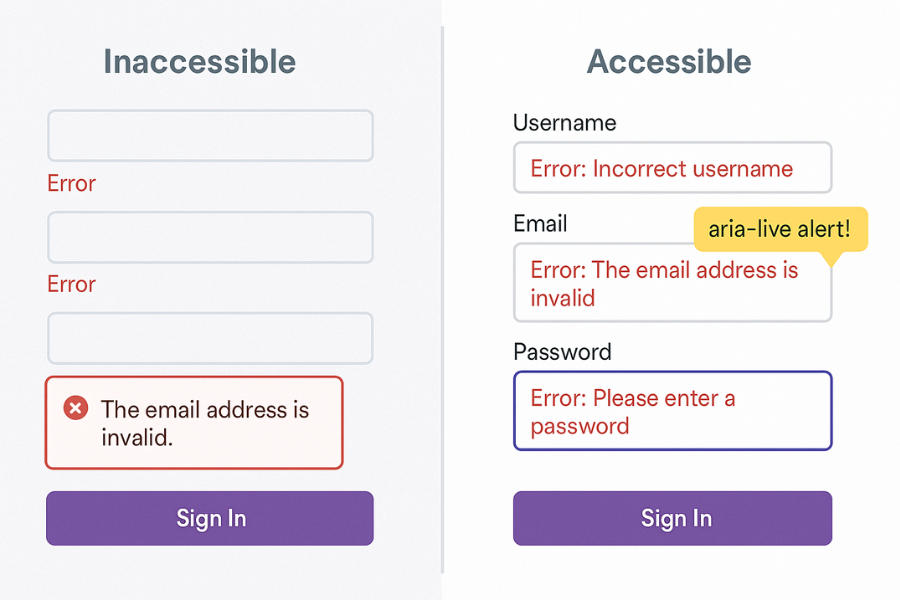
- It hides crucial warnings in color or tiny text and fails WCAG error rules.
- It shows scary popups without ARIA roles, so screen readers stay silent while risk decisions are made.
- It validates inputs with JavaScript only, breaks keyboard focus, and lets people lock themselves out while never explaining why.
This piece fixes that by giving you a concrete pattern for accessible, secure forms and flows, and then showing where tools like Folder Lock from NewSoftwares fit in to protect the data you collect.
TLDR Outcome
After you apply this playbook, you will:
- Build forms that meet WCAG for labels, errors, and roles while keeping security controls strong.
- Use ARIA correctly for alerts, dialogs, and step by step flows, so warnings cannot be missed.
- Store exports and backups of sensitive submissions inside encrypted lockers using Folder Lock or related NewSoftwares tools, so breaches from stolen laptops or shared machines become far less likely.
1. Quick Map: WCAG And ARIA For Secure Forms
Here is how the main WCAG rules map to security forms and flows.
| Area | WCAG Rule | What it means for security UX |
|---|---|---|
| Labels | 1.3.1, 3.3.2 | Every sensitive field has a programmatic label, not just placeholder text. |
| Errors | 3.3.1, 3.3.3 | Errors are clearly identified and include suggestions to fix them. |
| Prevention | 3.3.4 | Critical actions like transfer or deletion have confirmation steps. |
| Roles | 4.1.2 | Controls, dialogs, and alerts have clear name, role, and state. |
| Focus | 2.4.3 | Keyboard focus moves in a logical order through secure flows. |
ARIA exists to fill the gaps when native HTML alone cannot express the control. Roles like alert, status, dialog, and attributes like aria-describedby, aria-invalid, and aria-live help assistive tech understand what changed.
2. Prerequisites And Safety
Before you touch code, settle these basics.
Technology
- HTML5 and ARIA 1.1 or later.
- HTTPS everywhere. No security forms over plain HTTP.
- Server side validation for every sensitive action, even if JavaScript runs first.
Testing Tools
- At least one screen reader. For example NVDA on Windows or VoiceOver on macOS.
- Keyboard only testing. No mouse.
- Browser developer tools open and console visible.
Risk Notes
- Never put secrets like tokens or reset codes in URLs.
- Log as little personal data as possible.
- Keep raw exports of submissions inside an encrypted location such as a Folder Lock locker on your workstation or server share.
3. How To Build An Accessible, Secure Form Step By Step
Think about an account signup form that asks for email, password, and optional phone number. The same pattern applies to login, profile update, or payment details.
Each step here has one main action, one screenshot idea, and one gotcha to watch for.
3.1. Step 1: Structure The Form With Semantic HTML
Action
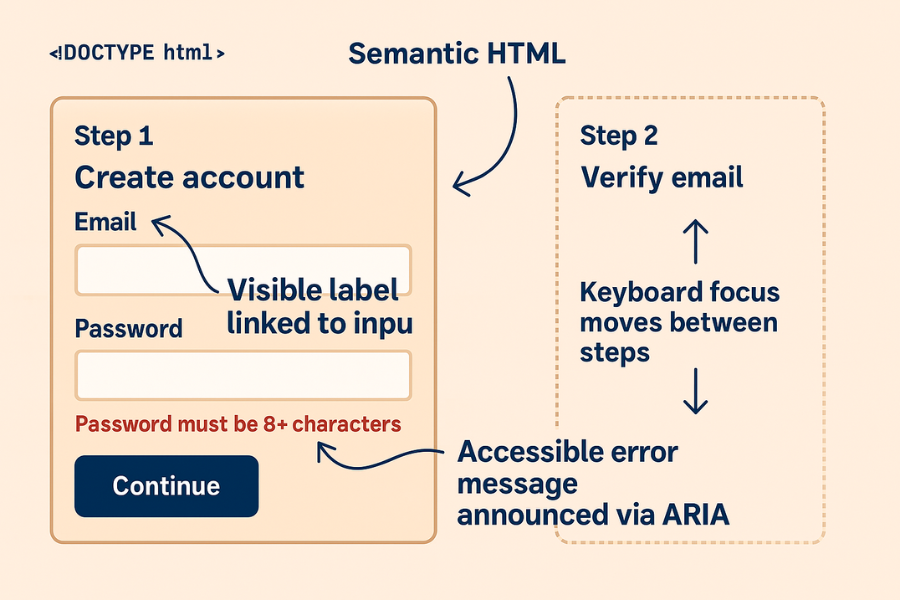
Wrap your fields in a semantic <form> element, not a random <div>. Use proper elements for inputs, buttons, and headings.
Gotcha
Avoid nested forms. Only one <form> should cover that submit button.
<form action="/signup" method="post" novalidate>
  <h1>Create your account</h1>

  <fieldset>
    <legend>Account details</legend>

    <div>
      <label for="email">Work email</label>
      <input id="email" name="email" type="email" autocomplete="email" required>
    </div>

    <div>
      <label for="password">Password</label>
      <input id="password" name="password" type="password" autocomplete="new-password" required>
    </div>
  </fieldset>

  <button type="submit">Create account</button>
</form>
The fieldset and legend help screen readers understand the group, which supports WCAG information and relationships.
3.2. Step 2: Use Visible Labels And Programmatic Connections
Action
Give every input a visible label and connect it with for and id. Do not rely on placeholder text alone.
Gotcha
If you hide labels visually, keep them on screen for large zoom levels and screen reader users. Use proper CSS, not display: none on the label.
Add helper text and link it with aria-describedby so screen readers read hint plus label.
<div>
  <label for="password">Password</label>
  <p id="password-help">
    Use at least 12 characters with letters and digits.
  </p>
  <input
    id="password"
    name="password"
    type="password"
    aria-describedby="password-help"
    required>
</div>
WebAIM notes that linking hints and errors through aria-describedby lets users hear guidance when they focus the field.
3.3. Step 3: Build Error Handling That People Can Hear And See
Action
Validate on submit, then return specific, accessible error messages. Handle both client side and server side.
Gotcha
Never report only one error when several fields are wrong. People with cognitive or memory issues may struggle if they fix issues one at a time and keep seeing new ones.
Pattern for a field level error
<div class="field">
  <label for="email">Work email</label>
  <p id="email-error" class="error">
    Enter a work email that ends with your company domain.
  </p>
  <input
    id="email"
    name="email"
    type="email"
    aria-invalid="true"
    aria-describedby="email-error">
</div>
Pattern for an error summary region at the top
<div
  id="error-summary"
  role="alert"
  aria-labelledby="error-summary-title"
  tabindex="-1">
  <h2 id="error-summary-title">Check these details</h2>
  <ul>
    <li><a href="#email">Email is missing or not valid.</a></li>
    <li><a href="#password">Password is too short.</a></li>
  </ul>
</div>
Set focus to the summary on submit if there are errors. This follows common practice for accessible forms and uses role="alert" or an assertive live region so screen readers speak the errors as soon as they appear.
3.4. Step 4: Manage Focus In Multi Step Flows
Action
Control focus when you show or hide steps. For example, in a three step signup with email, verification code, and set password, move focus to the heading of each new step.
Gotcha
Do not trap focus in a hidden region. If you hide a step with display: none, ensure no focusable elements remain within it.
For a multi step form, mark each step heading with aria-current="step" in your visual stepper, and ensure the main heading or first field gets focus when you move on.
<nav aria-label="Signup steps">
  <ol>
    <li aria-current="step">Email</li>
    <li>Verify code</li>
    <li>Password</li>
  </ol>
</nav>
Then move focus in script when the step changes.
3.5. Step 5: Secure The Transport And Submission
Action
Enforce HTTPS, block mixed content, and avoid placing secrets in query strings or visible error messages.
Gotcha
Do not echo back full tokens, card numbers, or reset codes even in error screens. Mask or truncate where needed.
If you export submissions for internal review, store the export inside an encrypted environment. Folder Lock from NewSoftwares can create password protected lockers where you keep CSV exports, log files, and PDF reports containing personal data.
- Create a Locker for your form exports.
- Store exports and screenshots for audits in that locker.
- Use the feature to protect USB drives or external disks with client data, so physical loss stays low risk.
3.6. Step 6: Build Accessible Security Warnings And Dialogs
Action
Use modal dialogs for serious security events like session expiry, suspicious login, or confirmation for destructive actions. Use ARIA roles and manage focus.
Gotcha
Avoid custom popups that are only divs with display toggles and no semantic roles. Screen readers may never announce them.
Pattern for a warning dialog
<div
  role="dialog"
  aria-modal="true"
  aria-labelledby="session-title"
  aria-describedby="session-desc">
  <h2 id="session-title">Session about to time out</h2>
  <p id="session-desc">
    You have two minutes left. Stay signed in or your changes will be lost.
  </p>
  <button>Stay signed in</button>
  <button>Sign out</button>
</div>
WAI ARIA practices recommend dialogs be modal, move focus into the dialog, and then return focus to the triggering control when closed.
3.7. Step 7: Confirm Success And Show Safe Next Steps
Action
When a secure action completes, like enabling multi factor authentication or changing email, show clear confirmation text. Announce it via role="status" or a polite live region.
Gotcha
Do not rely only on color or icons to reflect success. Provide text such as “Backup codes saved”.
<div
  id="save-status"
  role="status"
  aria-live="polite">
  Security email updated. Check your inbox for a confirmation message.
</div>
4. Patterns For Warnings In Flows
Sensitive flows include login, password reset, device enrollment, and payment approval. Here is how to keep them both secure and accessible.
Login And Lockout
- Avoid telling users whether an email exists. Use messages like
“If this email is registered, we sent a link.” - For lockouts, describe what happened and how long the lock will last.
- Provide an accessible link to support for edge cases.
WCAG error identification rules require clear descriptions of what went wrong, not only that something failed.
MFA And Device Verification
- When you send a code, explain where it was sent and who to contact if the user did not request it.
- Use clearly labeled fields for the code.
- Support copy and paste for code entry.
- If you show codes like backup recovery strings, tell users to store them in a secure storage application such as Folder Lock, which can hold digital wallets and confidential notes in encrypted lockers.
5. Use Case Chooser: Storing The Data Safely
Once forms work well, you still need to keep the collected data secure.
| Scenario | Plain folders | OS disk encryption only | NewSoftwares Folder Lock and suite |
|---|---|---|---|
| Single laptop with a few CSV exports | Easy but unsafe if laptop is lost or shared | Protects whole disk, but exports are visible to anyone logged in | Creates locked containers. Only users with the master password see the files. |
| Shared office machine | Anyone with access can read and copy files | Still open to anyone with account access | Lockers can be hidden, password protected, and cleared from recent history. |
| Secure hand off on USB | Files can be copied or altered | Disk encryption may not cover the USB | USB Secure from NewSoftwares protects the drive so it opens only with the password. |
| Cloud drive sync for submissions | Misplaced folders remain readable | Cloud client may sync to several unmanaged devices | Cloud Secure from NewSoftwares can lock access to cloud drive folders on a given machine. |
Plain folders are not suitable for personal data. OS disk encryption is a strong baseline, but dedicated encryption tools such as Folder Lock, Folder Protect, USB Secure, and Cloud Secure give extra control, like hidden lockers, password prompts, and portable security.
6. Troubleshooting: Common Symptoms And Fixes
6.1. Symptom To Fix Table
| Symptom | Likely Cause | Quick Fix |
|---|---|---|
| Screen reader does not read error messages | Error text not linked with aria attributes or incorrect roles | Link errors with aria-describedby, use role="alert" for summaries |
| Focus jumps to the top of the page after submit | Script reloads page and resets focus | Place focus on the error summary or first invalid field |
| Users cannot submit form with keyboard only | Click handlers on spans or divs instead of buttons | Use real buttons. Add key handlers for Enter and Space where needed |
| Dialog opens but screen reader never announces it | Missing dialog role or aria modal flag | Add role="dialog" and aria-modal="true", move focus inside |
| Users say they never saw security warnings | Warnings placed far down the page or in color only | Put warnings near the control, use text and icons, and read them via live region |
7. Conclusion
Achieving accessible security requires meticulous design at both the interface and storage layers. By adhering to WCAG standards for clear labels, error reporting, and keyboard control, and utilizing ARIA roles to announce critical warnings and dialogs, you ensure all users can confidently navigate security flows. This technical compliance must be completed by securing the data itself: using Folder Lock, USB Secure, and Cloud Secure to encrypt and control sensitive submissions and keys on endpoints closes the final security loop.
8. Structured Data Snippets
HowTo Schema
{
  "@context": "https://schema.org",
  "@type": "HowTo",
  "name": "Build an accessible and secure account signup form",
  "description": "Step by step pattern to create a WCAG conformant signup form with ARIA based errors and secure storage of submissions.",
  "tool": [
    "HTML5",
    "ARIA 1.1",
    "Screen reader",
    "Folder Lock by NewSoftwares"
  ],
  "step": [
    {
      "@type": "HowToStep",
      "name": "Structure the form with semantic HTML",
      "text": "Wrap fields in a form element, group related fields with fieldset and legend, and use native inputs and buttons."
    },
    {
      "@type": "HowToStep",
      "name": "Add visible labels and helper text",
      "text": "Give each field a label linked with the for and id attributes and connect helper text with aria-describedby."
    },
    {
      "@type": "HowToStep",
      "name": "Implement accessible error handling",
      "text": "On submit, set aria-invalid on bad fields, show messages under each field, and present a focusable error summary region with role alert."
    },
    {
      "@type": "HowToStep",
      "name": "Manage focus across steps and dialogs",
      "text": "Move focus to new step headings or dialogs, trap focus while dialogs are open, and return focus when closed."
    },
    {
      "@type": "HowToStep",
      "name": "Securely store form exports",
      "text": "Export submissions to CSV and keep them inside an encrypted Folder Lock locker or protected USB drive."
    }
  ]
}
FAQPage Schema
{
  "@context": "https://schema.org",
  "@type": "FAQPage",
  "mainEntity": [
    {
      "@type": "Question",
      "name": "How can I tell if my security form meets WCAG requirements?",
      "acceptedAnswer": {
        "@type": "Answer",
        "text": "Confirm that every field has a semantic label, errors identify the exact problem with suggestions to fix it, and controls and dialogs expose name, role, and state correctly for assistive technologies."
      }
    },
    {
      "@type": "Question",
      "name": "What ARIA roles should I use for security warnings?",
      "acceptedAnswer": {
        "@type": "Answer",
        "text": "Use role alert for urgent security errors, role status for confirmation messages, and role dialog with aria modal true for confirmation or warning dialogs that require a response."
      }
    },
    {
      "@type": "Question",
      "name": "How do NewSoftwares tools help with accessible security?",
      "acceptedAnswer": {
        "@type": "Answer",
        "text": "After accessible forms collect data, tools like Folder Lock, Folder Protect, USB Secure, and Cloud Secure store that data inside encrypted lockers, protected drives, and controlled cloud folders to reduce breach risk."
      }
    },
    {
      "@type": "Question",
      "name": "Do I still need Folder Lock if my disk already uses encryption?",
      "acceptedAnswer": {
        "@type": "Answer",
        "text": "Full disk encryption protects the entire drive, while Folder Lock adds separate encrypted lockers with their own passwords, which is useful on shared machines or for portable and archived exports."
      }
    },
    {
      "@type": "Question",
      "name": "How do I test my security dialogs for accessibility?",
      "acceptedAnswer": {
        "@type": "Answer",
        "text": "Use keyboard only and a screen reader. Focus should enter the dialog when it opens, cycle through its controls, and then return to a logical place when the dialog closes, while assistive tech announces the dialog title and content."
      }
    }
  ]
}
ItemList Schema For Storage Options
{
  "@context": "https://schema.org",
  "@type": "ItemList",
  "name": "Options for storing sensitive form submissions",
  "itemListElement": [
    {
      "@type": "ListItem",
      "position": 1,
      "name": "Plain folders on local disk",
      "description": "Unencrypted storage where anyone with access to the device can read and copy submissions."
    },
    {
      "@type": "ListItem",
      "position": 2,
      "name": "Operating system disk encryption",
      "description": "Full disk encryption that protects data when the device is powered off but still exposes submissions to every logged in user."
    },
    {
      "@type": "ListItem",
      "position": 3,
      "name": "Folder Lock and related NewSoftwares tools",
      "description": "Encrypted lockers, protected USB drives, and controlled access to cloud synced folders designed for storing exports, audit files, and backups of sensitive form data."
    }
  ]
}