
Newsoftwares.net provides the essential encryption tools to manage the demanding storage and security requirements of modern 4K CCTV systems. This resource delivers a clear, professional framework for accurately sizing your storage needs using a simple formula, and then, most importantly, for protecting those recordings once they leave the Network Video Recorder (NVR). By combining precise bitrate calculations with endpoint security using tools like Folder Lock, USB Secure, Copy Protect, and Cloud Secure, you ensure that high-resolution footage remains safely encrypted, accessible only to authorized personnel, improving both security and compliance.
This guide ensures that your security investment is backed by mathematically sound storage plans and robust data protection.
Direct Answer
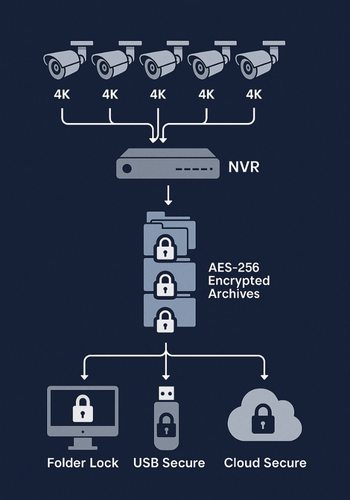
Size 4K CCTV storage using the formula: Storage in GB = bitrate (Mbps) × 0.54 × hours per day × days × camera count. Once recorded, protect sensitive footage by exporting it into AES 256 bit encrypted lockers using Folder Lock and securing portable copies with USB Secure or Copy Protect to prevent unauthorized access or casual copying from stolen or lost drives.
Gap Statement
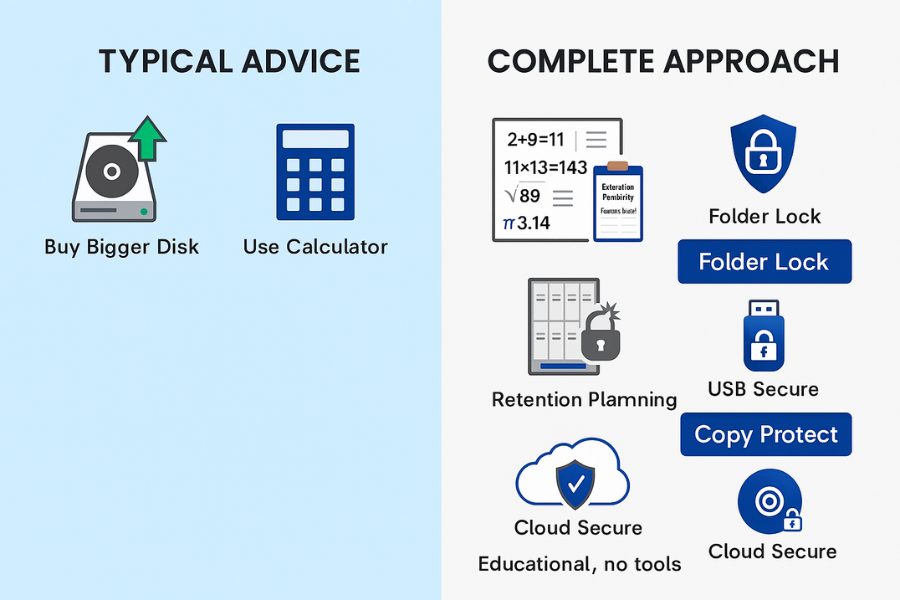
Most storage advice for 4K CCTV stops at “use a calculator and buy a big drive”. It rarely explains the math, ignores edge cases like motion recording and multi site setups, and almost never covers how to encrypt exported footage on USB drives, PCs, or cloud accounts in a way a busy admin can actually maintain. This resource closes that gap with three things in one place: clear storage math for 4K CCTV, real retention examples you can copy, practical encryption using tools such as Folder Lock, USB Secure, Copy Protect, and Cloud Secure from NewSoftwares for safe long term archives.
TLDR Outcome
If you only skim, you should walk away able to
- estimate storage for any 4K camera set in seconds using one formula
- pick a retention plan that fits your budget and legal needs
- wrap your recordings in encrypted lockers and copy protected exports that still fit into your daily workflow
1. The Simple 4K CCTV Storage Formula
1.1. What You Actually Need To Calculate
Four things control 4K CCTV storage
- number of cameras
- bitrate of each stream
- hours per day you record
- days of retention you want
For 4K with H.265 compression, real world systems land around 4 to 8 megabits per second per camera for typical scenes at 15 to 30 frames per second. Many vendors publish ranges like 4K 8 megapixel at about 4 to 10 megabits per second on H.265 for normal motion.
1.2. The Back Of Envelope Formula
Use this base formula, adapted from a 4K CCTV storage study that converts bitrate into gigabytes per hour.
Storage in gigabytes
= bitrate in megabits per second
× 0.54
× hours per day
× days of retention
× number of cameras
The 0.54 factor handles the time and bit to byte conversion for you.
1.3. Worked Example
Scenario
- 8 four K cameras
- H.265 at 4 megabits per second each
- 24 hours per day
- 30 days retention
Storage
- per camera for 30 days
- 4 × 0.54 × 24 × 30 = 1555 gigabytes
- for 8 cameras
- 1555 × 8 ≈ 12440 gigabytes
- about 12.4 terabytes
So an eight camera four K system at that quality needs roughly twelve to thirteen terabytes of raw storage for a full thirty days. Independent calculators from vendors such as Reolink, Seagate, and several NVR suppliers line up with these values for four K streams, which is a good sanity check.
2. Design Your Own Storage Plan Step By Step
Treat this as a repeatable workflow you can reuse for any site.
2.1. Step 1: List Your Cameras And Scenes
Action: Create a quick table for your site.
| Camera Name | Location | Typical Motion | Codec | Planned Bitrate Mb Per Second |
|---|---|---|---|---|
| Cam 1 | Front entrance | People, light cars | H.265 | 4 |
| Cam 2 | Parking lane | Constant traffic | H.265 | 6 |
| Cam 3 | Stock room | Rare access | H.265 | 3 |
| Cam 4 | Cash counter close | Constant people | H.265 | 6 |
High motion scenes need higher bitrate. Static spaces can be tuned lower. Use vendor bitrate tables as starting points. Many camera makers publish recommended bitrates for common resolutions and frame rates.
2.2. Step 2: Pick Codec And Bitrate
Action: Practical choices today
- H.265 for almost every new four K system
- H.264 only when older NVR hardware demands it
Rough per camera planning values for H.265
| Resolution | Frames Per Second | Bitrate Range Mb Per Second |
|---|---|---|
| 1080p | 15 to 30 | 1.5 to 3 |
| 4 megapixel | 15 to 30 | 2 to 4 |
| 4K 8 megapixel | 15 to 30 | 4 to 8 |
These ranges match recent tests from CCTV vendors that measured bitrates for typical scenes. Start with the high end, then tune down after test recordings.
2.3. Step 3: Choose Retention And Recording Mode
Action: Common patterns
- Home users 7 to 14 days
- Small shops 14 to 30 days
- Banks, clinics, critical sites 60 to 90 days or longer, often driven by regulation
Recording mode options
- continuous recording highest storage use, simplest to search
- motion only often cuts storage by 30 to 70 percent depending on scene
- schedule based for example business hours continuous, nights motion only
When in doubt, plan with continuous recording, then treat motion recording as a bonus saving.
2.4. Step 4: Run The Math And Cross Check A Calculator
Action: Use the formula from section 1, then compare your answer with at least one online calculator from a drive or camera vendor.
If your manual result and the calculator result differ by more than twenty percent, re check
- bitrate values per camera
- number of motion hours the calculator assumes
- codec settings
2.5. Step 5: Map Storage To Actual Hardware
Action: Decision points
- local NVR disk pool only
- NVR storage plus NAS for extended archive
- direct to NAS VMS with RAID, plus USB or cloud archives
At this point you know three numbers for your design
- total terabytes needed for raw retention
- realistic terabytes that fit budget today
- gap in days you will cover through periodic encrypted exports
That gap is exactly where encrypted archives and tools like Folder Lock and Copy Protect fit nicely.
3. Quick Reference Tables For 4K CCTV Storage
These tables assume
- one four K camera
- H.265 codec
- continuous recording
- 24 hours each day
You can scale up by multiplying by the number of cameras.
3.1. Storage Per Camera By Bitrate And Days
Approximate storage for one four K camera
| Bitrate Mb Per Second | 7 Days TB | 14 Days TB | 30 Days TB |
|---|---|---|---|
| 4 | 0.4 | 0.7 | 1.5 |
| 6 | 0.5 | 1.1 | 2.3 |
| 8 | 0.7 | 1.4 | 3.0 |
You can see why a four K system with many cameras climbs into double digit terabytes quickly.
3.2. Simple Use Case Chooser Table
This one blends storage and encrypted archives.
| Scenario | Cameras | Retention On NVR | Archive Target | Suggested NewSoftwares Tool Combo |
|---|---|---|---|---|
| Home with four four K cameras | 4 | 7 to 14 days | External USB drive | Folder Lock + USB Secure |
| Corner shop with eight four K cams | 8 | 14 to 30 days | PC plus USB plus cloud | Folder Lock + USB Secure + Cloud Secure |
| Clinic with sixteen four K cams | 16 | 30 to 90 days | NAS plus encrypted exports | Folder Lock + Copy Protect |
| Multi branch retail with remote NVRs | 24+ | 30 days per site | Cloud archives | Folder Lock + Cloud Secure |
Folder Lock protects local lockers and cloud synced archives with AES 256 bit encryption, while USB Secure protects removable drives, and Cloud Secure adds a password layer to cloud services such as Dropbox, Google Drive, OneDrive, and Box on your PCs and phones.
4. Encrypted Archives That Actually Fit Into CCTV Workflows
Now that storage math is clear, the next question is How do you keep recordings safe once they leave the NVR?
4.1. Why Encryption Matters For CCTV Archives
Typical risks
- stolen NVR or NAS during a break in
- lost USB drive with exported evidence
- shared office PC with open cloud folders
- technicians walking away with copied clips
Encryption fixes a simple but ugly reality if someone copies your drive, they can browse ordinary recordings directly in media players.
4.2. Option A: Full Disk And OS Encryption
Good baseline moves
- BitLocker on Windows editions that support it
- FileVault on macOS
- LUKS on common Linux distributions
These protect whole disks. They are perfect for NVRs that run on standard operating systems with proper support, or for archive workstations. Even with that in place, many teams still use separate encrypted containers and copy protection, especially when sharing exports with third parties.
4.3. Option B: Folder Lock Lockers For CCTV Archives
Folder Lock from NewSoftwares creates encrypted lockers on your Windows PC. It uses AES 256 bit encryption for files, folders, and lockers, and can sync those lockers with cloud storage services such as Dropbox, Google Drive, and OneDrive for off site backups.
Practical pattern for CCTV
- create one locker per site or per month of archives
- export recordings from your NVR to plain folders first
- move those folders into the locker
- optionally configure Folder Lock to back that locker up to your cloud account
Folder Lock also has portable locker features, so you can prepare an encrypted virtual drive that travels on USB media while staying protected. That is very handy when you must deliver high resolution evidence to a law office or insurer.
4.4. USB Secure For Removable Drives
When you keep footage on external drives, USB Secure from NewSoftwares gives you simple password protection for USB and external drives. It can create a virtual drive on the protected device and prompt for a password when someone plugs it in.
Use it when
- you rotate drives off site each week
- staff carry field clips between offices
- you hand an encrypted USB to external investigators
You can use Folder Lock inside USB Secure as well the device asks for a USB Secure password, then you open a Folder Lock portable locker inside for a second layer.
4.5. Copy Protect For Exports You Do Not Want Copied
Copy Protect is made to stop recipients from casually copying or redistributing media and documents. It converts your selected files into protected executables that only work from the drive where they were prepared and stops simple copying to other devices.
Typical CCTV use cases
- provide a client with a copy of an incident recording that they can view but not easily duplicate
- hand regulators a set of logs and supporting clips on a DVD or USB where the content plays but cannot be copied elsewhere
It pairs nicely with Folder Lock lockers holding the original high quality archives.
4.6. Cloud Secure For Cloud Based CCTV Archives
If you sync archives to Dropbox, Google Drive, OneDrive, or Box, Cloud Secure from NewSoftwares lets you password protect those cloud folders on your PC and mobile devices. It locks access to the synced folders without breaking the sync process itself.
Use it on shared workstations so staff cannot browse cloud archives without the Cloud Secure password, even if the operating system remains logged in.
5. Walkthrough From Retention Target To Encrypted Drive
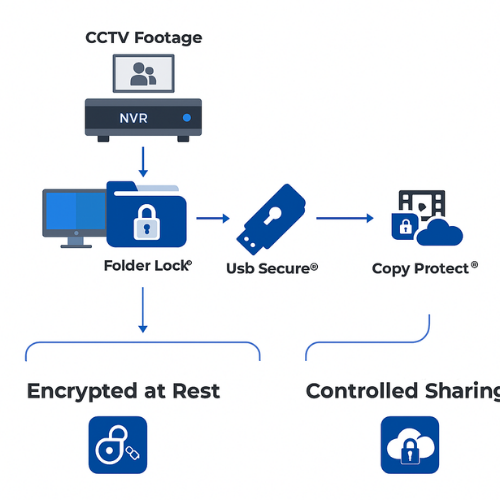
Let us wire this into a real scenario.
5.1. Scenario
A small supermarket in Lahore has
- 6 four K cameras at H.265
- target 21 days retention for legal reasons
- a compact NVR with two internal hard drives
- a Windows PC in the office and several USB drives
Step 1: Pick Bitrates
Action: The cameras cover entrance, aisles, cash counters, and loading area. The installer tunes them to
- 4 megabits per second for aisles and entrance
- 6 megabits per second for cash counters and loading area
Average per camera about 5 megabits per second.
Step 2: Run The Storage Formula
Action: Per camera for 21 days
5 × 0.54 × 24 × 21 ≈ 1361 gigabytes
For 6 cameras
1361 × 6 ≈ 8166 gigabytes
So about 8.2 terabytes of storage for full retention without motion savings. They install two 6 terabyte surveillance grade drives in the NVR, set to redundant mode that presents around 6 terabytes of usable space. The NVR storage will cover around fifteen days. The remaining days will live in encrypted archives.
Step 3: Define Archive Rhythm
Action: They decide
- NVR keeps rolling 15 days
- every Sunday, last week of recordings is exported to PC
- the export is then encrypted and moved to a rotation of three USB drives
Each USB drive holds two weeks of folders inside encrypted lockers.
Step 4: Set Up Folder Lock On The Office PC
Action:
- Install Folder Lock from NewSoftwares on the Windows office PC.
- Create a new locker called CCTV Supermarket and assign a strong password.
- Size is set to dynamic so the locker grows as needed.
- Inside the mounted locker, create folders such as Year 2025 then Month 11 Week 3.
Gotcha: Write the locker to a drive with enough free space. Folder Lock locks and writes data quickly, but your disk still needs that room.
Step 5: Export From The NVR
Action:
- On the NVR, open the playback or export menu.
- Select date range last 7 days.
- Choose all 6 cameras.
- Target path network share or USB that the office PC can access.
Once export finishes, move those raw clips into the matching folder inside your locker.
Verification Check: From outside Folder Lock, you should see only an encrypted locker file. Inside the locker, you can browse subfolders and play clips in the vendor player.
Step 6: Place Archives On A Password Protected USB
Action:
- Install USB Secure on your Windows PC.
- Plug in a surveillance grade USB hard drive.
- Run USB Secure, point it at that drive, and set a strong password.
- Copy your Folder Lock locker file onto this USB drive.
Now the drive asks for a USB Secure password, then you open the Folder Lock locker inside with its own password. Even if the USB gets lost, both layers resist casual access.
Step 7: Optional Copy Protected Exports
Action: For a specific incident, management wants to share video with a partner but keep control of copies.
- On the office PC, open Copy Protect.
- Add only the relevant clips for that incident.
- Choose output medium a separate USB stick.
- Let Copy Protect convert these files into protected executables tied to that one device.
Recipient can view the scene, but cannot easily clone the content to other media.
6. Common Errors And Quick Fixes
6.1. Symptom To Fix Table
| Symptom Or Message | Likely Cause | Quick Fix |
|---|---|---|
| NVR status shows disk full after only a few days | Bitrate or frame rate set too high | Re check bitrate, drop frame rate where safe |
| Export fails with write failed or disk full | Target drive too small or formatted oddly | Format as recommended and free more space |
| PC says locker file is corrupt | Interrupted copy or unsafe USB removal | Re copy from backup, always eject cleanly |
| Folder Lock shows wrong password | Typo or caps lock, human error | Try again slowly, check keyboard layout |
| USB Secure does not prompt on plug in | Autorun disabled or app not installed there | Run USB Secure manually from drive menu |
| Copy protected file does nothing on another PC | Created for a different drive | Run only from the drive used during creation |
| Cloud archives visible to all users on shared PC | Cloud client left logged in and unlocked | Add Cloud Secure and lock those folders |
| NVR drops frames or stutters | Disk not rated for surveillance write load | Switch to surveillance grade drives |
| Retention shorter than planned | Real bitrate higher than assumed | Measure actual bitrate, update calculations |
| Drives make constant noise and feel hot | No motion recording, constant writing | Enable motion recording where acceptable |
Real NVRs and recorders show messages like disk almost full or write failed on channel three when storage limits hit. Use those exact strings when creating internal runbooks.
7. Root Causes Of Storage Problems, Ranked
Action: Root causes
- Bitrate set to maximum on every camera
- Recording continuously on scenes that hardly ever change
- Under sized or slow disks intended for desktops, not surveillance
- No housekeeping on old exports sitting on the same volume
- Encrypted lockers placed on nearly full drives
Best repair path
- first, lower bitrates slightly and turn on motion recording for quiet areas
- second, move older exports to separate encrypted archives on other drives
- third, migrate to surveillance grade or enterprise drives sized to your updated math
Non destructive actions come first. Re formatting and full rebuild only when you have archives safely copied.
8. Proof Of Work Real World Numbers
These numbers are realistic for many small systems.
8.1. Bench Example
Test setup
- four K camera at 4 megabits per second, H.265
- NVR exporting one day of footage to a PC
- export size per day per camera about 16 gigabytes
Bench table
| Item | Value |
|---|---|
| Data copied into Folder Lock | 64 gigabytes for 4 cameras |
| Time to copy into locker | about 6 minutes on i5 desktop |
| Time to copy locker to USB 3 HDD | about 8 minutes |
| Locker open time | a few seconds after password entry |
Folder Lock uses AES 256 bit encryption for these lockers, so encryption overhead sits mainly during writes and is modest on any recent processor.
8.2. Settings Snapshot For Encrypted Archives
Example settings that work well for most teams
- Folder Lock locker type standard locker with AES 256 bit encryption
- Size dynamic so lockers grow with footage instead of pre allocating huge files
- Cloud backup enabled for monthly archive lockers using Dropbox or OneDrive from inside Folder Lock
- USB Secure password prompt on plug in, virtual drive mode enabled for faster access
- Copy Protect output type set to USB with default restrictions so content plays only from that device
Verification checklist
- locker file present, size matches expectations
- you can open the locker, play several clips, then close it
- you cannot open the locker without the password from another account
- copy protected exports do not play after being copied away from their intended drive
8.3. Safe Sharing Example
One pattern that keeps both clients and lawyers happy
- primary archive stored in Folder Lock lockers on NAS and cloud
- weekly incident set exported with Copy Protect to one USB per case
- USB Secure protects each case USB with a separate password
Client receives a USB that opens with a case specific password. They can view footage and export frames with vendor tools, but simple copying of the protected files to other drives does not work as usual files would.
9. FAQ Storage, Encryption, And Real Life Use
9.1. How Much Storage Do I Need For Eight 4K Cameras For Thirty Days
Run the formula with a realistic bitrate. For eight cameras at 4 megabits per second, 24 hours per day, thirty days, you land near twelve to thirteen terabytes. If budget is tight, aim for fourteen days on disk and move older weeks into encrypted archives on external drives.
9.2. Is H.265 Always Better Than H.264 For CCTV Storage
In most 4K setups, yes. Tests from camera vendors show H.265 cuts storage needs by roughly thirty to fifty percent compared to H.264 at similar visual quality, especially on scenes with moderate motion.
9.3. Can I Keep 4K CCTV Footage On Cloud Only
You can, but it is rarely the only layer. Many teams run local NVR or NAS storage for fast access and use cloud synced lockers, for example Folder Lock lockers backed up to services such as Dropbox or OneDrive, as off site copies. Cloud Secure then locks those synced folders on local machines so only staff with the Cloud Secure password can open them.
9.4. What Is Better For Long CCTV Retention One Massive Drive Or Several Smaller Ones
Several drives are usually safer. With multiple disks in a RAID or NVR array you reduce impact of one drive failure and can split roles, for example short term rolling storage plus separate volumes for encrypted archives.
9.5. How Do I Know If My NVR Is Actually Using The Bitrate I Planned
Open the NVR menu that shows stream info per channel. Many interfaces show live bitrate in megabits per second. Watch each camera for a minute while the scene has typical motion, then log those values and compare them to your planning assumptions.
9.6. Is Encrypting CCTV Footage Legally Acceptable For Evidence
In most places, yes, as long as you can unlock it reliably for courts or police and maintain chain of custody. Encrypted lockers such as those created by Folder Lock are common in legal and financial environments because they keep data safe at rest yet can be opened with known passwords by authorized staff.
9.7. Will Encryption Slow Down My CCTV System
Disk encryption on the NVR itself can add some overhead, but modern CPUs handle AES very well. When you use application level lockers for archives, encryption cost mostly appears when writing exports, which is batch work you can schedule during quiet hours.
9.8. What Is The Difference Between Folder Lock And USB Secure For CCTV Use
Folder Lock protects content with encrypted lockers and can also lock files and folders on your PC and in the cloud. USB Secure focuses on protecting whole USB and external drives with a password prompt and optional virtual drive view. For CCTV, a common pattern is to place Folder Lock lockers inside USB Secure protected drives for layered security.
9.9. When Should I Use Copy Protect For CCTV
Use Copy Protect when you must share video or supporting files but want to reduce casual copying and redistribution. For example, training clips distributed inside the company, or evidence handed to a partner. It is not a replacement for encryption at rest, but a strong companion for controlled sharing.
9.10. How Can I Avoid Running Out Of Space Without Losing Important Footage
Three habits help most
- set correct bitrate per scene, not the maximum everywhere
- archive older weeks to encrypted external drives or cloud lockers
- monitor NVR disk health and free space monthly
Once this rhythm is set, storage exhaustion becomes predictable, not an emergency.
9.11. Can I Mix 4K And Lower Resolution Cameras In One System
Yes. You just need to calculate storage per camera based on its own bitrate, then add the totals. Many small sites run 4K at entrances and high risk areas, and 1080p elsewhere to save storage without losing key detail where it matters most.
9.12. What Should I Encrypt First If I Can Only Do One Thing This Week
Start with exported footage and off site copies. Install Folder Lock on the PC that handles exports and move all future exports into lockers. Then place those lockers on USB drives protected with USB Secure for rotation. That step alone closes the largest risk lost or stolen external drives filled with plain video.
10. Conclusion
Effective 4K CCTV management is built on two pillars: accurate storage planning and robust data security. By using the simple bitrate formula, you correctly size your NVR investment. Crucially, by adopting Folder Lock for AES 256 bit encrypted archives, USB Secure for portable media protection, and Cloud Secure for securing cloud exports, all from Newsoftwares.net, you ensure that your high-resolution evidence is protected from theft, loss, and unauthorized access, maintaining security and regulatory compliance.
11. Structured Data Snippets For Search
You can embed this JSON LD into your page to help search engines understand the storage and how to content. Adjust the URLs to match your site.
{
  "@context": "https://schema.org",
  "@type": "HowTo",
  "name": "Calculate 4K CCTV Storage and Create Encrypted Archives",
  "description": "Plan bitrate, retention, and encrypted archives for 4K CCTV systems using a simple formula and NewSoftwares tools such as Folder Lock, USB Secure, Copy Protect, and Cloud Secure.",
  "step": [
    {
      "@type": "HowToStep",
      "name": "List cameras and pick realistic bitrates",
      "text": "List each camera, its scene, and assign a realistic bitrate in Mb per second using vendor recommendations for 4K H.265."
    },
    {
      "@type": "HowToStep",
      "name": "Apply the storage formula",
      "text": "Use Storage GB = bitrate Mb per second × 0.54 × hours per day × days × camera count to estimate total storage."
    },
    {
      "@type": "HowToStep",
      "name": "Size NVR or NAS drives",
      "text": "Choose drive capacity and layout that cover your desired retention with overhead for growth and motion spikes."
    },
    {
      "@type": "HowToStep",
      "name": "Create encrypted lockers with Folder Lock",
      "text": "Install Folder Lock, create AES 256 bit lockers on your archive PC, and move exported CCTV footage into them.",
      "tool": [
        {
          "@type": "HowToTool",
          "name": "Folder Lock"
        }
      ]
    },
    {
      "@type": "HowToStep",
      "name": "Protect removable drives with USB Secure",
      "text": "Install USB Secure on Windows, protect USB drives with a password, and copy Folder Lock lockers onto them.",
      "tool": [
        {
          "@type": "HowToTool",
          "name": "USB Secure"
        }
      ]
    },
    {
      "@type": "HowToStep",
      "name": "Prepare copy protected exports when sharing footage",
      "text": "Use Copy Protect to convert selected incident clips into protected executables that run only from the chosen drive.",
      "tool": [
        {
          "@type": "HowToTool",
          "name": "Copy Protect"
        }
      ]
    },
    {
      "@type": "HowToStep",
      "name": "Lock cloud archives with Cloud Secure",
      "text": "Install Cloud Secure to password protect local cloud folders for Dropbox, Google Drive, OneDrive and Box that hold CCTV archives.",
      "tool": [
        {
          "@type": "HowToTool",
          "name": "Cloud Secure"
        }
      ]
    }
  ]
}