
Last Updated : September 25, 2026
USB flash drives and other portable storage devices offer unmatched convenience for transferring information between workstations, laptops, and client devices. However, this portability comes with a significant risk of data loss or physical theft. Misplacing an unprotected thumb drive can instantly expose sensitive business assets, confidential family albums, or private graphic designs to unauthorized third parties.
A question frequently asked by privacy-conscious users is whether you can password protect usb drive media without having to reformat the entire storage unit. The answer is an emphatic yes. With USB Secure from NewSoftwares.net, you can easily add password protection to directory trees or lock individual image files directly on your thumb drive with fast, file-level security.
Understanding USB Security: Why Encryption is Essential in 2026
When you secure a photo file using USB Secure, you are not merely applying a superficial visual hide attribute; you are employing robust, military-grade encryption to your digital assets. This ensures compliance with modern data protection standards like NIST SP 800-111 for storage devices. As a premier solution to encrypt files, it guarantees that your media is safeguarded against forensic extraction and snooping.
While some users search for an app to lock folder in windows 11, local tools only protect the host machine. Removable flash drives are small, portable, and easily misplaced. If an unencrypted pendrive contains proprietary photos or confidential scans, anyone who finds the drive gains instant, unrestricted access. USB Secure applies advanced folder encryption directly to the drive. Once you folder lock your chosen directory or picture, it becomes completely invisible in File Explorer and unreadable by data recovery tools. The photo remains locked until you enter your valid master password inside the portable application interface.
| Security Method | Portability | Setup Requirement |
|---|---|---|
| Windows EFS | Tied to User Certificate (Not Portable) | NTFS File System Required |
| BitLocker To Go | Portable (Windows Only) | Full Drive Formatting Often Needed |
| USB Secure | Fully Portable (Cross-PC) | No Formatting Needed |
Prerequisites Before Locking Your Photos
Before proceeding, verify that you have fulfilled the following prerequisites for seamless execution:
- ✅ Install USB Secure on Your Drive: You must have the application installed directly on your pendrive.
- ✅ Copy the Photo to the Pendrive: The photo or picture file you wish to lock must already be copied or moved onto your pendrive.
- ✅ Organize Folders (Optional): You can place multiple images inside a subfolder to password protect folder directories efficiently.
Step-by-Step Guide: How to Lock a Photo File on Your Pendrive
Follow these straightforward, visual steps to secure your private photo file on any USB flash drive without needing a bulky desktop folder lock or a static computer file lock.
Step 1: Connect Your USB Drive and Launch USB Secure
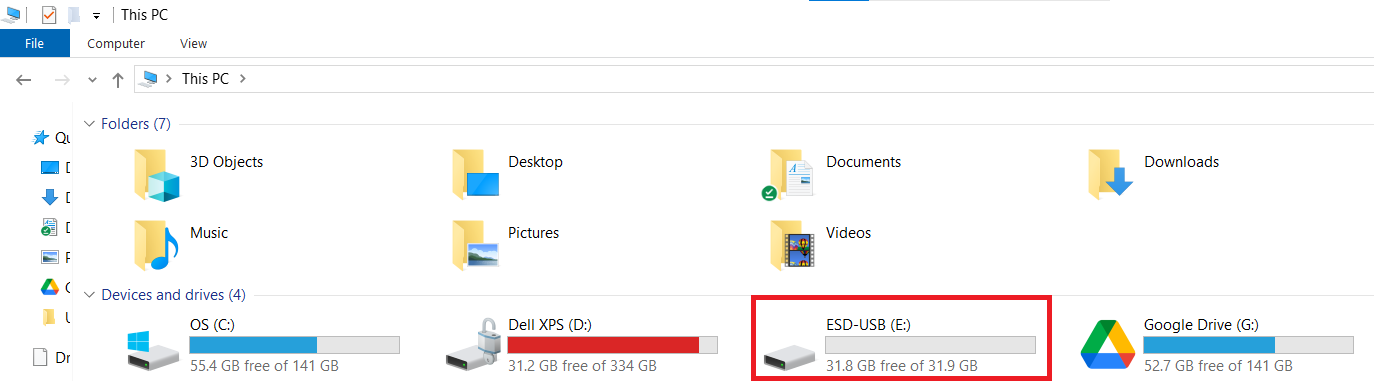
Insert your pendrive into your PC or laptop. Open This PC or Windows File Explorer and navigate to your portable USB drive letter.
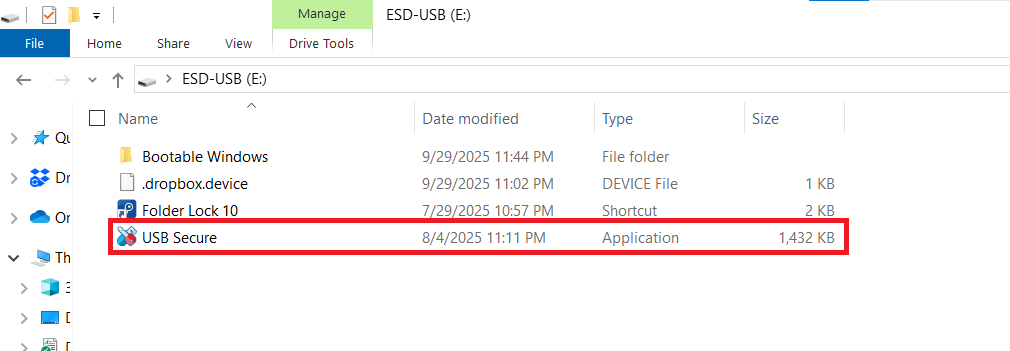
Inside the root directory of your pendrive, locate the USB Secure application executable and double-click to launch it.
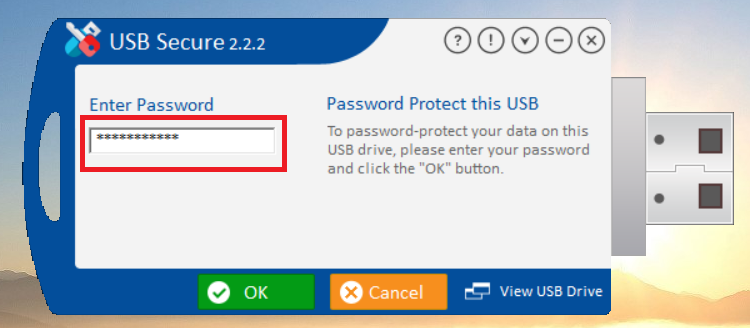
When the USB Secure login prompt appears, enter the master password you created during the initial setup.
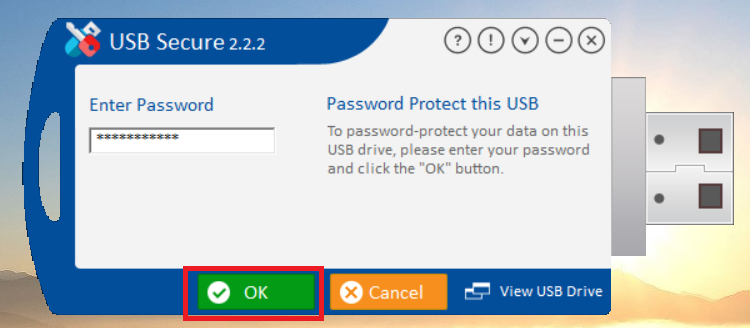
Click OK to authenticate and open the software dashboard.
Step 2: Transfer and Select Your Photo File
Ensure the target image file has been copied from your PC or laptop onto the USB flash drive. In our demonstration, we have transferred a sample image named Photo to the drive root. If you want to hide photos on mobile, NS Vault is preferable, but for pendrives, stick with USB Secure.

Confirm that the photo file is visible on the pendrive before locking.

To lock specific files rather than the entire drive, click the Select / Unselect button in the USB Secure control panel.
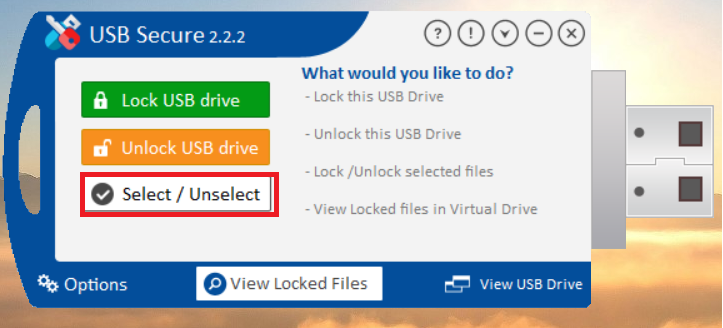
All items on your pendrive will appear in a checklist. Select your photo file by ticking the corresponding checkbox next to its name.

Click the Lock button. USB Secure immediately encrypts and hides the selected photo file.

Step 3: Verify the Locked Status of Your Photo
Once you click Lock, USB Secure confirms the security status by displaying the locked item in the protected files list.

Switch back to your Windows File Explorer window. Notice the visual change: your photo file has completely vanished from the drive, leaving only the USB Secure application executable and any unselected files visible. This effectively acts to lock folder structures directly on the hardware.

Best Folder Lock Software for Windows 11 Compatibility
Users often look for the best folder lock software for windows 11 that seamlessly integrates with modern operating environments while maintaining robust security. Whether you are using a legacy OS or Windows 11, USB Secure bridges the gap by ensuring portable encryption does not rely on Windows-specific dependencies that break when connected to older systems. For users who also want to safeguard their intellectual property against duplication, exploring a robust copy protect mechanism can provide additional defense in depth. Tools designed to folder protect environments on PC operate similarly but are anchored to the local hard drive.
Frequently Asked Questions (FAQs)
Can you password protect a usb flash drive without formatting it?
Does locking files affect the read/write performance of the pendrive?
If I forget my password, can I recover my files?
Are there ways to block USB access entirely on a host PC?
Ready to secure your files?
Join millions of users who trust Folder Lock to password protect their most sensitive photos, videos, and documents.