

Introduction:
USB drives are a storage option that does not limit the user from storing ample amount of data quickly. Their sizes vary from 2GB and up to 64GB of devices that are small, easy to use, and portable and in one word, are complete. However, with the passage of time, their usage have decreased as such devices have lost their trust among the users. It has happened as whenever you insert your drive into a public PC, you see your device filling up with multiple malwares, spywares etc. Hence, you need to run a scan on your drive to get rid of all the viruses. Regardless of all the drawbacks a USB drive has, users in masses are still involved in using such drives as for some users, USB drives are hard to replace.
Folder Lock Password Protect USB Drive.
Folder Lock is a dynamic data security software which enables you to create AES-256 bit encrypted lockers in which you can store your sensitive data. Regardless of the locker type, be it portable or standard, they have the flexibility to let you store a number of files. Also, the lockers are dynamic enough to be resized.
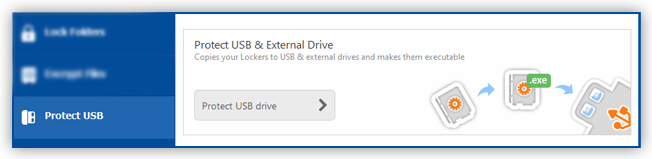
it’s simple to protect portable data. The ‘Protect USB’ feature enables you to shield your portable data, if you want to make your existing lockers portable, you can simply convert them into portable lockers. You don’t need folder lock to access your portable lockers on another PC, these lockers are self-executable and don’t require Folder Lock to run in the background.
There’s an option to create portable lockers larger than 4 GBs in size and make the Locker portable, keep in mind that two types of files will be created, Folder Lock portable.EXE and the actual Locker file(s) in the specified file destination.
Below is the instruction on how to convert your standard lockers into portable lockers:
Click on the ‘Protect USB Drive’ button.
Enter all the required information requested from you in the menu.
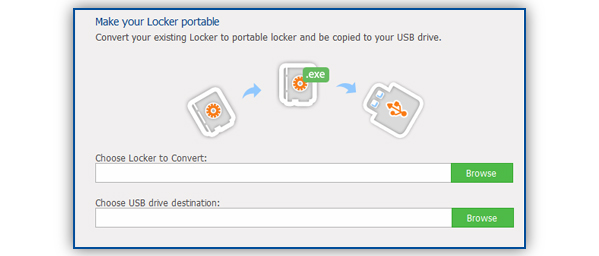
Now locate your existing locker from the file path where its saved. Now press ‘open’. Next, select the destination where you would like to place your portable locker. Click next to execute the locker copying procedure. Once the process is complete, simply click on ‘Finish’ button.
You have an option to add as many files as you like, given that you stay in the space limitations of your locker and your external drive.
Benefits:
Small and easy to use that
Does not require you to install any additional software to use the basic drive
Has flexible size of storage, which varies as per the need of the user
Portable to the maximum level
Drawbacks:
USB drives itself attracts viruses easily without any notification
These drives does not have its self-sufficient security