

How to Lock Drives With Folder Lock?
Till date, Folder Lock has been at the top in terms of providing dependable drive security. This software’s creators knew that providing protection only to files and folders would not be a lasting option and there would be a need to protect entire drives. Hence, now you can put a lock on entire drives with the help of Folder Lock’s password protection feature.
Considered a complete data security solution, Folder Lock is the most advanced encryption software that is built for businesses and individuals alike. The locking feature is the quickest means to secure frequently accessed data and drives. The feature is useful if you constantly need access to certain sensitive files, folders and drives.
The locking mechanism can ‘lock’ any software, personal media, individual files and folders.
Locking your drives is a simple procedure which can be executed in just a few seconds.
In order to lock your drives, run Folder Lock and enter your master password, you can also use the virtual keyboard to enter your credentials, this ensures that hackers are not able to record your password into a keylogging software.
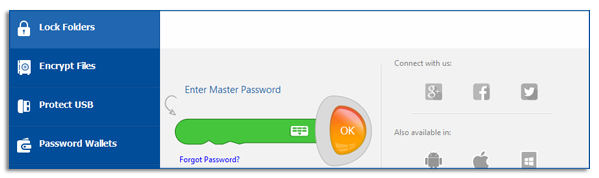
After entering your password, click on the ‘Lock Files’ button and then press the ‘Add’ button, this will in turn allow a drop down menu to appear. From the drop down list, click on the ‘Add Drives’ button.
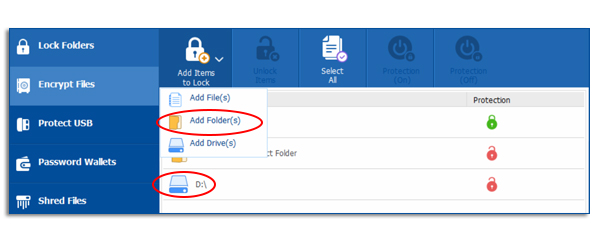
You can now proceed and start the process of Locking your drives in Folder Lock. You can Lock drives by clicking on the ‘Add’ button on the top menu. This will bring up a pull down menu from where you will need to select the ‘Add Drives(s)’ button to Lock drives. (see image below).
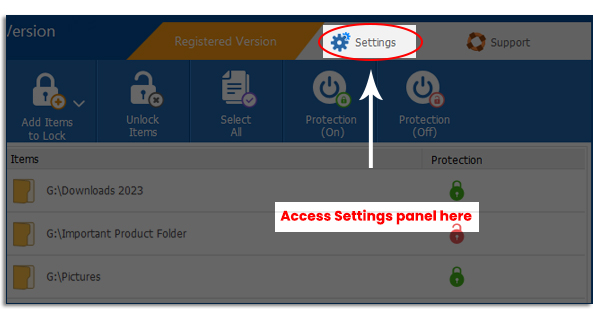
You can also lock your drives by dragging them anywhere from your computer and dropping them into the program window. As soon as the item is dropped, it gets listed and locked. Similarly, as soon as you have added your selected drives to the Locking list, the security setting of Locked will be applied to the drive(s), which will make your Locked drives completely inaccessible (Locked).
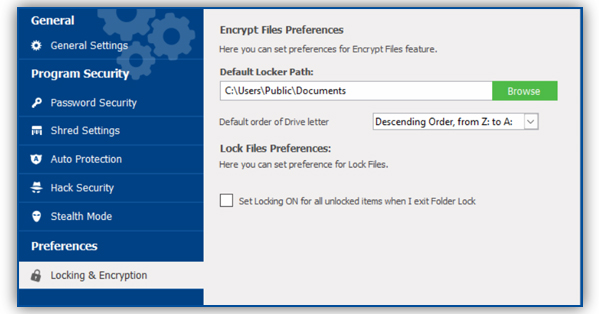
Now your drive(s) that have been added to the list will ALL be Locked. With the Locked security setting, the items in the Locked list will not be accessible (i.e. Copying, Moving, and/or Deletion to & from the Locked drives will not be allowed). The Locked security setting will make ALL your Locked drives inaccessible, even when others can view them.
You have the option to lock or unlock individual files, folder and drives by simply clicking the ‘Lock’ and ‘Unlock’ button.
Keep in mind that Folder Lock’s locking feature will not allow you to lock lockers files such as. flk files.
Furthermore, all restricted files and folders in a drive and/or restricted drives CANNOT be added to the Lock Files list for Lock protection.
When you add your drive(s) to the Locking list, the drive(s) will get added to the Locking list but WILL NOT be hidden.
Aside from enabling you to Lock drives with Folder Lock, the Lock Files feature in Folder Lock also enables you to Hide your files and folders.
Summary:
Folder Lock is known for being the best encryption software in its category but that does not stop it from being better in other fields of expertise. With the passage of time, this software emerged victorious in other categories as well like the basic password protection, entire drive protection, extension security etc.