

Introduction:
Folder Lock is known for being the best encryption software that has less or no competition. However, this software’s uniqueness is not limited to only this feature. It has further abilities of protecting drives, extensions etc. In addition, it also has a CD data locking software that lets you create self-executable lockers that does not ask you to install Folder Lock on another PC to access the created locker.
How Folder Lock Works as a CD data Locking Software?
Folder Lock is a total data security suite that uses military grade encryption to safeguard your data from hackers and snoopers. The software uses the most advanced encryption algorithm which is AES-256 bit. The software is an all in one solution for all your data security worries. It can safeguard your data in all aspects, including data on your external drives such as USB drives and CD drives.
In regards to portable data security, Folder Lock lets you create unique self-executable (.exe) lockers which that allow you to drag and drop your data inside those lockers. Each individual locker comes with AES-256-bit encryption protection. You have the option to create lockers on a fixed drive and then convert them into portable lockers which can be burned onto a CD. All your lockers on CD drives are password-protected and encrypted, ensuring that your data never leaks into wrong hands. Since these lockers are self-executable, they don’t need Folder Lock to be installed on the guest PC, you can simply open these lockers by inputting your password, as these lockers are self-executable and independent of Folder Lock.
Protecting your data onto a CD is a simple and straightforward process, to get started, follow the instructions mentioned below:
The ‘Protect USB/CD’ feature enables you to convert existing lockers into portable lockers or create a new locker which will be burned directly into the CD. To get started, follow the instructions in the creation wizard:
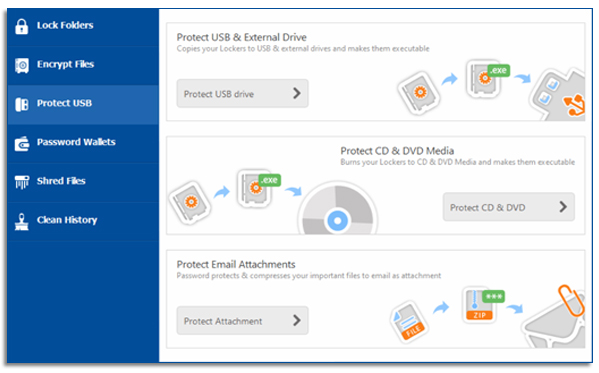
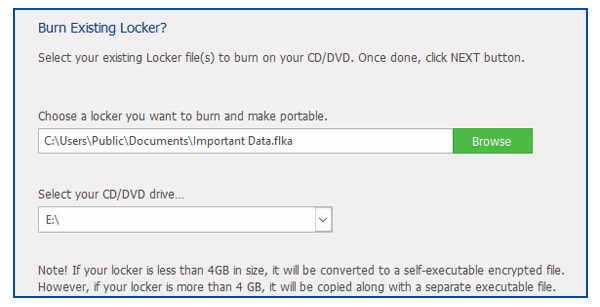
To convert existing lockers into portable lockers, choose the locker which you want to convert into a portable locker. Now select the location of your CD drive, and follow the creation wizard instructions.
To open your locker on your CD, simply double click on the locker, enter your password and virtual drive will open containing your data, the default drive will be named Z.
Keep in mind that in order to access your portable lockers on a guest PC, you will need to have administrative rights, therefore, you should open the locker as an administrator.
Verdict:
The option of creating portable locker on a CD is quite a feasible option that lets you travel with data with less or no hassle. These self-executables are quite comfortable to use and are not in need of any further installation of the software on another PC.