
Folder Lock enables you to encrypt any number of your files and folders. Using Military Standard 256-bit AES on-the-fly encryption to protect your important files, Folder Lock encrypts your important data and gives you a complete peace of mind when it comes to keeping your files safe. Folder Lock encrypts and decrypts your files on-the-fly i.e. the contents of your files are loaded in memory instead of your computer's hard drive. This guarantees that your data is unrecoverable from the hard drive, and is, therefore, faster than normal encryption and decryption as this method does not decrypt everything in your hard drive. Folder Lock also offers additional benefits over many other similar products in the market including Backup Online, which backs up all your encrypted files to your online backup account, re-adjust Locker size automatically, and be portable and secured at the same time.
Encrypting your files with Folder Lock is a breeze, and the program has been developed so that all processes are run on-the-fly and behind the scene.
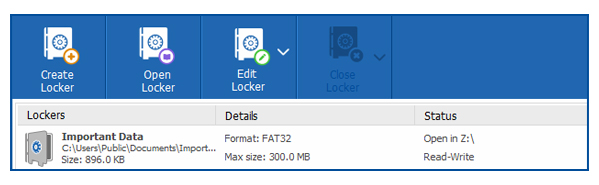
To start encrypting your files, you will need to create a Locker. To do this, go to the 'Encrypt Files' feature in Folder Lock and click on the 'Create Locker' button on the top menu. (see image below).

The 'Create Locker' button will create your Locker, which is an encrypted storage file that uses government-level 256-bit AES encryption algorithm to store and protect your important files and folders.
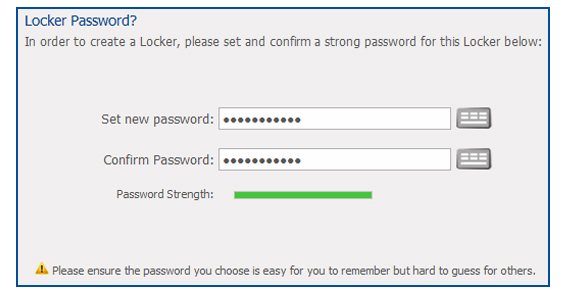
Once you click on the 'Create Locker' button, the Locker creation wizard will start. The first step is to input the Locker name (e.g. Locker01) and 'Locker Path' which is the My Documents folder by default. Click 'Next' to continue to enter the Locker password details (see image below).

SINCE PASSWORDS ARE IRRECOVERABLE IN, AND THROUGH, FOLDER LOCK, IT ADVISABLE THAT YOU KEEP A HARD-TO-GUESS YET EASY-TO-REMEMBER PASSWORD. Passwords must also abide by the minimum of 6 characters and a maximum of 100 characters in length rule.
For convenience of having an extensive password possibilities, Folder Lock allows you to also use Alphanumeric or special characters to set your password and to set your password with the help of the Virtual Keyboard to protect against Keystroke recorders or Keyloggers.
After setting and confirming your Locker Password, click 'Next' to continue to the Locker Type screen where you will specify the type of Locker that you wish to create (see image below). You have an option of two unique Locker types: 1) Portable Locker; and 2) Basic Locker. The wizard will have selected the Portable Locker for you by default.

If you wish to keep a backup of your encrypted Locker online, then you may keep the Portable Locker selected. However, you may alternatively create a Basic Locker which is a Locker without the online backup support. Basic Lockers will allow you to encrypt files and folders with Folder Lock of any size. However, Basic Lockers CANNOT be backed up.
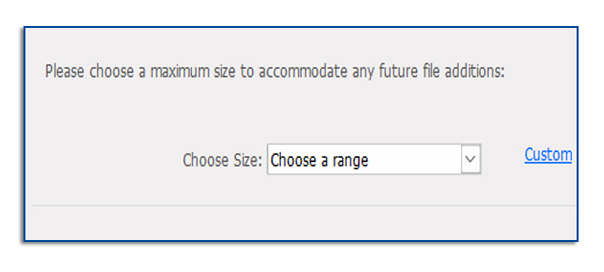
Once you have selected your Locker type, click 'Next' to proceed further and select the data size you wish to protect in your Locker (see image below). PLEASE KEEP IN MIND THAT YOU WILL NOT BE ABLE TO CHANGE YOUR LOCKER DATA SIZE IN THE FUTURE, therefore, it is strongly recommend that you select a maximum size for your data to allow for any future data protection needs.

You can choose between the preset data sizes available or you may enter your own Locker data size by clicking on the 'Custom' link. Do keep in mind, however, to set a Locker data size between 300 MB to 2 TB. When done, the wizard will display the size of the Locker-file that will be required to create your Locker, as well as the available disk-space. Click on the 'Next' button to start the Locker creation process. The wizard displays a progress bar that will show until the Locker creation process is completed.
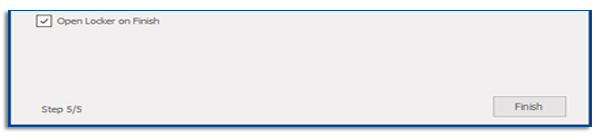
After your Locker has been successfully created, the wizard will display Locker Name, Locker Path, Locker Size, and the Locker Type of your new Locker, as well as give you the option to open the Locker after you click on the 'Finish' button (see image below).

To open the Locker after you click on the 'Finish' button, simply select the checkbox next to Open Locker on Finish to do this. This will mount and open the newly created Locker on a drive. The default drive on which the Locker mounts is Z:\ (see image below).

From the list of Lockers in the main Encrypt Files feature, you may then select your Locker and start adding your folders to it. However, if you do not wish to open the newly created Locker at this time, simply remove the check from the checkbox, and click on the 'Finish' button to close the wizard, and you will be taken to the Locker list in the main 'Encrypt Files' interface, which will also show your newly created Locker. From the Locker List, you can then Open, Edit, Copy/Move, and Delete your Locker. Optionally, you may also add this Locker to the 'Backup Online' list.
You can encrypt files and folders with Folder Lock in the following ways from within Folder Lock:
If Your Locker Is Not In The Encrypt Files List. (see image below).

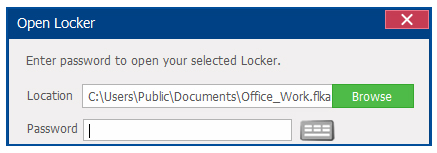
To encrypt files and folders with Folder Lock with Folder Lock if your Locker is not listed in the Encrypt Files list, go to the Encrypt Files module in Folder Lock, and click on the 'Open Locker' button on the top menu to locate and select your Locker from the your PC. Click on the 'Browse' button in the 'Locker Location' field to locate your Locker. Next, enter the Locker password in the 'Enter Password' field.
Once you have entered all the required details, click on 'Open' to open your Locker in Windows Explorer. Simply select your folders that you wish to encrypt and add them to the Locker by drag-n-drop or by the copy/paste method. Close the window and that is all there is to it. Your folders are now encrypted with military standard 256-bit AES encryption.
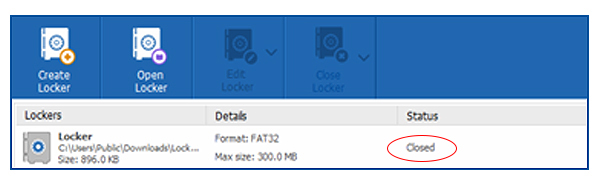
If Your Locker Is Closed And Listed In The Encrypt Files List. (see image below)

To encrypt files and folders with Folder Lock with Folder Lock if your Locker is listed in the Encrypt Files list and displays the Closed status, then go to the Encrypt Files module in Folder Lock and select your Locker. Next, click on the 'Open Locker' button on the top menu and in the popup window, enter the Locker password in the 'Enter Password' field. Click on 'Open' to open your Locker in Windows Explorer. Simply select your files and folders that you wish to encrypt and add them to the Locker by drag-n-drop or by the copy/paste method. Close the window and that is all there is to it. Your folders are now encrypted with military standard 256-bit encryption.
If Your Locker Is Open And Listed In The Encrypt Files List. (see image below)

To encrypt files and folders with Folder Lock with Folder Lock if your Locker is listed in the Encrypt Files list and displays the Opened status, then go to the Encrypt Files module in Folder Lock and select your Locker. Next, click on the 'Explore' button placed at bottom-left of the list and in the Locker window that pops up, simply select your files and folders that you wish to encrypt and add them to the Locker by drag-n-drop or by the copy/paste method. Close the window and that is all there is to it. Your files and folders are now encrypted with military standard 256-bit encryption.