

Introduction:
With the passage of time, our systems and their browsers are filled with limitless amount of data in the form of old history and logs of the sites we visited. This happens as we forget that we are also supposed to clear our history records regularly to improve the performance and speed. The lesser the space consumed, the more the speed you experience. In addition, the history is also cleared by the masses to prevent someone from identifying what you have been up to. In case if you are working on a research work, anyone with the help of your history could identify the sources you used and create a similar kind of research work limiting you the applause you deserved.
How to clean Windows history?
Clean History is a powerful evidence-cleaning feature in Folder Lock that securely removes all recent activities of your PC. Clean History works by allowing you to select multiple Windows items where you have may have left your footprint and remove any and all traces left behind. Clean History, thus, maximizes your privacy, a breach of which can cause you much distress.
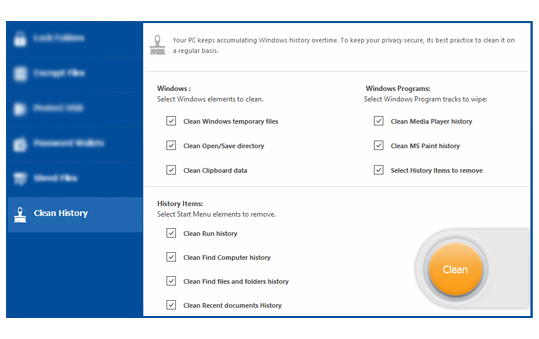
Clean History removes traces of recent computer activities like Windows Temporary Files, Open/Save Directory, Clipboard Data, Media Player History, MS Paint History, WordPad History, Run History, Find & Search Computer History, Recent Documents History, and much more!
Step 1
To start using Clean History in Folder Lock, simply run Folder Lock and go to the Clean History feature. Once you are in the Clean History feature, you will see a screen showing different Windows categories and their individual elements. These Windows elements are where you may have left traces of your computer activity.
Step 2
When you go to the Clean History feature in Folder Lock, you will see elements from three different categories. These categories are Windows, Windows Programs, and Start Menu. The Windows elements include Windows Temporary Files, Open/Save Directory History, and Clipboard Data. The Windows Programs elements include Media Player History, MS Paint History, and WordPad History.
The Start Menu elements include Run History, Find Computer History, Find Files & Folders History, and Recent Documents History. To clean any of the items listed above in any of the three Windows categories, simply select and enable each item individually. Once you have selected your preferred items for cleaning, click on the ‘Clean’ button to start the cleaning process.
Moreover, you can also set the application to perform history cleaning upon applicant exit. To set this behavior in Folder Lock, go to the Settings panel placed above the main menu, and then proceed to the General Settings tab. Once there, deselect/uncheck the ‘Perform History On Application Exit’ option. Click on the ‘Apply’ button to confirm your setting and then press ‘OK’ to exit the Settings panel.
Please note that, by default, under the Windows category, the ‘Windows Temporary Files’ option will NOT be selected. To select this option and include it in the history cleaning process, simply click on the checkbox for this option.
Verdict:
The cleaning of history should be made a regular step that you should implement on the weekly or the monthly basis depending upon your usage. Clearing it simply helps you to be faster than before as well as maintaining full autonomy over preventing anyone from checking what you have been up to lately. Hence, you get full freedom to access whatever you want without making less or no efforts in getting rid of it.